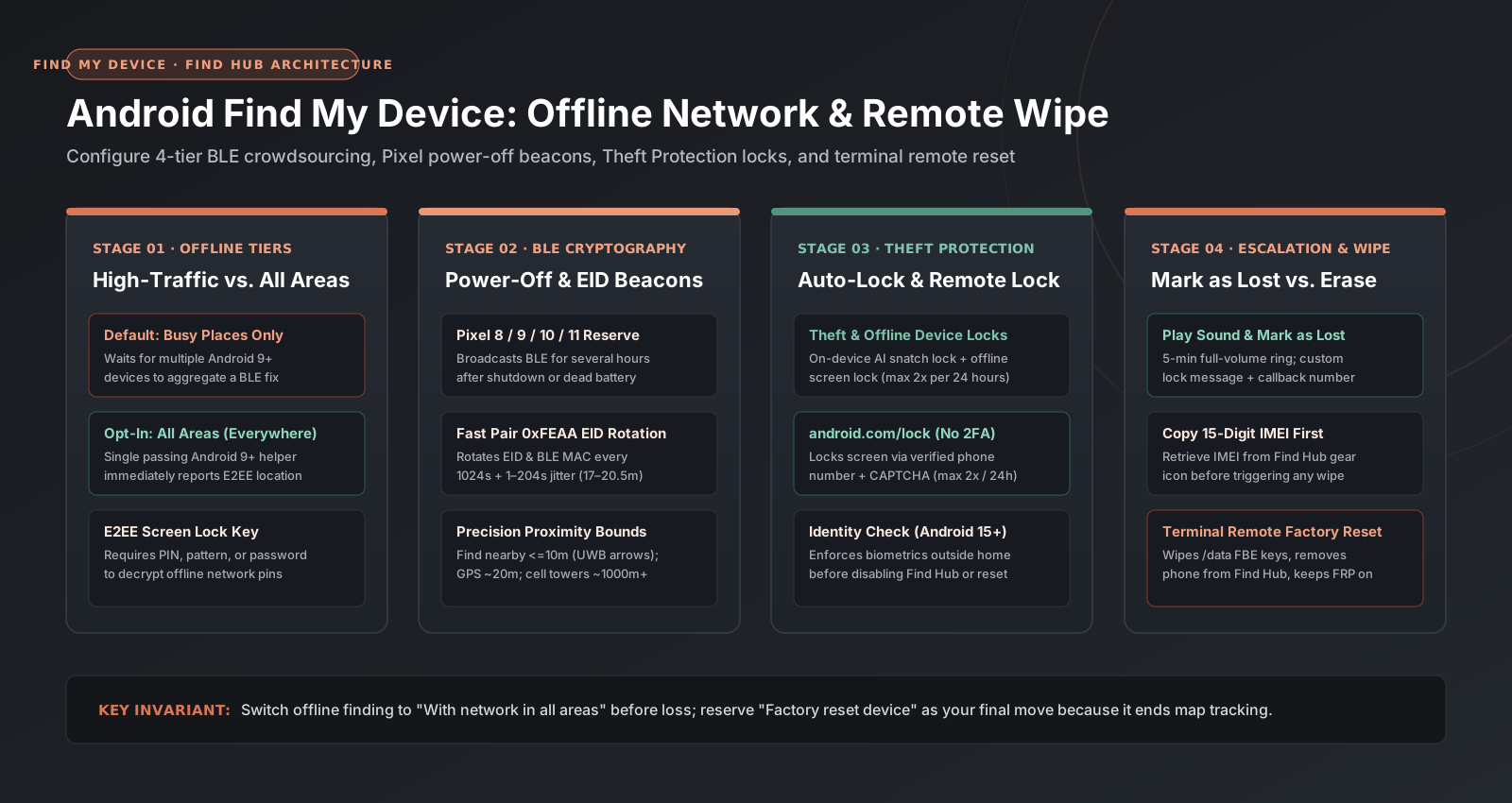
Leaving Android Find My Device on its default offline setting or clicking Factory Reset too early can stall Bluetooth location recovery on quiet streets and permanently cut off map tracking when your phone is lost or stolen. To maximize recovery odds and protect your accounts, switch offline finding from high-traffic aggregation to all areas, arm Theft Detection Lock and Remote Lock, and escalate through Play Sound and Mark as Lost before touching remote erase.
To configure Android Find My Device (now labeled Find Hub), enable Allow device to be located, set a screen lock PIN or password, and change Find your offline devices from With network in high-traffic areas only to With network in all areas. If your phone is stolen, lock it immediately at android.com/lock, track or mark it lost at android.com/find, and use Factory reset device only as a final resort.
| Recovery Control or Network Mode | Exact Menu Path or Web Portal | Minimum OS & Hardware Requirement | Cryptographic / Network Behavior | Operational Rate Limit or Constraint |
|---|---|---|---|---|
| Offline Network: High-traffic / Busy places (Default) | Settings > Google > All services > Find Hub > Find your offline devices |
Android 9+ with screen lock (PIN, pattern, or password) enabled |
Waits for multiple passing Android 9+ devices to detect the BLE beacon before reporting location | Fails in low-traffic residential streets, parked cars, or trails where only 1 phone passes |
| Offline Network: All areas / Everywhere (Recommended) | Settings > Google > All services > Find Hub > Find your offline devices |
Android 9+ with screen lock enabled | Single passing Android 9+ device with all areas enabled immediately uploads E2EE coordinates |
Requires manual opt-in before the phone is lost |
| Powered-Off / Dead-Battery Finding | Automatic when High-traffic or All areas is enabled |
Pixel 8 / 8 Pro / 8a, Pixel 9, Pixel 10, Pixel 11 series with reserve BLE hardware | Reserve battery feeds Bluetooth controller to broadcast Fast Pair 0xFEAA EIDs after shutdown |
Bluetooth and Location must both be ON when the phone turns off; lasts several hours |
| Theft Detection Lock & Offline Device Lock | Settings > Google > All services > Personal & device safety > Theft protection |
Android 10+ via Google Play services (phones only; excludes tablets/Android Go) | Locks screen via on-device snatch-motion AI or shortly after an unlocked phone goes offline | Offline Device Lock locks the screen at most twice in a 24-hour period |
| Remote Lock (No-2FA Emergency Lock) | https://www.android.com/lock (Settings > Google > Theft protection > Remote Lock) |
Android 10+ with active SIM card, verified phone number, and screen lock | Locks screen using only verified phone number + CAPTCHA + optional security question (bypasses 2FA) | Can lock the screen at most twice in a 24-hour period |
| Identity Check (Biometric Gate) | Settings > Google > All services > Theft protection > Identity Check |
Android 15+ on supported Pixel and Samsung One UI 7+ flagships | Forces Fingerprint or Face Unlock outside Trusted Places before disabling Find Hub or resetting | Blocks fallback to a shoulder-surfed PIN, pattern, or password outside Home/Work |
Mark as Lost (Secure device) |
https://www.android.com/find or Find Hub app |
Android 5.0+ online (Android 17+ adds 2-step biometric + PIN enforcement) | Locks screen, signs out of Google Account, and posts custom message + callback phone number | Preserves full online and BLE offline location tracking |
Remote Wipe (Factory reset device) |
https://www.android.com/find or smartthingsfind.samsung.com |
Any connected Android device (executes immediately or queues until online) | Destroys /data AES-256 FBE encryption keys while leaving /frp (persistent_data_block) locked |
TERMINAL: Permanently removes device from Find Hub map; stock reset may not wipe SD card |
1. Online vs. Crowdsourced Offline Tracking: How Find My Device (Find Hub) Works Today
Google’s native lost-phone platform—originally introduced in August 2013 as Android Device Manager, rebranded as Find My Device, and updated across current Google support documentation and Google Play services builds as Find Hub—operates across two distinct transport layers: live internet telemetry (Wi-Fi and cellular data) and the crowdsourced Bluetooth Low Energy (BLE) Find My Device offline tracking network spanning over one billion Android 9+ devices (Google Keyword Blog).
Whether your phone’s settings menu displays Find My Device or Find Hub, both point to the same web console at https://www.android.com/find (and https://www.google.com/android/find). According to Google Account Help (answer/6160491) and Google Android Help (answer/3265955), remotely locating, ringing, locking, or erasing an Android device requires five baseline prerequisites configured while the handset is still in your possession:
- Signed-In Google Account: Verified under
Settings > Passwords, passkeys and accounts. When you add a Google Account to an Android handset, Find Hub activates automatically, and the most recent location is made available to the first account activated on the device (Google Account Help). - OS Location Services Enabled: Toggled on at
Settings > Location > Use location. System-level Find Hub location access is governed separately from per-app coarse or precise location permissions covered in our Android 17 precise location controls guide. - Device Finder Master Toggle On: Verified at
Settings > Security & privacy > Device finders > Find Hub(orSettings > Google > All services > Find My Device) with Allow device to be located switched on. - Google Play Visibility Checked: Open
https://play.google.com/library/devicesin a browser and confirm that Show in Menus is checked next to your handset (Google Android Help (answer/3265955)). UncheckingShow in Menusin Google Play hides the phone fromandroid.com/find. - Screen Lock (
PIN,Pattern, orPassword) Set: Mandatory for end-to-end encryption (E2EE) key wrapping on the offline Bluetooth network (Google Android Help (answer/14796936)).
Reading Map Accuracy Rings (10 m Find Nearby vs. 20 m GPS vs. Cell Towers)
When a phone is located on android.com/find, the blue confidence circle around the pin tells you which radio technology produced the fix. Misreading a wide cellular estimate as an exact house address is one of the most common mistakes during recovery. Per Google Account Help (answer/6160491), Find Hub uses four location tiers:
| Location Method | Stated Accuracy / Activation Range | How It Works & Indoor / Underground Behavior |
|---|---|---|
| Find nearby (BLE + UWB proximity) | Within 10 meters (~33 feet) |
Activates the Find nearby button in the Find Hub app, displaying a geometric shape that progressively fills as you walk closer. On Android 13+ UWB flagships paired with UWB tags, adds real-time distance and directional arrows. |
| GPS Satellites | Up to around 20 meters (~65 feet) |
Uses satellite triangulation outdoors; degrades or becomes inaccurate inside multi-story buildings, parking garages, or underground transit stations. |
| Wi-Fi Positioning | Building / floor-level geometry | Matches BSSID MAC addresses and signal strengths of nearby wireless access points against location databases indoors. |
| Cell Towers | Up to a few thousand meters | Estimates distance from carrier base stations when GPS and Wi-Fi are unavailable; indicates a broad neighborhood radius, never a specific room or doorstep. |
Takeaway: Verify all five baseline settings—including Show in Menus at play.google.com/library/devices and a lock-screen PIN—and always check the blue confidence radius before assuming a map pin points to a specific building.
2. The 4-Tier Offline Finding Modes: Why the Default “High-Traffic / Busy Places” Mode Stalls on Quiet Streets
Even when your phone runs out of mobile data, enters an underground garage, or has its physical SIM card removed by a thief, Android 9 and newer devices can be located through Google’s crowdsourced Bluetooth network—provided you change one critical setting before the device goes missing.
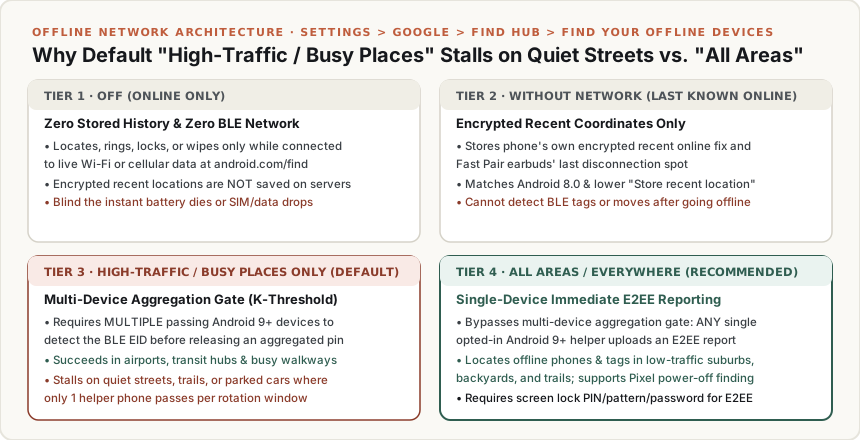
Open Settings > Google > All services > Find Hub (or Find My Device) > Find your offline devices. As documented in Google Android Help’s readiness guide (answer/3265955) and Find Hub data protection specification (answer/14796936), Android presents four mutually exclusive offline finding tiers:
Off: Turns off offline finding completely. Your phone does not participate in the crowdsourced Bluetooth network, and Google does not store encrypted recent online locations. You can still locate, ring, lock, or wipe the phone atandroid.com/findwhile it has an active Wi-Fi or cellular data connection (unless you also turn offAllow device to be located).Without network: Opts your handset out of the crowdsourced Bluetooth network (meaning passing strangers’ Android phones cannot detect your offline phone, and you cannot use Find Hub Bluetooth tracker tags). However, your phone periodically uploads its own encrypted recent locations while online—along with the last location where connected Fast Pair accessories (such as Pixel Buds) were paired—so you can view its final known online coordinate if it goes offline.- Legacy OS note: Phones running Android 8.0 or lower cannot join the crowdsourced Bluetooth network (
Android 9+is required), so they expose an equivalent toggle atSettings > Google > All services > Find Hub > Store recent location(Google Android Help (answer/3265955)).
- Legacy OS note: Phones running Android 8.0 or lower cannot join the crowdsourced Bluetooth network (
With network in high-traffic areas only(labeledWith network in busy places onlyin updated Find Hub builds — THE DEFAULT): Enforces multi-device location aggregation. As explained by Dave Kleidermacher, VP of Engineering for Android Security & Privacy, on the Google Online Security Blog, the default network requires multiple nearby Android devices to independently detect a lost phone or tag before the network computes an aggregated location and releases it to the owner.With network in all areas(labeledWith network everywherein updated Find Hub builds — RECOMMENDED OPT-IN): Removes the multi-device aggregation gate. As soon as even a single participating Android 9+ device withall areas(everywhere) enabled passes within Bluetooth range of your offline phone or tag, that single helper phone uploads an end-to-end encrypted location report that you can decrypt immediately (Google Android Help (answer/14796936)).
Why the Default Setting Fails in Suburban and Off-Grid Loss Scenarios
Google designed multi-device aggregation in the default high-traffic areas only (busy places only) tier as an anti-stalking safeguard: requiring multiple observers prevents an attacker from slipping a rogue tag into someone’s bag and tracking them back to an isolated private residence where no other Android users are present (Google Online Security Blog).
However, that same multi-observer threshold creates a major blind spot for legitimate phone recovery outside crowded airports, transit stations, and commercial centers. If your phone falls out of your pocket on a suburban sidewalk, sits inside a locked car on a quiet street, or drops along a hiking trail, a single dog-walker or cyclist carrying an Android phone may pass within Bluetooth range every 20 to 30 minutes. Under With network in high-traffic areas only, a single helper detection does not satisfy the multi-device aggregation requirement, leaving your map empty. Switching to With network in all areas (With network everywhere) ensures that single passerby’s detection is released to your map immediately.
Rule of thumb: Open
Settings > Google > All services > Find Hub > Find your offline devicesright now and switch fromWith network in high-traffic areas only(busy places only) toWith network in all areas(With network everywhere) on every phone and tablet you own.
Takeaway: The default high-traffic areas only mode suppresses single-device Bluetooth detections by design; manually switch to With network in all areas so a single passing Android 9+ device can report your offline phone’s location.
3. Powered-Off Finding (Pixel 8 / 9 / 10 / 11) & Fast Pair Ephemeral Identifier (EID) Cryptography
On most Android smartphones, once the battery drops to 0% or someone holds the power button to shut the operating system down, the Bluetooth radio loses power and crowdsourced offline tracking stops at the phone’s last recorded location.
How Pixel Powered-Off Finding Works (Pixel 8 Series and Newer)
Starting with the Google Pixel 8, Pixel 8 Pro, and Pixel 8a—and continuing across the Pixel 9 series, Pixel 10 series, and Pixel 11 series (covered in our Pixel 8 seven-year update lifecycle analysis)—Google engineered specialized power-routing hardware that feeds reserve battery energy directly to the Bluetooth controller chip even after the main Tensor application processor and Android OS have completely shut down (Google Keyword Blog).
Per Google Android Help (answer/3265955), the Find Hub network can continue locating a supported Pixel phone for several hours after the battery runs out or the device is turned off, provided three conditions are met at the moment of shutdown:
- Supported Pixel Hardware: Pixel 8 series or newer with reserve BLE beacon support.
- Offline Network Mode Active:
Find your offline devicesis set to eitherWith network in high-traffic areas only(busy places only) orWith network in all areas(everywhere). - Both Radios Enabled at Shutdown: Both Bluetooth and Location must be turned ON when the phone powers off or depletes its battery. If you manually toggle Bluetooth or Location off before shutting the phone down, powered-off beacon broadcasting is disabled.
Under the Hood: Fast Pair FMDN / FHN v1.3 Ephemeral Identifiers (EID) & E2EE Keys
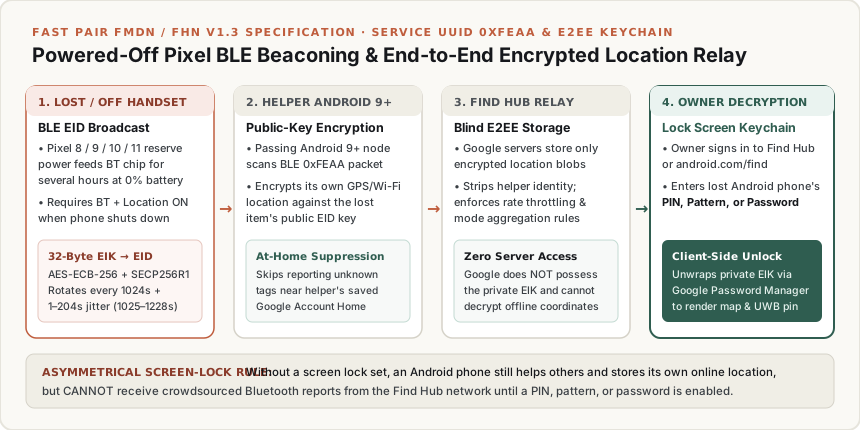
How does an offline phone or Bluetooth tag broadcast its presence to strangers’ phones without allowing bystanders to track your movements or letting Google read your location history? The cryptographic protocol is defined in the Google Fast Pair Find Hub Network Accessory Specification (FMDN / FHN v1.3) and Google Android Help (answer/14796936):
- Fast Pair BLE Frame (
Service UUID 0xFEAA): When offline, your phone or compatible tracker tag (such as a Chipolo Point, Pebblebee, Moto Tag, or enterprise tag covered in our Google Pixel Tag business asset guide) broadcasts a Bluetooth Low Energy advertisement carrying a 20-byte or 32-byte Ephemeral Identifier (EID). TheEIDis derived from a secret 32-byte Ephemeral Identity Key (EIK) usingAES-ECB-256and elliptic-curve cryptography (SECP160R1orSECP256R1). - Synchronous
EID& BLE MAC Rotation (1025–1228 seconds): To prevent passive Bluetooth sniffers from following a static hardware address, the FMDN v1.3 specification mandates that theEIDand the randomized BLE MAC address rotate synchronously every 1024 seconds on average, plus a pseudo-random jitter offset (J) between +1 and +204 seconds (1025to1228 seconds, or roughly every 17.1 to 20.5 minutes). - End-to-End Encrypted Keychain Wrapping: When a passing Android 9+ phone detects an
EID, it encrypts its current GPS/Wi-Fi coordinates against thatEID’s public elliptic-curve key and uploads the ciphertext to Google. Your privateEIKdecryption key is backed by Google Password Manager’s end-to-end encrypted keychain and locked behind your Android phone’s screen lock PIN, pattern, or password (Google Android Help (answer/14796936)). Google cannot decrypt the coordinates or identify which passing Android user contributed the report. - ** The Asymmetrical Screen-Lock Rule:** Google Android Help (
answer/14796936) highlights an important asymmetrical rule: if you do not set a PIN, pattern, or password on your Android phone, your phone still contributes detections to help other users and still saves its own online locations (encrypted with your Google Account password), but it cannot use the crowdsourced Find Hub network to receive offline Bluetooth reports for itself until you configure a screen lock. - At-Home Suppression & Unknown Tracker Alerts (
Android 6.0+): To prevent unwanted tracking, if a helper phone is near the Home address saved in its owner’s Google Account, it automatically suppresses crowdsourced reports for unknown tags (Google Online Security Blog). Furthermore, all phones running Android 6.0 and newer include built-in Unknown Tracker Alerts (Settings > Safety & emergency > Unknown tracker alerts), which allow a 10-second manual scan, ring separated tags at a spec-mandated minimum peak volume of 60 Phon for 12 seconds (ISO 532-1:2017) without alerting the tag’s owner, and slow BLE MAC rotation to once per 24 hours when an unowned tracker is traveling with a victim (Google Android Help (answer/13658562); FMDN Spec v1.3).
Worked Example: EID Rotation Window & Expected Offline Detection Wait Time
Per the Fast Pair FMDN v1.3 specification, each cryptographic Ephemeral Identifier (EID) broadcast window (TEID, in seconds) combines the base interval (Tbase = 1024 s) with a random jitter offset (J ∈ [1, 204] s):
TEID = Tbase + J = 1024 + J seconds (where 1 ≤ J ≤ 204)
This yields a minimum rotation window of 1024 + 1 = 1025 seconds (17 minutes 5 seconds) and a maximum rotation window of 1024 + 204 = 1228 seconds (20 minutes 28 seconds).
Now compare the expected wait time (Wreport, in minutes) to receive a valid offline location report when a phone is dropped on a quiet residential street where participating Android 9+ helper phones pass at an average rate of Rpass = 1.5 phones per hour (0.025 phones/minute), requiring K = 1 helper node under With network in all areas versus K = 3 independent helper nodes within an aggregation window under With network in high-traffic areas only:
Wreport = (K ÷ Rpass) × 60 minutes
- In
With network in all areas(K = 1):Wreport = (1 ÷ 1.5) × 60 = 40 minutesfor the first passing Android 9+ phone withall areasenabled to upload an immediately decryptable coordinate. - In
With network in high-traffic areas only(K = 3):Wreport = (3 ÷ 1.5) × 60 = 120 minutesof cumulative passerby traffic—and because the beacon’sEIDrotates every17.1–20.5 minutes(1025–1228 seconds), isolated single-device sightings separated by 40 minutes never cross the multi-device aggregation threshold in busy-places mode.
Takeaway: Keep Bluetooth, Location, and a screen lock enabled at all times so supported Pixel 8 through Pixel 11 handsets can broadcast rotating 0xFEAA EID beacons even for several hours after battery depletion.
4. Android 10–15+ Theft Protection Layers: Theft Detection Lock, Offline Device Lock, Remote Lock & Identity Check
Find My Device was originally designed for misplaced phones resting under a couch cushion or left in a restaurant. When a thief snatches an unlocked phone directly out of your hand on the street, their immediate playbook is to keep the screen awake, pull down Quick Settings to turn on Airplane Mode, or change your Google Account credentials before you can reach another device.
To close that post-snatch window, Google rolled out a multi-layered Android Theft Protection suite documented in Google Android Help (answer/15146908) and the Google Online Security Blog. Open Settings > Google > All services > Personal & device safety > Theft protection and enable all four protections:
| Theft Protection Feature | OS & Device Eligibility | Trigger Mechanism | Operational Suppression Gates & Rate Limits |
|---|---|---|---|
| Theft Detection Lock | Android 10+ via Google Play services (smartphones only; excludes tablets & Android Go) | On-device AI analyzes accelerometer/gyroscope motion, Wi-Fi, and Bluetooth signals to detect a snatch-and-run, bike, or drive-away motion | Does not trigger if screen is already locked, if phone has a stable Wi-Fi or Bluetooth connection, or after repeated locks in a short window |
| Offline Device Lock | Android 10+ via Google Play services | Automatically locks the screen shortly after a thief disconnects an unlocked phone from Wi-Fi and mobile data | Phone must be unlocked when it goes offline; locks the screen at most twice in a 24-hour period |
Remote Lock (android.com/lock) |
Android 10+ with active SIM, verified phone number, screen lock, and Find Hub on | Allows locking the screen from any browser at android.com/lock using only your verified phone number + CAPTCHA + optional security question |
Bypasses 2-Step Verification login catch-22; locks the screen at most twice in a 24-hour period |
| Identity Check | Android 15+ on supported Pixel and Samsung One UI 7+ flagships | Requires Fingerprint or Face Unlock outside designated Trusted Places (Home/Work) before accessing sensitive security settings | Explicitly blocks fallback to a shoulder-surfed PIN, pattern, or password when outside Trusted Places |
How Remote Lock (android.com/lock) Solves the 2-Step Verification Catch-22
Consider what happens the moment your primary phone is stolen: if you borrow a friend’s phone and open https://www.android.com/find to lock or locate your handset, Google prompts you to sign into your Google Account—and sends the 2-Step Verification (2FA) prompt or SMS code directly to your stolen phone!
As detailed in Google Android Help (answer/3265955) and Theft Protection documentation (answer/15146908), you should solve this before an emergency in two ways:
- Arm
Remote Lock(android.com/lock) for Instant No-2FA Containment: UnderSettings > Google > All services > Theft protection > Remote Lock, turn the toggle on, verify your phone number, and add an optional security question and answer. If your phone is ever taken, go tohttps://www.android.com/lockon any browser, type your phone number, answer your security question, and check the"I'm not a robot"box. Your phone screen locks immediately (up to twice per 24 hours) without requiring a Google Account sign-in. - Prepare a Secondary 2FA Factor for Full
android.com/findAccess: Becauseandroid.com/lockonly locks the screen (it does not show a map or erase data), Google Android Help (answer/3265955) instructs printing or storing 8-digit 2-Step Verification backup codes (myaccount.google.com/security) or registering a physical FIDO2 security key. For high-risk executives and journalists, see how hardware passkeys and intrusion logging pair with these locks in our Android 16 Advanced Protection guide.
What Identity Check Protects When Outside Trusted Places (Android 15+)
Even if an attacker watches you enter your 6-digit PIN in a bar or train station before stealing your phone, enabling Identity Check (Settings > Google > All services > Theft protection > Identity Check) blocks that stolen PIN from compromising your digital life. When the phone is outside your saved Trusted Places, Android strictly requires biometric verification (Fingerprint or Face Unlock) before anyone can:
- Turn off Find Hub / Find My Device or Theft Protection
- Perform a Factory Reset from Settings
- Change your screen lock PIN, pattern, password, or registered biometrics
- View or export saved credentials in Google Password Manager
- Remove your Google Account or access Developer Options (Google Android Help (
answer/15146908)).
Takeaway: Enable Theft Detection Lock, Offline Device Lock, Remote Lock (android.com/lock), and Identity Check today so a snatched phone locks itself automatically and cannot be unlocked or unpaired using a shoulder-surfed PIN.
5. Samsung Galaxy Dual-Network Strategy: Combining Google Find My Device with Samsung SmartThings Find
If you carry a Samsung Galaxy phone or tablet, relying exclusively on Google’s Find My Device leaves half of your recovery toolkit switched off. Samsung operates its own parallel crowdsourced Bluetooth network—SmartThings Find / Samsung Find (https://smartthingsfind.samsung.com/ and https://samsungfind.samsung.com/)—which runs simultaneously alongside Google Find Hub without conflict.
According to Samsung US Support (ANS00080182), Galaxy owners should configure Settings > Security and privacy > Lost device protection (or Settings > Biometrics and security > Find My Mobile on older One UI builds) and turn on three switches in addition to Google’s With network in all areas:
- Allow this phone to be found: Enables remote control via your Samsung Account at
smartthingsfind.samsung.com. - Offline finding: Allows your disconnected Galaxy phone to be detected by hundreds of millions of nearby Samsung Galaxy smartphones, tablets, watches, and buds acting as BLE helper nodes, even when Wi-Fi and cellular data are off.
- Send last location: Automatically transmits the phone’s final GPS coordinates to Samsung’s servers at the exact moment the battery drops to a critically low threshold just before shutting down.
| Capability | Google Find My Device (android.com/find) |
Samsung SmartThings Find (smartthingsfind.samsung.com) |
|---|---|---|
| Crowdsourced Offline BLE Helper Pool | All Android 9+ devices worldwide (1B+ devices; requires All areas for single-node report) |
All opted-in Samsung Galaxy devices (Android 8.0+) |
Continuous Breadcrumb Polling (Track location) |
Shows current/latest location snapshot when you open the map | Polls and updates missing phone coordinates every 15 minutes continuously on a breadcrumb trail |
Remote Battery Preservation (Extend battery life) |
Not supported | Remotely forces the lost phone into Maximum power saving mode to stretch remaining battery for days |
| Acoustic Ring Duration | 5 minutes at full volume (overrides Silent/Vibrate) | 1 minute at maximum volume |
| Low-Battery Pre-Shutdown Ping | Powered-off BLE beacon for several hours (Pixel 8/9/10/11 only) | Send last location automatically uploads final coordinates before battery dies on all supported Galaxy models |
| Remote Wipe & External microSD Card Handling | Wipes internal /data storage (may not delete SD cards per answer/6160491) |
Wipes internal storage and erases inserted microSD cards (ANS00080182), while keeping Google FRP armed |
For Galaxy flagships operating in dead zones beyond cellular and crowdsourced Bluetooth coverage, review how emergency off-grid location sharing works in our Samsung Galaxy satellite communication guide.
Takeaway: On Samsung Galaxy handsets, enable both Google’s With network in all areas and Samsung’s Offline finding + Send last location so you gain 15-minute breadcrumb tracking and remote Maximum power saving mode.
6. Emergency Escalation Workflow: Play Sound → Remote Lock → Mark as Lost → Factory Reset Device
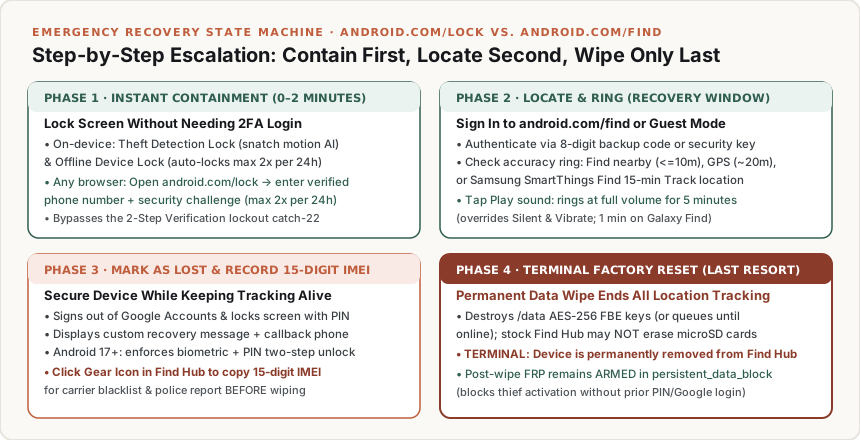
When your Android phone disappears, executing recovery commands in the wrong order—specifically, clicking Factory reset device before exhausting location tracking and retrieving your IMEI—permanently severs your connection to the handset. Follow this strict five-stage escalation protocol grounded in Google Account Help (answer/6160491):
Phase 1: Lock the Screen Immediately via android.com/lock (0–2 Minutes)
If your phone was taken while unlocked or you do not have a second signed-in device handy to pass 2-Step Verification, open https://www.android.com/lock on any nearby phone or computer. Enter your verified phone number, answer your security challenge, and trigger Remote Lock. This immediately locks the screen and blocks access to notifications, Quick Settings, and USB file transfer.
Phase 2: Sign In to android.com/find (or Guest Mode), Read the Radius & Play Sound
- Open
https://www.android.com/findin a browser—or open the Find Hub / Find My Device app on a family member’s Android phone and tap Sign in as guest (Google Android Help (answer/3265955))—using your Google Account password and an 8-digit backup code or passkey. - Select your missing phone and enter its lock screen PIN, pattern, or password if prompted to decrypt crowdsourced offline location reports.
- Inspect the confidence ring (
<= 10 mfor Find nearby,~20 mfor GPS, orthousands of metersfor Cell towers). If you are within earshot, click Play sound to ring the handset at full volume for 5 minutes even if the ringer is set to Silent or Vibrate (Google Account Help (answer/6160491)). - If the device is a Samsung Galaxy, also open
https://smartthingsfind.samsung.com/and activate Track location (15-minute coordinate updates) and Extend battery life.
Phase 3: Activate Mark as lost (Secure device)
If the phone is not in your immediate building:
- Click Mark as lost (or Secure device) in
android.com/find. - This remotely locks the screen with your PIN, pattern, or password, signs your account out of Google apps on the device, and lets you display a custom recovery message and callback phone number on the lock screen so an honest finder or transit employee can reach you without unlocking the handset.
- On devices running Android 17 and up with Fingerprint or Face Unlock enabled, Google Account Help (
answer/6160491) notes thatMark as lostalso enforces two-step unlock (requiring both biometrics and PIN/password) and completely disables lock-screen notifications, widgets, and quick-access controls.
Phase 4: Retrieve Your 15-Digit IMEI From Find Hub Before Any Wipe
Before you consider erasing the phone, click the Settings (gear) icon next to your device name inside android.com/find (Google Account Help (answer/6160491)). Copy down the 15-digit IMEI number displayed there. You will need this IMEI to file a law-enforcement report and instruct your mobile carrier to blacklist the hardware on cellular networks. (On Android 12 and newer, you can also control whether the IMEI is visible from the lock screen prior to loss under Settings > Security & Privacy > Lost Device Protection.)
Phase 5: Execute Factory reset device — Why Remote Wipe Is Terminal
Click Factory reset device in android.com/find only when you have permanently given up on tracking and recovering the phone:
- Permanent Loss of Find Hub Tracking: Google Account Help (
answer/6160491) issues an explicit operational rule: “When you factory reset a device, it will no longer be available in Find Hub.” Once the wipe executes (immediately if online, or the instant the phone next connects to Wi-Fi or mobile data), the phone destroys its hardware-backed AES-256 File-Based Encryption (FBE) keys and stops reporting to your Find Hub map. - External microSD Card Caveat: Google warns that a remote Find Hub factory reset permanently deletes all data on internal
/datastorage but may not delete SD cards (Google Account Help (answer/6160491)). If your lost phone is a Samsung Galaxy with a microSD card installed, trigger Erase data through Samsung’ssmartthingsfind.samsung.cominstead, which explicitly formats inserted SD cards (Samsung Support (ANS00080182)). - Post-Wipe Factory Reset Protection (
FRP) Stays Armed: Although a remotely wiped phone vanishes from your Find Hub map, it does not become usable for a thief. As documented in Google’s Factory Reset Protection specification (answer/9459346) and explained in our Android Factory Reset, FRP Lock & eSIM Checklist, an untrusted remote wipe leaves the hardware-protectedpersistent_data_block(/frp) partition locked. Anyone who boots the wiped phone—including you, if the handset is later returned—must authenticate with your previous screen lock PIN/pattern/password or your synced Google Account password to pass the Setup Wizard.
For additional security walkthroughs, hardware comparisons, and setup checklists across the Android Phones Blog, explore our Product Guides hub.
Takeaway: Use Remote Lock (android.com/lock) and Mark as lost (android.com/find) while attempting recovery, record your 15-digit IMEI from the Find Hub gear menu, and trigger Factory reset device only as a final data-destruction step.