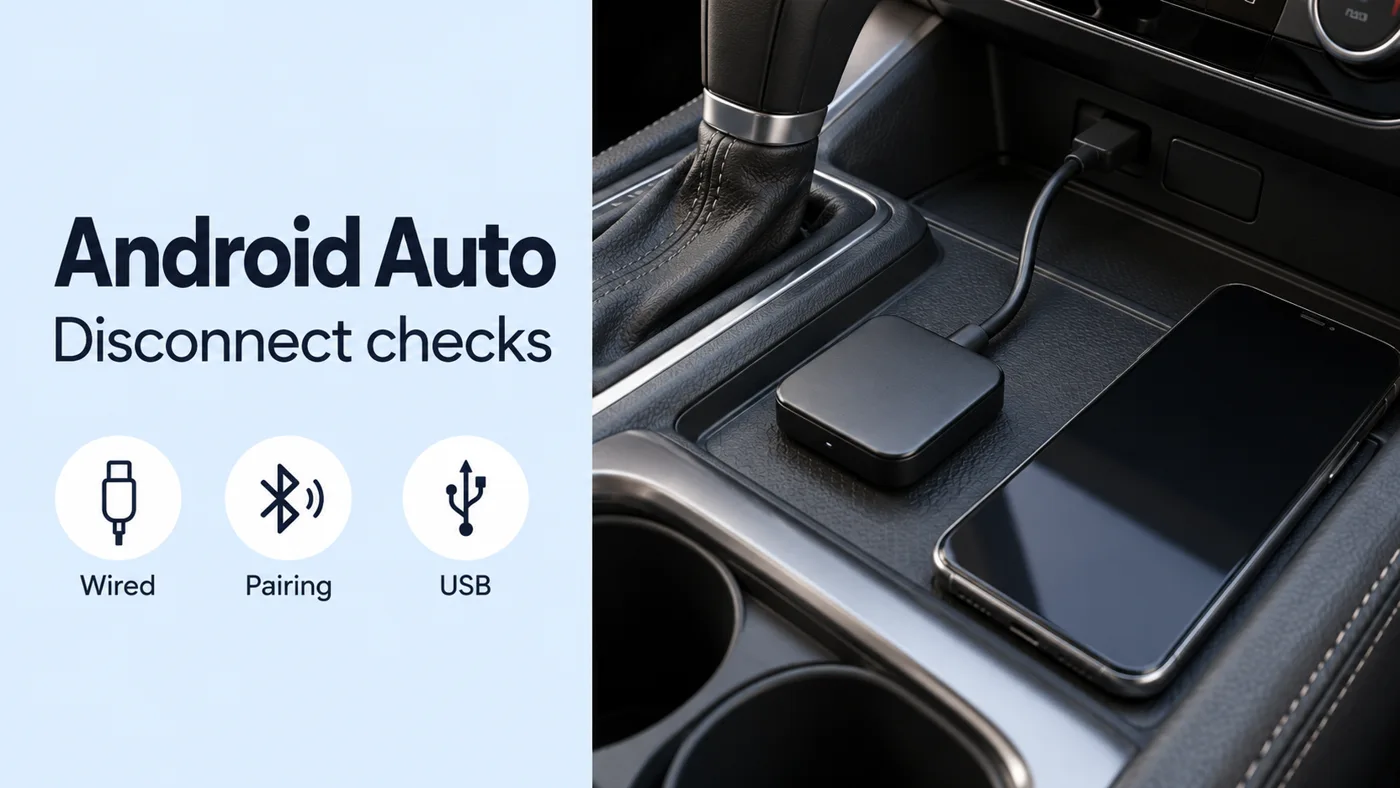
When your wireless Android Auto adapter disconnects, start by recording what happened: did projection never start, disappear during the drive, or reconnect after parking? Work through the wired connection, pairing and model-specific settings below, then save your findings in the checklist.
Set up wireless Android Auto while parked, with the infotainment system on, before driving.
Does Android Auto work over a cable?
For Motorola MA1 adapter setup, first establish wired Android Auto using your vehicle manufacturer’s instructions.
While wired Android Auto is active on the car screen, Motorola directs you to unplug the phone and immediately put the adapter into the same USB port.
Record whether the direct phone-to-car connection starts and stays connected during your comparison. If the wired attempt also fails, begin with these car and cable checks:
A USB port alone does not establish Android Auto compatibility.
Check that Android Auto is enabled in the infotainment system.
For wired Android Auto troubleshooting, Google recommends a cable under 3 feet (1 meter) long.
Google advises against USB hubs or cable extensions for that wired connection.
Restart the infotainment system as a troubleshooting step.
For an aftermarket receiver, check the manufacturer for an available firmware update.
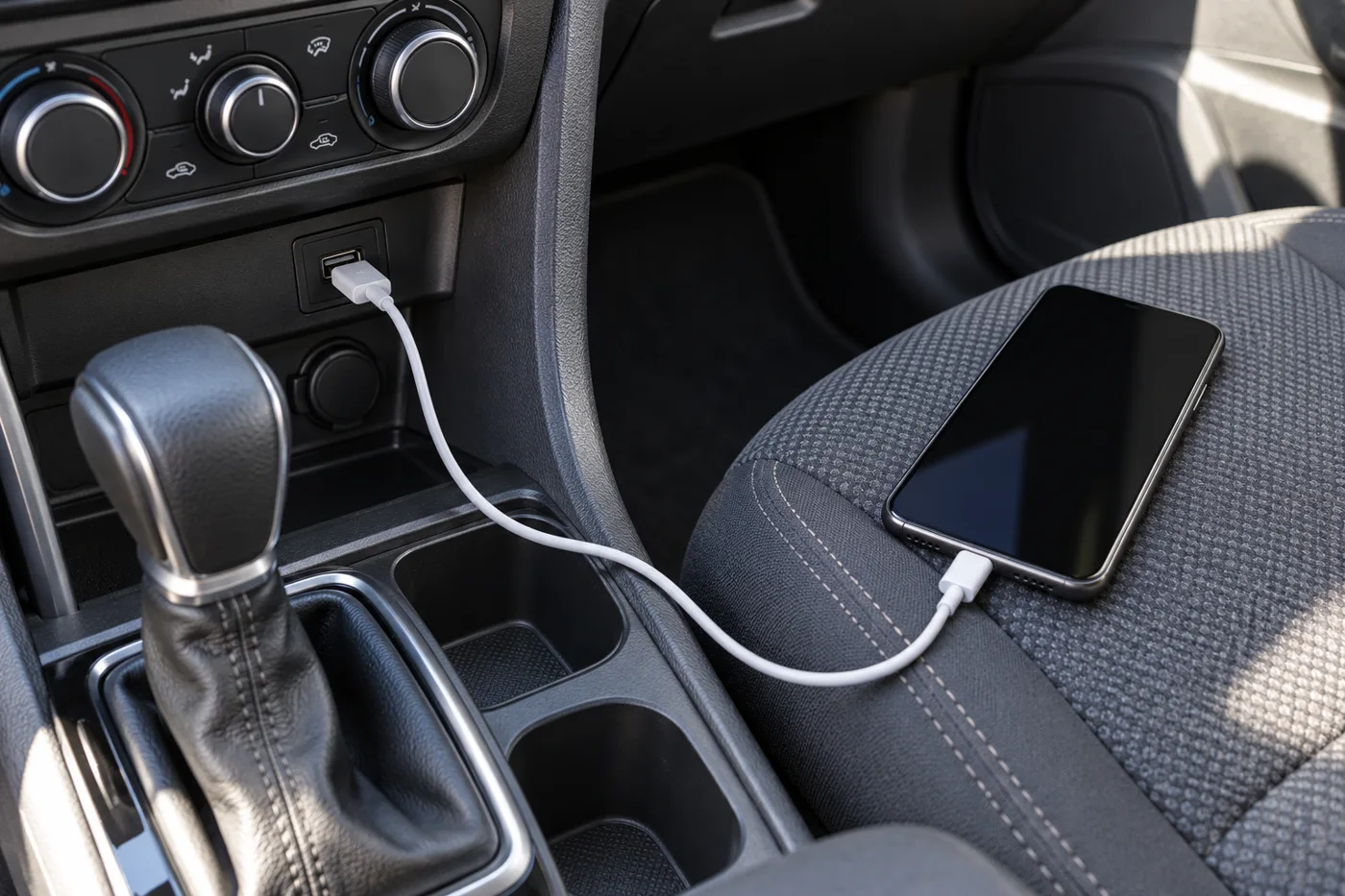
What should you check on the phone?
Wireless Android Auto requires a compatible Android phone with an active data plan and 5 GHz Wi-Fi support.
Google lists phones running Android 11.0 as compatible with wireless projection.
For best results, keep Bluetooth, Wi-Fi and Location Services on while completing wireless Android Auto setup.
For a previously working Motorola adapter connection, check that Android Auto is updated to the latest available version.
Note the phone model and software version alongside the car and receiver details. Keep these details with the wired-test result before moving to pairing checks.
Bluetooth connects, but why is the display still missing?
An AAWireless adapter initially uses Bluetooth to pass Wi-Fi details to the phone.
It then switches to Wi-Fi for video and audio.
Android Auto also uses Bluetooth for functions such as calls.
For Motorola’s wireless adapter, the phone must first re-establish the vehicle’s Bluetooth hands-free connection before wireless projection starts.
A correctly handled Bluetooth hands-free call uses the car speakers and microphone.
Check the vehicle hands-free connection separately from the adapter pairing. Record the indicator sequence as well as what appears on the car display.
In AAWireless troubleshooting, a solid blue light indicates the switch to Wi-Fi after credentials are exchanged.
In Motorola’s adapter user guide, a blue indicator means Bluetooth pairing mode.
If Bluetooth connects but Wi-Fi fails on AAWireless, test another phone if available to check whether the issue is device-specific.
If the AAWireless connection issue persists after the pairing checks, clear the Android Auto app cache.
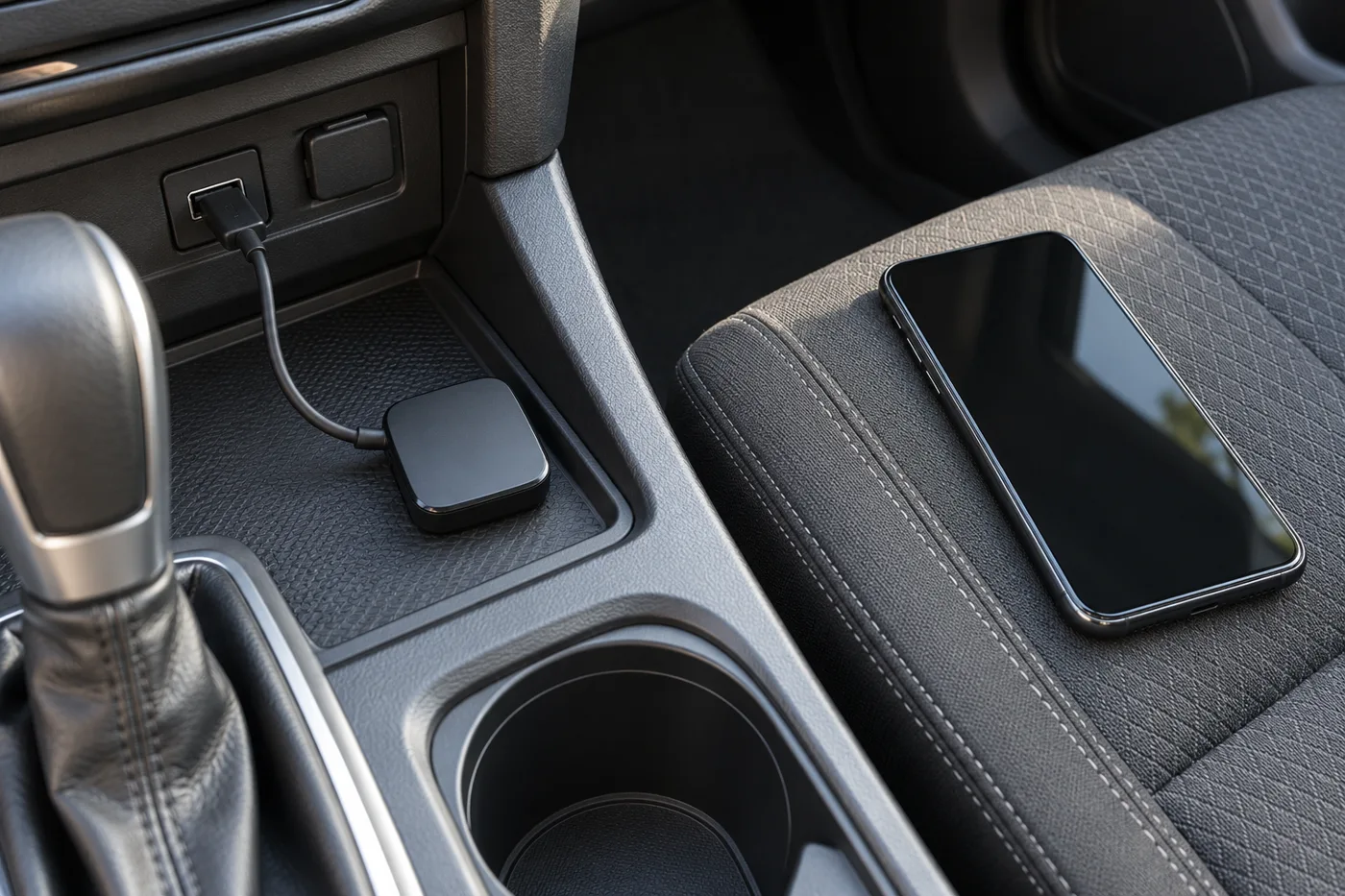
Does the drop repeat along your route?
For an Android Auto wireless disconnect that repeats along a route, record the location and whether projection disappears, audio stutters, or the adapter indicator changes. Keep route observations separate from the parked pairing test.
Motorola identifies disconnections at e-toll gates as a known limitation involving the 5GHz spectrum.
For AAWireless audio stutter, if Audio Stutter Fix does not help, its troubleshooting guidance recommends changing the Wi-Fi channel to reduce interference.
Use the troubleshooting instructions for your exact adapter when choosing the next setting to try. Record the change and the outcome before trying another setting.
What happens at the USB connection after parking?
Watch the adapter indicator when the car shuts down and when it starts again. Record whether the phone reconnects after parking, and whether the adapter appears to restart during the original fault.
In Motorola’s adapter user guide, a white indicator means the adapter is powering on.
A green indicator means it is connecting Android Auto.
Motorola’s adapter user guide prohibits an additional USB cable for in-car use.
On AAWireless TWO, auto-standby automatically disconnects the adapter when the car is not in use.
Its auto-standby can prevent unwanted connections when the car’s USB port stays powered.
AAWireless limits auto-standby support to TWO on its support page.
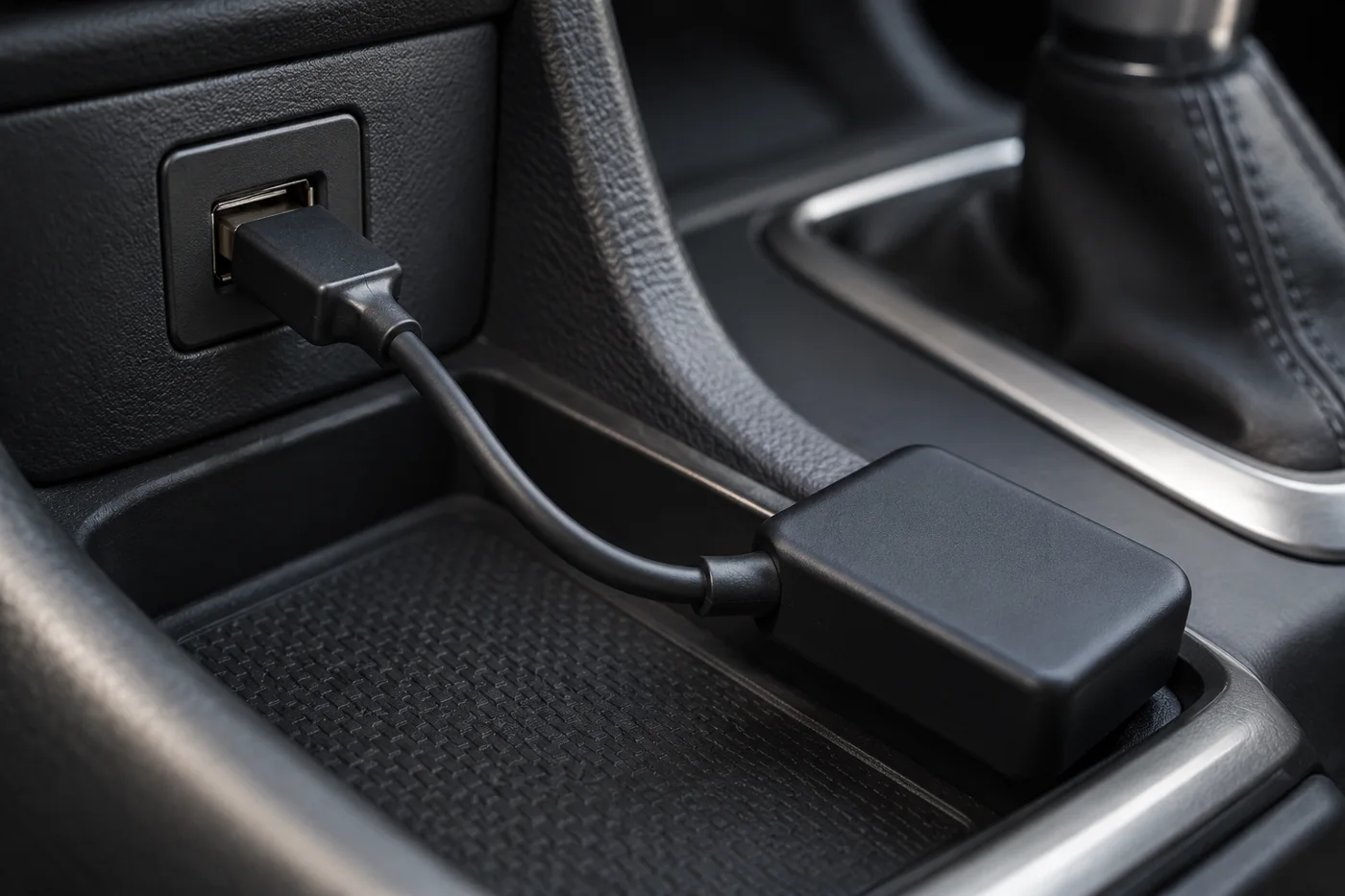
What if the adapter update fails?
For AAWireless over-the-air updates, stable power and network conditions are essential for completion.
For a failed AAWireless update, try a different power source, preferably a wall outlet instead of a car or computer USB port.
For that update failure, AAWireless also recommends trying a different USB cable that supports data transfer.
Keep the update attempt and the in-car connection check as separate entries in your troubleshooting notes.
Save your disconnect-check notes
Use this checklist for your next troubleshooting session or support request:
- Phone model and software version; Android Auto version.
- Vehicle model and year; factory infotainment or aftermarket receiver; receiver firmware.
- Adapter model and firmware; exact socket used.
- Wired connection: starts, fails to start, or drops during the comparison.
- Wireless symptom: initial pairing, mid-drive projection loss, audio stutter, or reconnecting after parking.
- Indicator: color and sequence before, during and after the fault.
- Vehicle hands-free connection: call audio and microphone observations.
- Repeat location, shutdown behavior, and outcome with another phone if tried.
- Settings changed and result after each change.
Continue with our Android product guides for other phone and accessory topics.
Sources
- Google — Get started with Android Auto
- Google — Set up Android Auto
- Google — My Android Auto app isn’t working
- AAWireless — Troubleshooting
- Motorola — Android Auto wireless car adapter support
- Motorola — Wireless car adapter user guide