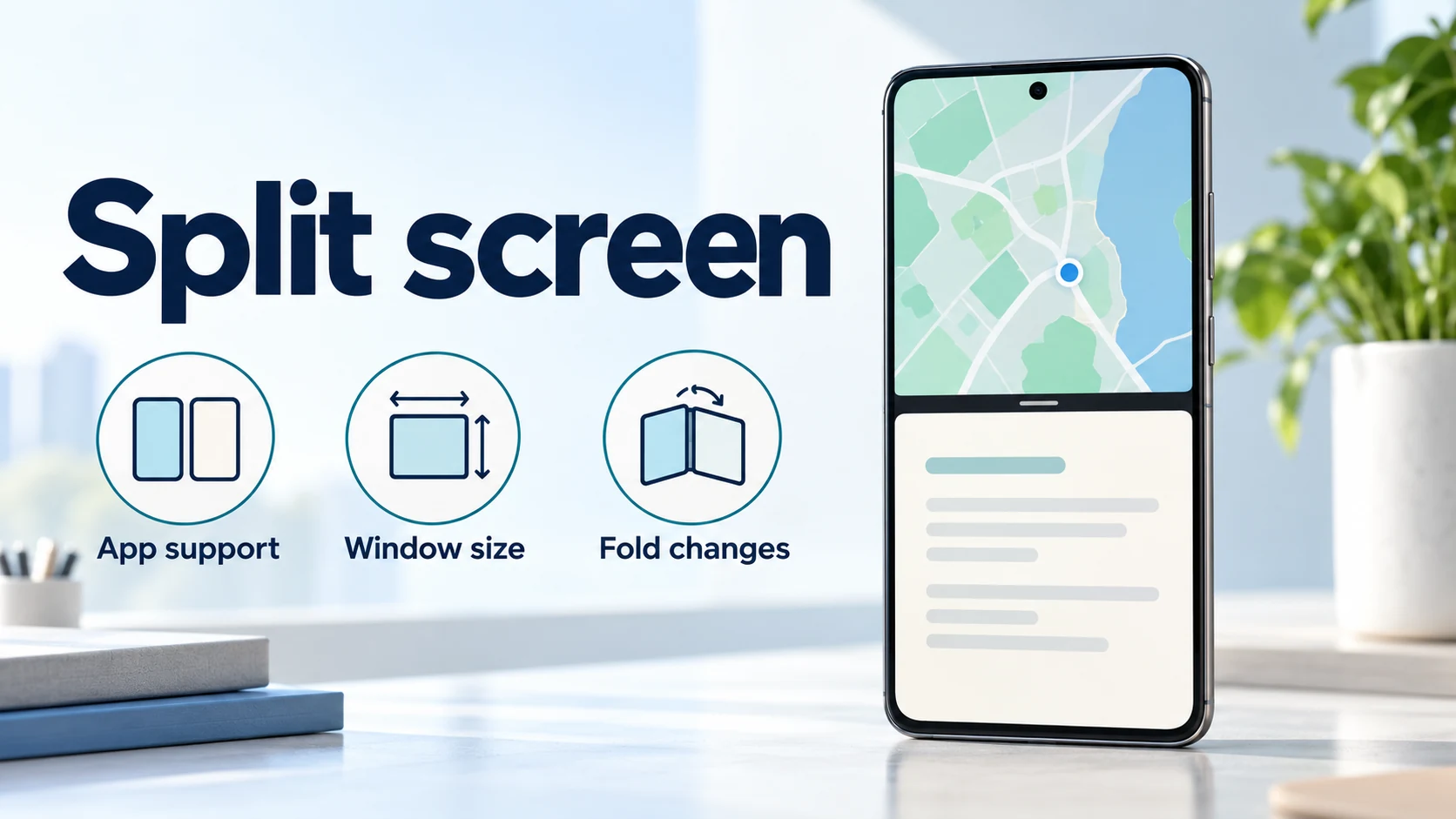
To use split screen on Android, open an app’s menu in Recents, choose the split-screen action, then select a second app. If it fails, first separate a missing device control from one app refusing to split or a layout that becomes too cramped.
Split screen depends on your phone’s software, the apps, and the space available to each window. The often-quoted 600dp boundary classifies displays for certain Android compatibility rules; it is not a universal minimum for each half. Start with a pair that already works on your device, then change the app, pane size, or display one at a time. That comparison helps you choose between checking device support, enlarging a window, and reporting an app-specific problem.
- No split-screen option: check the device’s supported route and another app.
- One app fails: compare it with a working pair on the same display.
- Both apps open, but controls disappear: check pane width and height before treating it as an eligibility problem.
How do you open split screen on Android?
Start in Recents, also called Overview or Recent apps. Google and Samsung place the command in the app’s menu, though their labels differ. Source 1
- Open the first app, then open Recents using your phone’s gesture or navigation button.
- On Pixel, tap the app icon above its preview and select Split screen. On Galaxy, tap the app icon and select Open in split screen view.
- Select the second app from the available choices.
- Move the divider to adjust the panes. On Pixel, drag it all the way to an edge to return to one app.
Google’s Pixel instructions include steps that require Android 14 or later. Samsung also documents taskbar and Edge panel routes on supported devices; the Recents route is the useful starting point when those controls are absent.
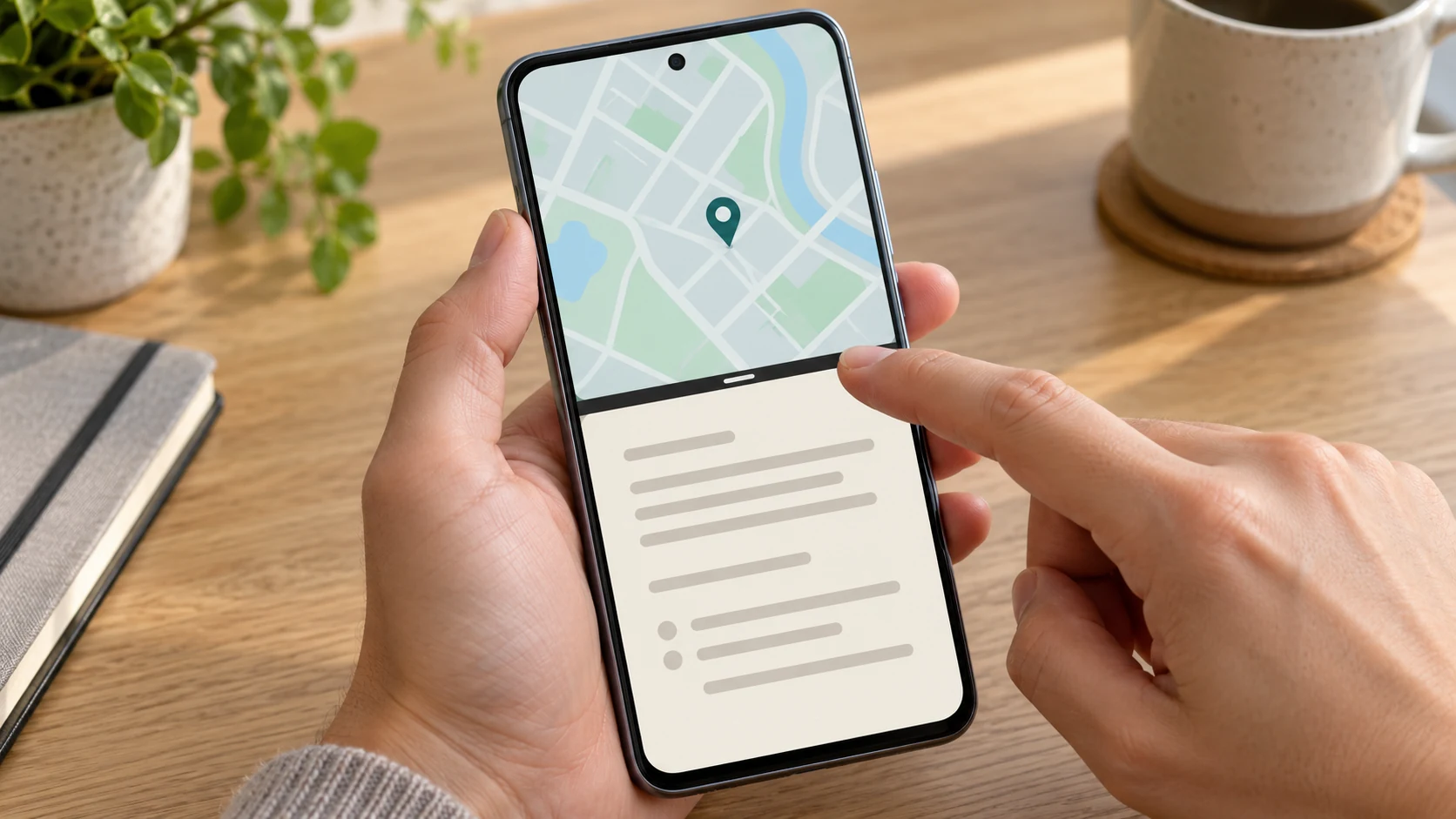
Android’s multitasking history goes back to Android 7.0 Nougat’s split-screen introduction. Current troubleshooting starts with your device and app combination.
Android split screen not working: what should you check first?
Compare the failing pair with apps you have already used successfully in split screen on the same device. Then follow the symptom, keeping the active display and orientation unchanged for the first comparison.
| What happens | Try next | What the result tells you |
|---|---|---|
| The split-screen action is missing for every app you try | Check the model’s multi-window support and its Recents instructions | The control or device configuration needs checking before an individual app |
| Other pairs work, but one app rejects the split or opens full-screen | Substitute that app while keeping the other app and display the same | A repeatable difference points to that app in this setup |
| Both apps open, but a button or field is clipped | Give the affected pane more room, then compare with full-screen | Improvement with more space points toward layout constraints |
| The layout breaks only after rotation, folding, or unfolding | Open the same pair directly in the final display configuration | A transition-only failure points toward how the app handles configuration changes |
| Video or a camera preview stops when you tap the other pane | Repeat the focus change without moving the divider | A focus or shared-resource issue needs a different check from pane size |
After identifying the symptom, check for app and system updates, restart the phone, and repeat the same action. These are Android’s recommended basic troubleshooting steps; app support remains a separate requirement. Source 2
Device makers can disable multi-window support. AOSP also disables it by default for devices classified as low-RAM. That is a device configuration, so closing background apps does not switch on a platform feature that has been disabled. Source 3
Can an app opt out of split screen?
An app can restrict resizing in some configurations, but the answer changes with the Android version, the app’s target API level, and the display. The developer setting android:resizeableActivity="false" is part of the app’s manifest, rather than a normal user preference.
The target API level is the Android behavior level the developer builds the app to target. It is separate from the Android version installed on your phone. The following rules explain why an app may behave differently after an app update, on a different display, or under a newer OS. Sources 4–6
| Platform and app condition | How resizing restrictions are handled | Practical implication |
|---|---|---|
| Android 12-era rules, apps targeting API 31 or later, display smallest width below 600dp | A nonresizable activity cannot enter multi-window; resizable activities also face minimum-size checks | App settings and available dimensions can affect entry on smaller displays |
| The same baseline on a display with smallest width at least 600dp | Multi-window can accommodate nonresizable apps through compatibility mode | Entry into split screen and a layout that fits comfortably are separate outcomes |
| Android 16, apps targeting API 36, display smallest width at least 600dp | Orientation, aspect-ratio and resizability restrictions are overridden, subject to exceptions and a temporary developer opt-out | An older resizing restriction may no longer prevent a split |
| Android 17, apps targeting API 37 or later, qualifying large displays | The temporary developer opt-out is removed | An app must adapt to the available window under the applicable rules |
The Android 16 and 17 override rules have exceptions for games, smaller displays, and users explicitly choosing the app’s default behavior in aspect-ratio settings. The temporary Android 16 opt-out also does not restore an orientation lock on large displays. Device makers can further customize multi-window behavior.
A rejection message is useful to record, but diagnosing the exact manifest setting requires information about the app. Use the working-pair comparison to establish the observable problem first.
Does each split-screen app need 600dp of width?
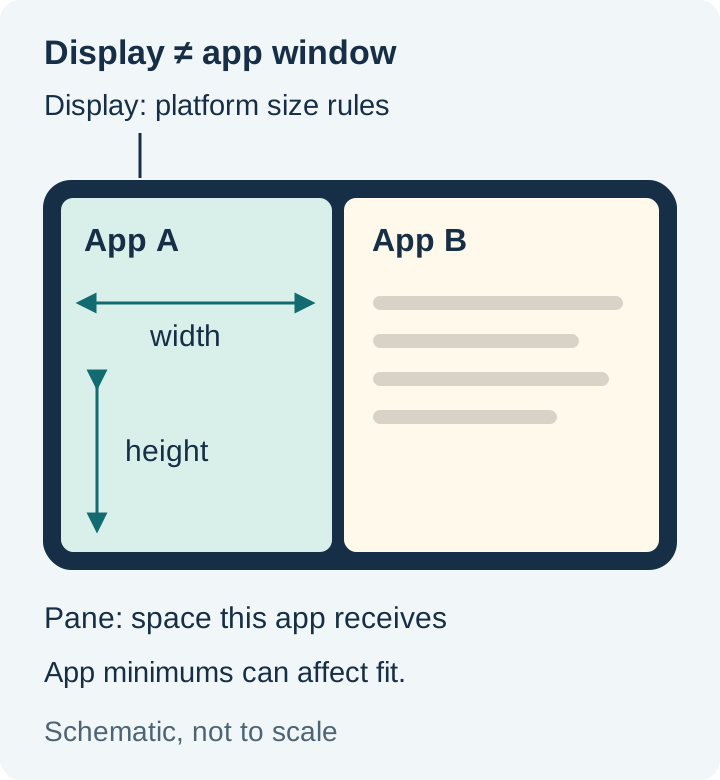
No. Display smallest width, current window dimensions, and an app’s declared minimum dimensions answer different questions. Android measures layout space in density-independent pixels, or dp, rather than the raw pixel count advertised for the panel. Dividing a phone’s pixel resolution in half will not establish split-screen eligibility. Source 7
- Display smallest width is used by the compatibility rules above to distinguish display classes. For the Android 12 and Android 16 conditions listed, 600dp is the large-display boundary.
- Current app window width and height describe the space the app actually receives. Moving the divider, rotating, or switching displays can change that space.
- App-declared minimum width and height describe constraints set by the developer for an activity. They can affect eligibility; Android’s layout reference also describes cropping when a split becomes smaller than the declared minimum. Source 8
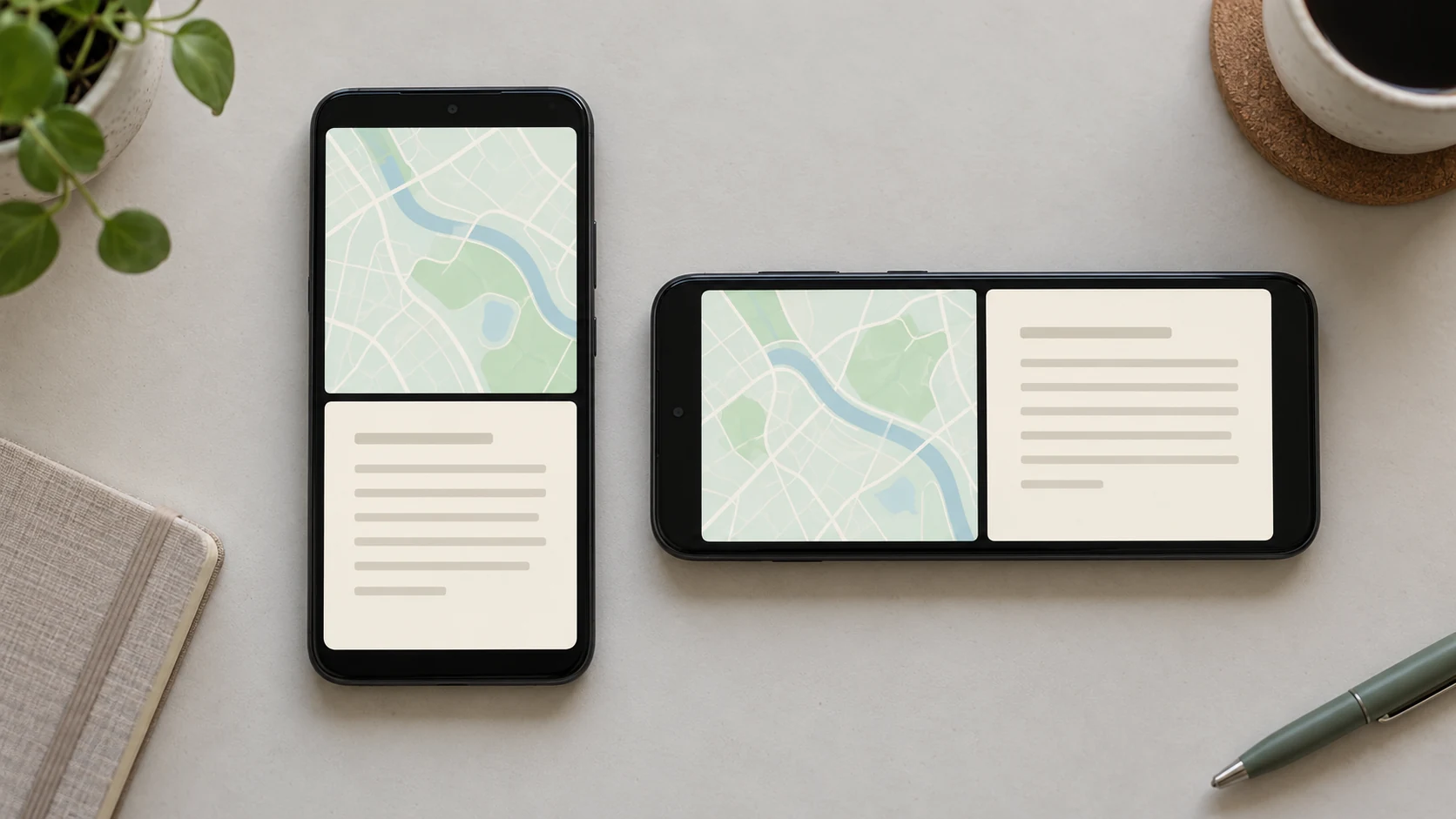
If a button disappears, move the divider to enlarge that app, then compare with full-screen. Try the other orientation if the device and apps support it. Landscape can provide a different layout, but its shorter height can leave less vertical room for controls.
Why can a foldable or a change of focus break the pair?
A fold transition changes the display configuration; tapping the other pane changes which app has focus. Record which action triggers the problem so that layout changes and resource conflicts stay distinguishable.
Folding, letterboxing, and lost state
On a foldable, compare the pair on the inner display and on any outer-display setup your model supports. First launch the pair directly on the chosen display. Then repeat the task while folding, unfolding, or rotating. This distinguishes a failure to start in that layout from a failure to move into it.
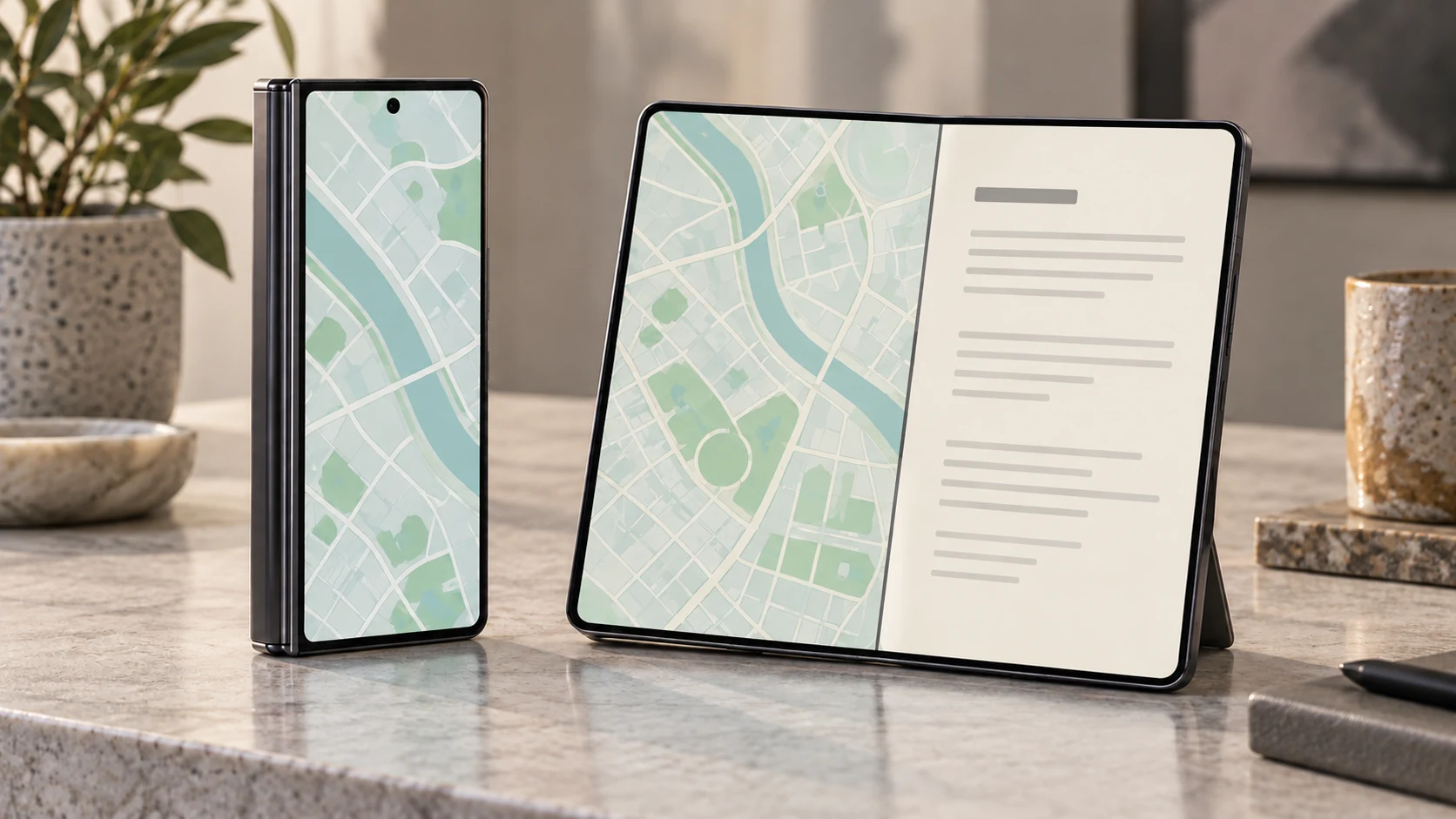
Compatibility mode can preserve an app’s proportions with blank margins, called letterboxing. A clipped button is a different symptom: content extends beyond the usable window. Some size-compatibility cases expose a restart control after the window changes. Save work before using it. Source 9
Folding, unfolding, and resizing change app configuration. If an app handles that transition poorly, it can lose its place or show stretched or cropped controls. Record whether reopening it directly in the final layout restores normal behavior. For background on the platform’s large-screen design, see Android 12L’s tablet and foldable changes.
Video or camera stops after a tap
Android 10 and later support multiple resumed activities. Even so, apps must coordinate focus and shared resources: a camera app can lose access when the topmost resumed app requests the camera. A preview that stops after you touch the other pane therefore calls for a focus/resource check, even when both layouts fit. Source 10
Can you force an unsupported app to split?
On supported Galaxy foldables, Settings → Advanced features → Labs → Multi window for all apps may allow another attempt. Samsung describes Labs features as experimental, and availability varies with model and software. Save your work, try the actual task, and check that its controls remain usable. Source 11
If your goal is video alongside another app, supported picture-in-picture is another option. It places the video in a floating window while you use the other app, rather than dividing the display into two app panes. Availability depends on the app and its PiP support. Source 1
Split-screen troubleshooting checklist
Use this checklist for a repeatable comparison or an app bug report. Record the setup before changing it, then note the outcome of each check.
- Device and software: phone model, Android version, manufacturer interface version, and affected app versions.
- App pair: both app names, which starts first, and whether a previously working pair still splits.
- Display and layout: inner or outer display, portrait or landscape, and the divider position.
- Exact symptom: missing command, rejection, full-screen opening, clipped control, lost state, or stopped media.
- Trigger: starting the split, moving the divider, rotating, folding/unfolding, or tapping the other pane.
- Checks and outcome: updates, restart, larger pane, full-screen comparison, and opening directly in the final layout.
If the failure remains app-specific, send that record through the app’s support channel. If the split-screen command is missing across apps, check the phone maker’s support for your model. Browse our Android product guides for related feature explanations.
Source notes
Official references for the platform and support behavior described above:
- Google Pixel Phone Help, See two apps at the same time on Pixel phone; Samsung Support, Use Multi window and App pairs on your Galaxy phone or tablet.
- Android, How to Mirror, Rotate or Split Screen Your Device.
- Android Open Source Project, Support multi-window.
- Android Developers, Support multi-window mode and <activity>, especially
resizeableActivityand Android 12 behavior. - Android Developers, App orientation, aspect ratio, and resizability, Android 16/API 36 rules.
- Android Developers, Restrictions on orientation and resizability are ignored, Android 17/API 37 changes, updated October 16, 2026.
- Android Developers, Support different pixel densities and Use window size classes.
- Android Developers, <layout>,
minWidthandminHeightattributes. - Android Developers, Device compatibility mode and Make your app fold aware.
- Android Developers, Support multi-window mode, activity lifecycle and exclusive resource access sections.
- Samsung Support, Use the Labs features on your Galaxy foldable phone.