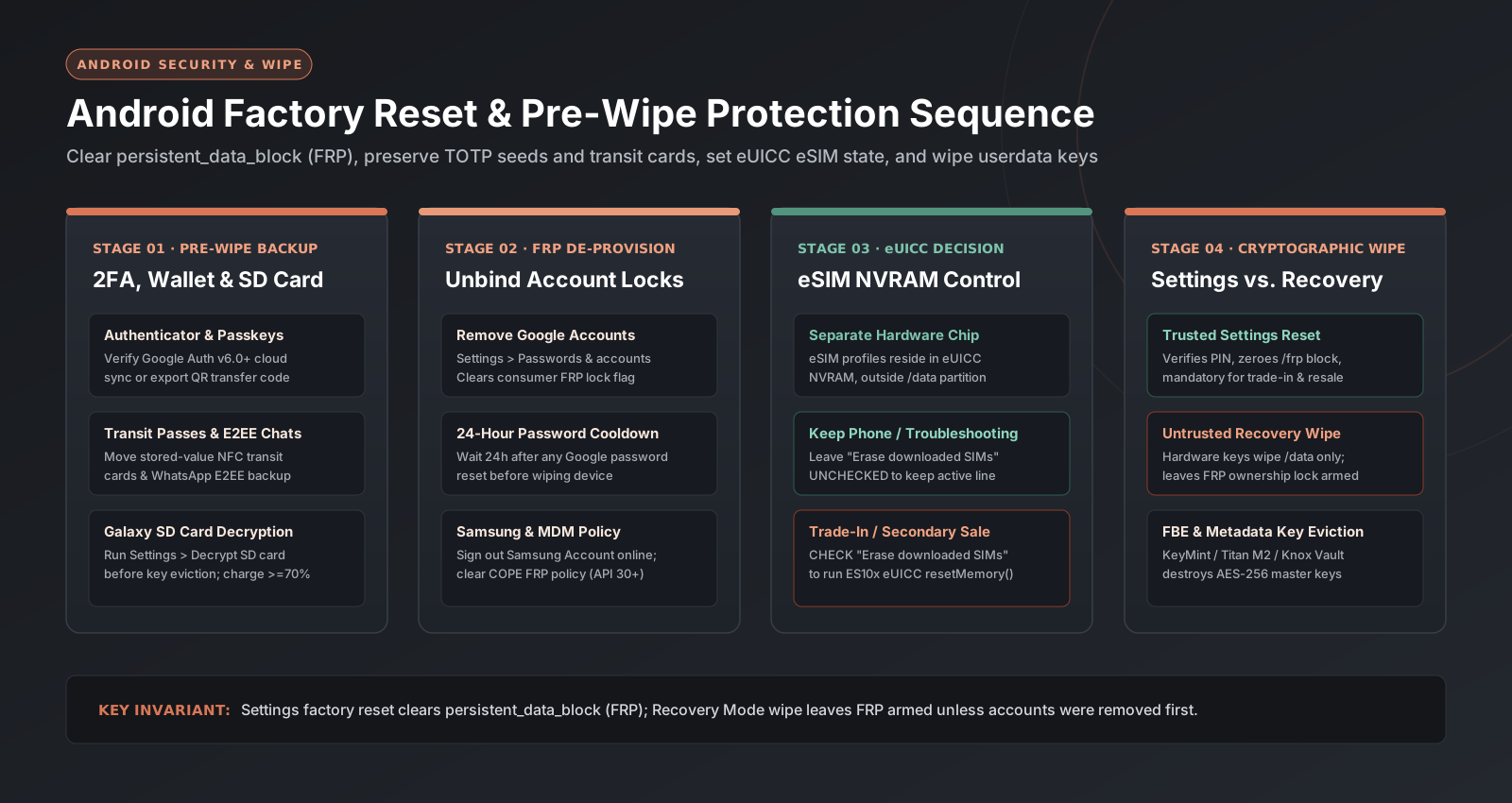
Executing an Android factory reset without removing synced accounts first can fail post-wipe ownership verification and cost you or a subsequent buyer access to the handset under Factory Reset Protection (FRP). To reset an Android phone safely for trade-in, resale, warranty repair, or software troubleshooting, unbind your Google and Samsung accounts, migrate local 2FA seeds and transit passes, set the correct eSIM erasure option, and launch the wipe from the Settings menu rather than hardware Recovery Mode.
To factory reset an Android device cleanly, back up your data, export local 2FA tokens, decrypt any encrypted microSD card, remove all Google Accounts in Settings, and run Erase all data (factory reset) from Settings with at least 70% battery. Leave Erase downloaded SIMs unchecked when keeping the phone, or check it before trade-in and resale.
| Reset Scenario | Reset Entry Path | Account & Lock Action Before Wipe | eSIM (eUICC) Checkbox Setting |
Post-Reboot FRP State |
|---|---|---|---|---|
| Personal troubleshooting (keeping phone) | Settings > System > Reset options (Pixel) or Settings > General management > Reset (Galaxy) |
Confirm Google Account password & screen lock PIN; wait 24 hours if Google password was recently changed | Leave UNCHECKED (Erase downloaded SIMs / eSIMs off) so cellular service reconnects on boot |
Cleared via pre-reset PIN prompt |
| Trade-in, resale, or carrier return | Settings app only (mandatory per Google Pixel & Samsung trade-in rules) | Remove all Google Accounts in Settings > Passwords & accounts; sign out of Samsung Account; decrypt SD card |
CHECK (Erase downloaded SIMs / Erase eSIMs on) to purge carrier profile from eUICC |
Disarmed; boots to clean out-of-box Setup Wizard |
| Mail-in warranty repair | Settings app (or remote sign-out at myaccount.google.com if display is broken) |
Remove Google & Samsung accounts; enable Repair Mode on supported Pixel/Galaxy models if applicable | Leave UNCHECKED (or remove physical nano-SIM tray before shipping) | Disarmed so service technicians can run diagnostics |
Frozen OS / bootloop (Recovery Mode) |
Hardware keys (Fastboot -> Recovery Mode on Pixel; Volume Up + Side on Galaxy) |
Cannot remove inside OS; requires prior Google Account login or prior screen lock PIN after reboot | Untouched (Recovery Mode Wipe data/factory reset does not erase eUICC NVRAM) |
ARMED (FRP Lock Active); blocks setup without prior credentials |
| Enterprise / COPE fleet decommission | EMM/MDM console de-provisioning followed by Settings reset | Clear FactoryResetProtectionPolicy (API 30+) and unbind Zero-Touch / Knox Mobile Enrollment first |
CHECK or trigger remote eUICC wipe via MDM EuiccManager |
Disarmed only if MDM policy is cleared first |
1. Settings Reset vs. Recovery Mode Wipe: How Factory Reset Protection (FRP) Works
An Android factory reset—also called formatting or a hard reset—erases all user files from internal storage and uninstalls downloaded applications and their data, according to Google Android Help’s factory reset documentation. However, how you initiate that wipe determines whether Android’s anti-theft gate, Factory Reset Protection (FRP), locks the handset on its next boot.
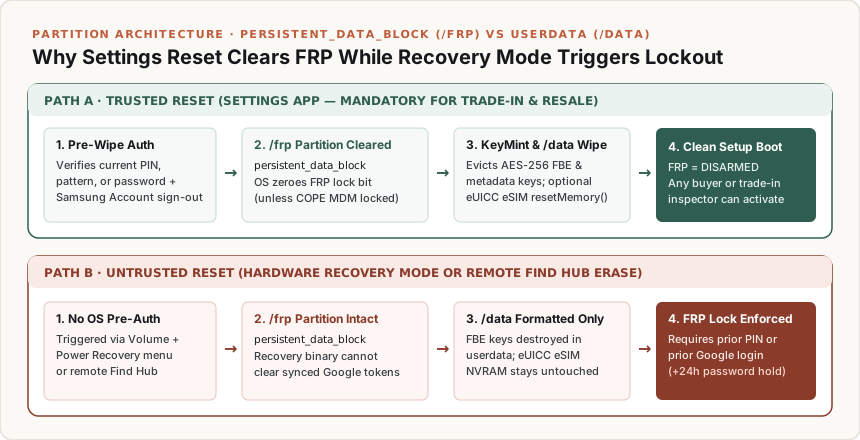
As documented in Google’s Factory Reset Protection security specification, device protection activates automatically whenever a Google Account is registered on an Android phone and a screen lock (PIN, pattern, or password) is configured. Unlike application files that reside on the /data (userdata) partition, FRP state flags and account tokens are stored in a dedicated, hardware-protected partition (persistent_data_block / /frp). This architectural separation creates two fundamentally different reset behaviors:
- Trusted Reset (via the Android Settings App): When you run Erase all data (factory reset) inside
Settings, the operating system prompts for your current screen lock PIN, pattern, or password before starting the wipe (and on Samsung Galaxy devices, requires your Samsung Account password over an active internet connection). Once authenticated, Android explicitly zeroes out thepersistent_data_blockFRP flag before destroying theuserdataencryption keys. When the phone restarts, Setup Wizard launches in an unlocked out-of-box state ready for any new buyer or trade-in inspector. - Untrusted Reset (via Hardware Recovery Mode or Remote Find Hub Erase): When you wipe a powered-off phone using physical buttons in Android Recovery Mode (
Wipe data/factory reset) or erase it remotely through Google Find My Device (Find Hub), the recovery environment formats/databut is blocked from clearingpersistent_data_block. On reboot, Setup Wizard detects the intact FRP flag and halts activation until the user enters either the previous screen lock PIN/pattern/password (supported on Android 9 and later, per Samsung’s Factory Data Reset support guide) or a Google Account username and password that was previously synced to the device as an account or user (not as a guest).
The 24-Hour Google Password-Change Cooldown Trap
The dominant failure mode during pre-sale phone preparation occurs when an owner forgets their Google Account password, resets that password online, and immediately wipes the phone via Recovery Mode without removing the Google Account from Settings first. Both Google Android Help and Google Pixel Phone Help state a strict rule: if you recently reset your Google Account password, wait 24 hours before you perform a factory reset.
Root cause: Google’s anti-theft infrastructure treats an immediate password change followed by an untrusted device wipe as a potential SIM-swap or credential-hijacking attack. If FRP remains active and the Google Account password was changed less than 24 hours ago, the post-reset setup screen rejects the new password until the 24-hour security hold expires.
Rule of thumb: Never use hardware Recovery Mode to prepare a working phone for trade-in or resale. As Google Pixel’s official reset guide mandates, always use the factory reset option inside the Settings app for trade-ins so device protection is disarmed cleanly.
The Enterprise COPE Exception (FactoryResetProtectionPolicy, API 30+)
For corporate IT administrators and secondary-market refurbishers, even a Settings-initiated reset can leave a handset locked if enterprise policies remain active. Under the Android Developers FactoryResetProtectionPolicy specification (introduced in Android 11 / API level 30), a standard consumer reset or a full Device Owner reset from Settings clears FRP. However, when a profile owner of an organization-owned device (Corporate-Owned, Personally Enabled / COPE) sets a FactoryResetProtectionPolicy locking the handset to specific administrator Google accounts, the policy takes effect even if the factory reset is performed from Settings.
Before wiping decommissioned business handsets—a critical step covered in our comparison of a phone wholesaler vs. device rollout integrator—IT teams must clear FactoryResetProtectionPolicy (setting it to null via DevicePolicyManager) from their EMM/MDM console and unbind Zero-Touch Enrollment or Samsung Knox Mobile Enrollment. On personal phones running Android 15 or newer, FRP also works alongside biometric and motion locks detailed in our Android 15 Private Space and Theft Protection breakdown.
Takeaway: Execute factory resets from the Settings menu after removing synced accounts, observe the 24-hour cooldown after any Google password change, and clear MDM FRP policies on corporate-owned devices before wiping.
2. Pre-Reset Account Unbinding & MicroSD Decryption Checklist
Before tapping the reset button on a phone that will leave your possession, complete four explicit de-provisioning actions while the device is still connected to Wi-Fi or mobile data.
- Remove All Synced Google Accounts:
- On Google Pixel and stock Android: Open Settings > Passwords & accounts (or Settings > Accounts), tap each listed Google Account, and tap Remove account (Google FRP guide).
- On Samsung Galaxy One UI: Open Settings > Accounts and backup > Manage accounts, select each Google Account, and tap Remove account (Samsung UK Support).
- Broken-screen remote sign-out: If a Pixel phone’s screen is damaged and you cannot open Settings, Google Pixel Help instructs signing out remotely by visiting
myaccount.google.com > Security > Your devices, selecting the phone, and clicking More > Sign out. Note that removing a Google Account directly from an active phone deletes its tied device backup unless cloud sync is already completed or the account is signed out remotely.
- Sign Out of Your Samsung Account (Galaxy Devices Only):
- Per Samsung US Support (
ANS10002030), if a Samsung Account is signed in on a Galaxy phone or tablet, you must have an active internet connection and enter your Samsung Account password to sign out (Settings > Samsung account > Sign out) or to authorize the Factory data reset prompt.
- Per Samsung US Support (
- Decrypt Encrypted External microSD Cards Before Wiping (Galaxy Devices Only):
- Samsung’s factory reset instructions highlight a frequent data-loss trap: if you have encrypted the microSD card on your Galaxy device, you must decrypt it before resetting the phone, or the device will not be able to read the files on the card afterward.
- Open Settings, search for and select Decrypt SD card, wait for block decryption to reach 100%, and then physically eject both the microSD card and any removable nano-SIM card before starting the factory reset.
- Understand Developer Options
OEM unlockingon Android 14 and Older:- Google’s device protection documentation notes that on devices running Android 14 or older with Developer Options enabled, toggling Settings > System > Developer options > OEM unlocking (which prompts for your current device PIN) also disables Factory Reset Protection. For everyday owners, removing Google Accounts and resetting via Settings is the standard path; see our Android Developer Options settings and risks guide for why
OEM unlockingshould remain disabled during normal use.
- Google’s device protection documentation notes that on devices running Android 14 or older with Developer Options enabled, toggling Settings > System > Developer options > OEM unlocking (which prompts for your current device PIN) also disables Factory Reset Protection. For everyday owners, removing Google Accounts and resetting via Settings is the standard path; see our Android Developer Options settings and risks guide for why
| Pre-Reset De-Provisioning Step | Exact Menu Path | Failure Mode if Skipped |
|---|---|---|
| Google Account removal | Settings > Passwords & accounts > [Account] > Remove account |
Leaves FRP active if the phone is subsequently wiped via Recovery Mode |
| Samsung Account sign-out | Settings > Accounts and backup > Manage accounts > Samsung account |
Blocks Factory data reset execution in One UI until Samsung password is verified online |
| External microSD decryption | Settings > Biometrics and security > Decrypt SD card (Samsung One UI) |
Hardware key eviction during reset permanently orphans encrypted files on the SD card |
| Enterprise COPE MDM policy | EMM console setFactoryResetProtectionPolicy(null) |
Locks device to enterprise admin Google accounts even after a Settings factory reset |
Takeaway: Remove all Google and Samsung accounts while online and decrypt any encrypted Galaxy microSD card before initiating a wipe, because microSD encryption keys cannot be recovered once device keys are evicted.
3. Pre-Reset 2FA, Passkey, Transit Wallet & Cloud Backup Verification
Relying solely on automatic cloud sync before a factory reset causes permanent loss of local-only authentication seeds, encrypted chat histories, and stored-value transit balances. According to Google’s Android backup and restore documentation, Google Account / Google One backup (Settings > Google > All services > Backup or Settings > System > Backup) encrypts data in transit and end-to-end encrypts device backups using your screen lock PIN, pattern, or password. However, two platform rules govern every restoration:
- No Android Version Downgrade Restores: Google explicitly specifies that you cannot restore a backup from a higher Android version onto a phone running a lower Android version. If your primary phone runs Android 16 and you wipe it to temporarily use an Android 15 spare handset, the cloud snapshot from Android 16 will not restore onto the Android 15 device.
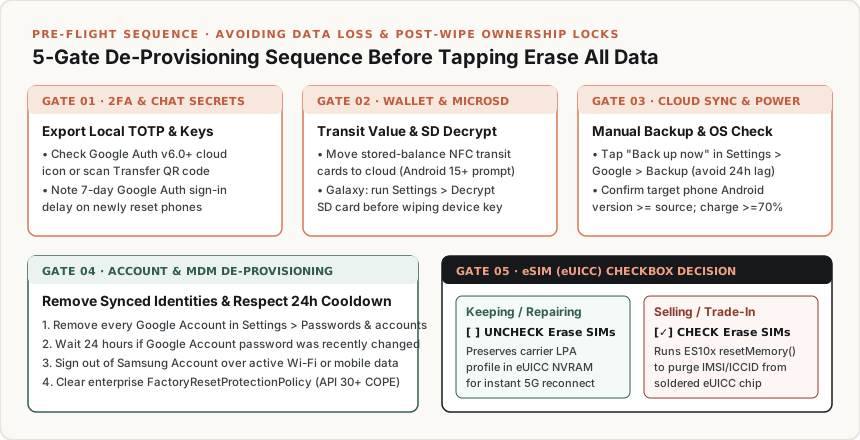
- 24-Hour Automatic Backup Interval: Automatic background backups can take up to 24 hours to run. Always open Settings > Google > Backup and tap Back up now on Wi-Fi immediately before resetting so recent call logs, SMS/MMS messages, and app states are captured.
Migrating 2FA Authenticator Seeds & Understanding the 7-Day Rule
Time-based One-Time Password (TOTP) authenticators require explicit verification before a wipe:
- Google Authenticator (
v6.0+on Android): Per Google Account Help’s Authenticator documentation, Google Authenticator supports cloud synchronization of verification codes to your Google Account. Check the top-right profile icon inside the app to confirm the green cloud-check symbol is active. Critical failure mode: If you previously selected Use Authenticator without an account, your 2FA seeds exist only in local device storage and will be permanently erased by a factory reset. Either enable Google Account cloud sync or tap Menu > Transfer accounts > Export accounts to generate a migration QR code and scan it onto a secondary device before wiping. - 7-Day Google Account Sign-In Challenge Delay: Google Account Help (
answer/1066447) also documents a security rule that catches many users off guard: when you set up Google Authenticator on a newly reset or replacement phone, it can take up to 7 days for Google Authenticator to appear as an available sign-in verification option for your Google Account, unless you sign in using a trusted passkey or hardware security key. Keep backup 8-digit Google verification codes or a secondary signed-in device available during that 7-day window. - Corporate & Hardware-Bound 2FA (
Microsoft Authenticator,Duo Mobile,Okta Verify,Authy): Verify cloud backup toggles inside Microsoft Authenticator and Authy, and generate recovery codes or ask IT to issue a re-activation link for device-bound push tokens in Duo Mobile and Okta Verify.
Digital Wallet Transit Passes & End-to-End Encrypted Chats
- Transit Cards with Stored Funds (Android 15+ Safeguard): Physical payment credit cards in Google Wallet or Samsung Wallet are tokenized (DPAN) and can be re-verified via bank SMS/app after a reset, but closed-loop transit cards with stored monetary balances (such as Suica, PASMO, ICOCA, Clipper, Ventra, or SmarTrip) lock their balance to a single active device element. Google Android Help (
answer/6088915) notes that Android offers digital wallets the ability to back up transit cards with stored funds on them and, on devices running Android 15 and up, displays a pre-reset reminder if supported by the wallet provider. Always open your wallet app and move or deactivate stored-value transit passes into the cloud before wiping. - WhatsApp & Signal Chat Databases: End-to-end encrypted messaging apps manage their own backup keys outside the OS backup toggle. Open WhatsApp > Settings > Chats > Chat backup > Back up, wait for the upload to finish, and verify that you know your 64-digit encryption key or E2EE backup password.
Worked Example: Pre-Reset De-Provisioning & Backup Time Budget
Whether you are resetting a personal flagship or preparing a multi-device corporate return batch, estimate total pre-wipe preparation time (Tprep, in minutes) before starting the OS wipe—which Google notes can take up to 60 minutes on its own and requires at least 70% battery charge:
Tprep = (Naccounts × tunbind) + (N2fa_apps × texport) + Tcloud_backup + Tsd_decrypt
Conditional calculation example for a Samsung Galaxy user with 3 synced Google/Samsung accounts (2 minutes each to verify passwords and sign out), 2 authenticator/chat apps (4 minutes each to export QR seeds and trigger WhatsApp chat backup), a 12-minute manual Google One + photo sync over Wi-Fi, and an encrypted microSD card requiring 18 minutes to decrypt:
Naccounts × tunbind = 3 × 2 = 6 minutesN2fa_apps × texport = 2 × 4 = 8 minutesTcloud_backup + Tsd_decrypt = 12 + 18 = 30 minutesTprep = 6 + 8 + 30 = 44 minutes(plus15–60 minutesfor the factory reset execution itself)
Adjust these inputs for your own local storage volume, Wi-Fi upload bandwidth, and microSD card capacity.
Takeaway: Trigger a manual cloud backup, confirm your target phone runs an equal or newer Android version, verify Google Authenticator cloud sync or QR export, and transfer stored-value transit passes before wiping.
4. eSIM (eUICC) Retention vs. Erasure: When to Check “Erase Downloaded SIMs”
Modern Android flagships—including US models of the Google Pixel 10 and later (except Pixel 10 Pro Fold), which Google Pixel’s Dual SIM & eSIM documentation notes operate exclusively with eSIM and have no physical SIM card slot—rely on embedded SIM profiles for cellular connectivity. Pixel 7, Pixel 7 Pro, and later models also support two active eSIM profiles simultaneously via Multiple Enabled Profiles (MEP).
Why does a factory reset treat an eSIM differently from your apps and photos? According to the Android Open Source Project (AOSP) eSIM Architecture Specification, Android 9 and higher implement the GSMA Remote SIM Provisioning (RSP) specification using EuiccManager, EuiccCardManager, and the system Local Profile Assistant (LPA). Downloaded carrier eSIM subscriptions are stored inside a dedicated eUICC (embedded Universal Integrated Circuit Card) security chip soldered directly to the motherboard—completely isolated from the /data (userdata) flash partition.
Because the eUICC has its own non-volatile memory (NVRAM), formatting /data does not touch your carrier eSIM unless you explicitly instruct the LPA to wipe the eUICC chip:
| Factory Reset Goal | Settings Reset Checkbox Action | Underlying AOSP / eUICC Hardware Behavior | Post-Reset Cellular Result |
|---|---|---|---|
| Keeping the phone (fixing software bugs, lag, or preparing for warranty repair where the same phone returns to you) | Leave Erase downloaded SIMs (Pixel/AOSP) or eSIMs (Samsung One UI) UNCHECKED | Formats /data (userdata) only; LPA leaves carrier subscription profile intact inside eUICC NVRAM |
Phone boots into Setup Wizard with live 5G/LTE voice and data immediately active—no carrier QR code needed |
| Selling, trading in, returning, or recycling the phone | CHECK Erase downloaded SIMs / Erase eSIMs (or run Settings > Network & internet > SIMs > Erase eSIM) |
LPA sends an ES10x resetMemory() / deleteSubscription() command via EuiccCardManager to the eUICC chip |
Permanently purges your IMSI, ICCID, and carrier authentication keys from the soldered eUICC chip |
Security check before erasing an eSIM on Pixel: As documented in Google Pixel’s eSIM management guide, if you previously enabled Settings > Security > Advanced > Confirm SIM deletion, Android requires your device screen lock PIN or biometric verification before allowing any eSIM profile to be erased manually.
Takeaway: Leave Erase downloaded SIMs unchecked when resetting a phone you intend to keep using, and always check Erase downloaded SIMs when selling, trading in, or returning a device so your cellular subscription is purged from the soldered eUICC chip.
5. File-Based Encryption (FBE), Metadata Encryption & Why Single-Pass Reset Destroys Data
A persistent myth in consumer forums and secondary-market guides claims that sellers must factory reset an Android phone two or three times—or run a third-party “free space shredder” app—to prevent forensic recovery of personal photos and banking files. Architectural specifications from the Android Open Source Project (AOSP) show why a single standard factory reset renders user data cryptographically unrecoverable on modern devices:
- Mandatory File-Based Encryption (FBE) on Android 10+: Per the AOSP File-Based Encryption specification, every device launching with Android 10 and higher is required to use File-Based Encryption. FBE encrypts file contents (typically using
AES-256-XTS) and file names (AES-256-CTS) with distinct cryptographic keys split across two storage classes: Device Encrypted (DE) storage (accessible during Direct Boot for alarms and accessibility before first unlock) and Credential Encrypted (CE) storage (unlocked only after the user enters their lock-screen credentials). - Mandatory Metadata Encryption on Android 11+: Devices launching with Android 11 and higher also enforce internal storage metadata encryption (
dm-default-key/ inlineblk-crypto), which encrypts filesystem metadata—directory layouts, file sizes, permissions, and creation timestamps—that FBE alone does not cover. - Hardware-Backed Key Eviction (
KeyMint,Titan M2,Knox Vault): The master encryption keys protecting both FBE and metadata encryption are wrapped inside hardware-backed keystore silicon—such as Google Titan M2 on Pixel 6 through Pixel 11 or Samsung Knox Vault on modern Galaxy flagships—governed byKeyMint(formerlyKeymaster) and Verified Boot.
When you execute a single factory reset, Android instructs the hardware security module to permanently evict and destroy the cryptographic master keys (deleteAll()) while issuing BLKSECDISCARD / TRIM to the UFS flash controller. Without those destroyed AES-256 hardware keys, any residual ciphertext blocks on the NAND flash are computationally indistinguishable from random noise. Running third-party overwrite utilities adds zero cryptographic security and only inflicts unnecessary program-erase wear on the UFS flash cells.
B2B Refurbishment & Wholesale Grading Verification
For refurbishment operators, trade-in aggregators, and B2B buyers browsing our Sourcing Guides hub, verifying clean reset execution across bulk smartphone lots requires checking three states on arrival:
- Zero FRP Lock (
persistent_data_blockclean): The handset must advance past Wi-Fi connection in the Setup Wizard without prompting for a previous owner’s PIN or Google Account. - Clean MDM / Enterprise Enrollment: The device must not redirect to Android Zero-Touch Enrollment or Samsung Knox Mobile Enrollment (
FactoryResetProtectionPolicycleared). - Empty eUICC NVRAM: Inspect
Settings > Network & internet > SIMs(orConnections > SIM manageron Galaxy) to confirm no prior subscriber’s eSIM profile remains stored on the eUICC chip.
For buyers evaluating OEM refurbishment standards and bulk procurement protocols, see our Samsung Certified Re-Newed Europe buyer guide and our inspection framework on how to wholesale mobile phones from China.
Takeaway: A single factory reset on any Android 10+ handset permanently destroys the hardware-bound AES-256 FBE and metadata encryption keys, making multi-pass overwrite tools unnecessary.
6. Step-by-Step Execution: Settings Reset vs. Hardware Recovery Mode (Pixel & Samsung Galaxy)
Before starting either reset procedure, verify two physical prerequisites required by Google Android Help (answer/6088915):
- Charge the battery to at least 70% (or keep the phone plugged into a wall charger), because a factory reset and initial post-reboot optimization can take up to an hour.
- Keep Wi-Fi or mobile data active so Samsung Account sign-out succeeds before the wipe and Google Account verification completes afterward.
Path A: Standard Settings App Factory Reset (Use Whenever the Screen Works)
On Google Pixel & Stock Android (Pixel Help answer/4596836)
- Open the Settings app.
- Tap System > Reset options > Erase all data (factory reset).
- Review the Erase downloaded SIMs checkbox: leave it unchecked if keeping the phone, or check it if selling or trading in the device.
- Tap Erase all data, enter your current screen lock PIN, pattern, or password, and tap Erase all data again to confirm.
- Once the wipe finishes, select the option to restart and set up the phone (or power it off if packing for trade-in).
On Samsung Galaxy One UI (Samsung Support ANS10002030)
- If you use an encrypted external microSD card, run Settings > Decrypt SD card first and remove the card.
- Open Settings > General management > Reset > Factory data reset.
- Scroll down to review signed-in accounts and check or uncheck eSIMs based on whether you are selling or keeping the handset.
- Tap Reset (or Delete all), enter your current screen lock credentials, and enter your Samsung Account password when prompted to execute the wipe.
Path B: Hardware Button Recovery Mode Factory Reset (When Android Cannot Boot)
Use hardware Android Recovery Mode only when the touchscreen is unresponsive, the phone is stuck in a bootloop, or you cannot enter the OS. Remember that wiping via Recovery Mode leaves Google FRP active unless all Google Accounts were removed beforehand, and does not erase eSIM profiles stored in eUICC NVRAM. Also be careful not to confuse Wipe data/factory reset with Wipe cache partition—if you only intend to clear temporary system cache without losing personal data, follow our Wipe Cache Partition on Android guide.
Google Pixel Fastboot-to-Recovery Procedure (Pixel Help answer/16493042)
- Power off the Pixel phone completely.
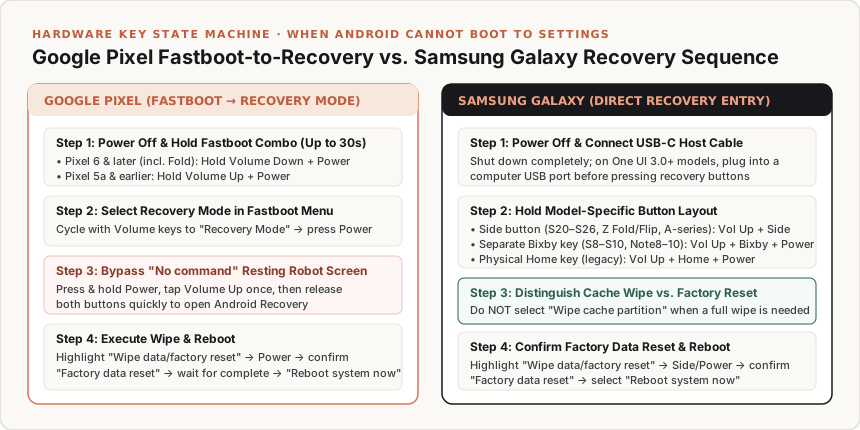
- Enter Fastboot Mode using the button combination for your Pixel generation:
- Pixel 6 and later (including Pixel 6 through Pixel 11 and Pixel Fold): Press and hold the Volume Down + Power buttons simultaneously for up to 30 seconds until the Fastboot mode screen appears. (Release as soon as Fastboot appears; holding past 30 seconds forces a normal restart.)
- Pixel 5a and earlier: Press and hold the Volume Up + Power buttons simultaneously for up to 30 seconds until Fastboot mode appears.
- Select Recovery Mode: Use the Volume Up and Volume Down buttons to cycle through the menu options until Recovery Mode is displayed on screen, then press the Power button to select it.
- Bypass the “No command” screen: When the screen displays “No command” below the resting Android robot icon, press and hold the Power button. While holding Power, press the Volume Up button once, then release both buttons quickly.
- Execute the Factory Data Reset: In the Android Recovery menu, press Volume Down to highlight Wipe data/factory reset and press Power.
- Press Volume Down to highlight Factory data reset and press Power to confirm. Wait until
"Data wipe complete"appears at the bottom of the display, then highlight Reboot system now and press Power. - USB repair tool alternative: For Pixel 4a and later (including Fold), Google Pixel Help (
answer/4596836) also provides the browser-based Google Pixel Update and Software Repair tool (pixelrepair.withgoogle.com) over a USB connection to a computer.
Samsung Galaxy Recovery Mode Procedure (Samsung UK Support & US ANS10002030)
- Power off the Galaxy phone completely. On Galaxy devices running One UI 3.0 and later (such as Galaxy S20 through S26, Note20, Z Fold, Z Flip, and modern Galaxy A-series), connect the handset to a computer USB port via a USB-C cable before pressing the hardware keys so the bootloader accepts the recovery key sequence.
- Press and hold the button combination matching your Galaxy hardware layout until the Samsung logo appears and the Android Recovery menu opens:
- Side button layout (no physical Home or separate Bixby button — Galaxy S20–S26, Z Fold/Flip, modern A-series): Press and hold Volume Up + Side button.
- Separate Bixby and Power buttons (Galaxy S8–S10, Note8–Note10): Press and hold Volume Up + Bixby + Power.
- Physical Home button (legacy Galaxy models): Press and hold Volume Up + Home + Power.
- Use Volume Down to highlight Wipe data/factory reset and press the Side / Power button to select it.
- Use Volume Down to highlight Factory data reset (or Yes) and press Side / Power to confirm.
- Once
"Data wipe complete"is displayed, highlight Reboot system now and press Side / Power.
Takeaway: Charge to at least 70%, execute trade-in and resale wipes exclusively through Settings, and reserve Fastboot/Recovery button sequences for unbootable or screen-damaged handsets where you still hold the synced Google credentials.
7. Non-Destructive Alternatives When a Full Factory Reset Is Overkill
If you are considering a factory reset solely to fix an app crash, Wi-Fi drop, or sudden battery drain on a phone you plan to keep, test non-destructive troubleshooting paths first so you do not spend an hour restoring backups and re-authenticating banking and 2FA apps:
- Boot into Android Safe Mode: Temporarily disables all downloaded third-party apps so you can verify whether a recently installed app is causing random reboots or freezes. Follow our Android Safe Mode boot, exit, and troubleshooting guide.
- Clear a Single App’s Cache or Storage: Fixes corrupted state or login loops inside one specific application without touching the rest of the phone. Compare the two controls in our Clear App Cache vs. Clear Storage on Android guide.
- Use Targeted Settings Resets (
Samsung One UI&Pixel): As listed in Samsung’s reset documentation (ANS10002030) and Pixel’sSettings > System > Reset options, you can run Reset Wi-Fi and Bluetooth settings, Reset mobile network settings, or Reset all settings (which restores system preferences to defaults without deleting downloaded apps, photos, or personal files).
For more troubleshooting walkthroughs and hardware diagnostics across the Android Phones Blog, browse our Product Guides collection.
Takeaway: Isolate single-app faults with Safe Mode, per-app cache clearing, or targeted network-settings resets before committing to a full userdata factory reset.