Changing Android Developer options without a goal can cost you time restoring settings and leave a trusted-computer permission enabled unnecessarily. For useful settings with manageable risks, enable the menu, record each original value, and consider a small animation-scale trial; keep background-process limits at their normal setting and enable USB debugging only for a specific trusted session.
- Animations
- USB Debugging
- Background Processes
- Bluetooth Audio
Android Developer options expose controls for debugging and observing system behavior. To enable the menu on Android 4.2 or later, find Build number in Settings and tap it seven times. The best setting depends on your task: a lower animation scale shortens supported visual effects, USB debugging permits an authorized ADB connection, and Bluetooth codec choices depend on both devices. None establishes a universal battery-saving preset. This guide compares those uses, explains the risks, and gives you a record for deciding whether to keep or restore a change.
How to enable Android Developer options
Find Build number, tap it seven times, then return to Settings to locate Developer options. Android’s enablement instructions say the screen is hidden by default on Android 4.2 and later and warn that its location or name can vary.
Use these documented paths as examples:
- Google Pixel: Settings → About phone → Build number.
- Samsung Galaxy S8 and later: Settings → About phone → Software information → Build number.
If your software uses different labels, follow your phone maker’s instructions. Revealing the menu is separate from enabling USB debugging or choosing a different animation scale. Open only the control needed for the task and note its current value before changing it.
Which Developer options settings are useful, and what are the risks?
Start with the control that matches the symptom. Animation scales are a visual preference; USB debugging and restricted process counts serve specific development or diagnostic tasks.
| Control | What changes / unit | Useful setting or action | Dominant Failure Mode & Prevention |
|---|---|---|---|
| Window and transition animation scales | Window or activity-transition playback; dimensionless multiplier, × | If offered, try 0.5× on one control and compare the result. Restore the recorded value if unwanted. | Mistaking shorter motion for faster processing. Evaluate the visual effect separately from loading, heat or computation. |
| Animator duration scale | Animator-based duration and start delay; dimensionless multiplier applied to time | A positive scale can retain animation feedback. Try a smaller offered value only if that is your goal. | Zero ends these animations immediately. Retain a positive scale when you want visible animation feedback. |
| USB debugging | ADB communication over USB; on/off plus computer authorization | Enable for a specific session with a trusted computer, then turn it off. | Authorizing an untrusted or compromised computer enables powerful device commands. Decline unknown authorization prompts. |
| Background process limit | Number of concurrent background processes | Keep the original normal/default choice for daily use; restrict only for a defined test. | Treating a lower count as a free speed boost. Preserve the normal baseline and check app switching and required tasks. |
| Bluetooth audio codec and LDAC quality | Mutually supported codec and audio/connection-quality policy | Check compatibility and the active codec; restore a working connection-quality choice if audio breaks up. | Unsupported codec expectations or interrupted playback. Verify the current connection and follow the accessory maker’s recovery steps. |
The mechanisms come from Android’s control descriptions, its animation constants, ADB authorization guidance, process-lifecycle guidance, and AOSP codec negotiation. The trial and rollback choices are editorial recommendations based on those mechanisms.
Try 0.5× animation scales for shorter visual effects
A lower animation scale shortens the supported effect’s playback. It does not establish that the processor completes work sooner, downloads finish faster, or battery life improves. Android documents separate controls for window animations, activity transitions, and Animator-based animations; changing one does not make all motion identical.
Record the original value of one control, select 0.5× if your phone offers it, and repeat the same window or app-switching action. If you prefer the result, you can evaluate another control separately. Restore the recorded value if the motion becomes hard to follow or an affected app behaves poorly. The offered choices can differ by phone.
For one non-repeating Animator-based animation with no start delay:
D_scaled = s × D_base

D_scaled: scaled duration in milliseconds (ms)
s: dimensionless Animator duration scale
D_base: unscaled duration in milliseconds (ms)
Worked example: using ValueAnimator’s documented default base duration of 300 ms and a chosen example scale of 0.5, 0.5 × 300 ms = 150 ms. ValueAnimator’s duration documentation supplies the base value; its duration-scale documentation supplies the scaling behavior. This calculation describes animation time, not measured app-launch latency. Apps can choose other durations, add delays or repeats, or use another animation system. The 300 ms default does not describe every window or transition.
Timing rule: at Animator scale s = 0, animations end immediately; if you want animation feedback, choose an offered positive scale, s > 0. Android’s Animator scaling constant establishes the zero boundary. Keeping positive feedback is a preference, rather than a universal accessibility recommendation.
If the question is display smoothness or refresh-rate battery cost, use the 120 Hz versus 60 Hz comparison. If the phone becomes hot and remains slow, follow the thermal-throttling checks rather than judging the fault by animation speed.
Keep USB debugging off between trusted ADB sessions
Enable USB debugging when you need Android Debug Bridge for a specific task. Android’s ADB guide describes installing and debugging apps and running Unix-shell commands. These are device-management capabilities within platform permissions, not a performance setting.
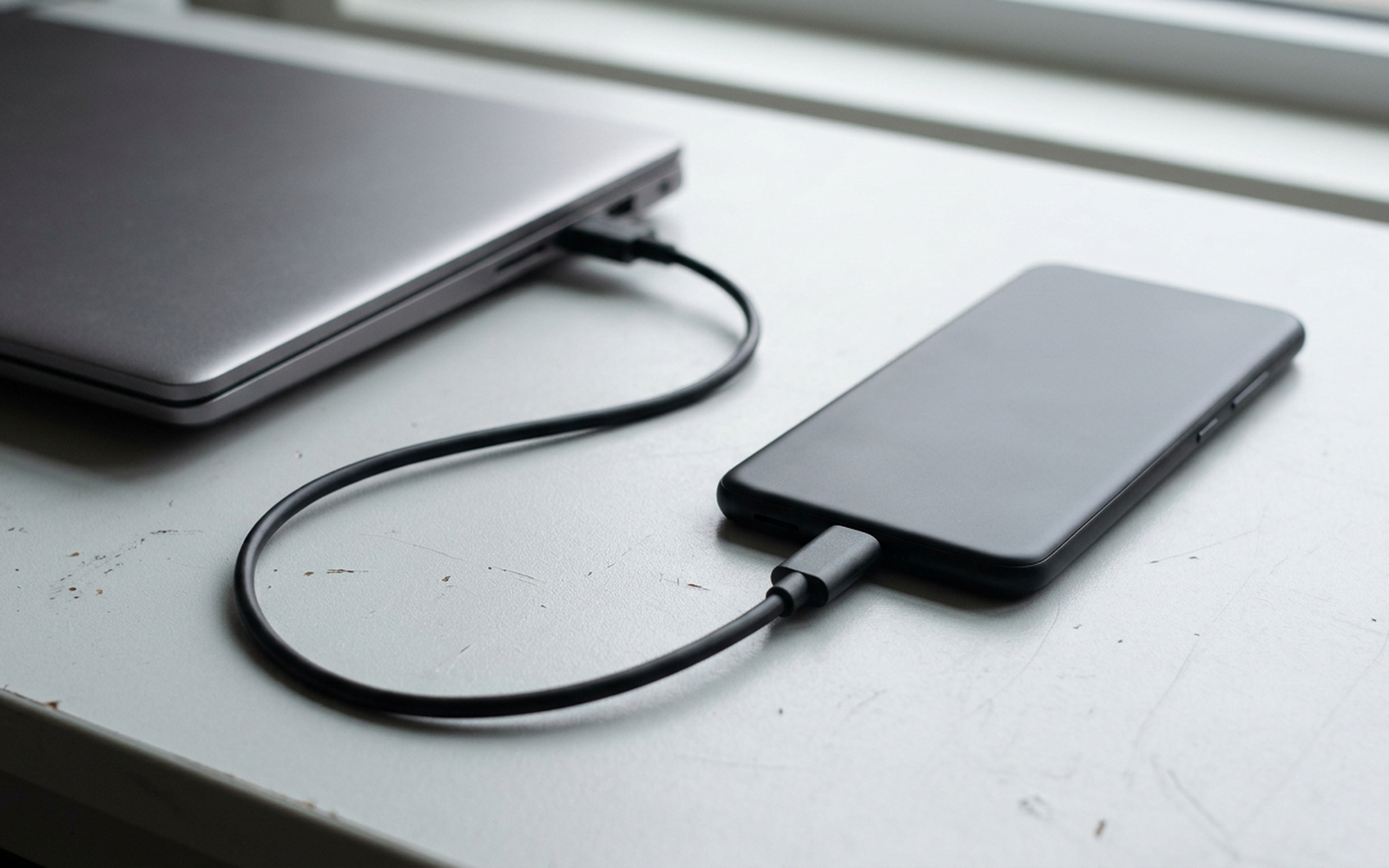
On Android 4.2.2 and later, the documented USB connection flow requires accepting the computer’s RSA key on an unlocked device. The important trust decision is authorizing that computer. Revealing Developer options, or plugging in an arbitrary cable, does not by itself authorize an unknown computer to run ADB commands.
For a needed USB session:
- Use a computer you trust and enable USB debugging for the task.
- Accept the authorization prompt only when you recognize the connection you initiated; decline an unknown request.
- Complete the task, disconnect, and turn USB debugging off.
An authorized computer that is untrusted or later compromised is the relevant risk. Do not interpret the authorization boundary as automatic root access or unrestricted access to all private data.
Leave Background process limit at its normal setting
Keep the phone’s original normal/default process-limit choice for everyday use. Android defines this control as the number of processes that can run in the background at one time. It is not a RAM size, an app count, or a timer.
Android’s lifecycle documentation explains that multiple cached processes support efficient app switching. The system can kill cached processes to reclaim resources, and a correctly implemented app can restore its saved activity state. A lower count therefore does not establish a better everyday setting or a guaranteed battery improvement.
Use a restricted count only when a defined diagnostic test calls for it. Record the original value, change only that control, repeat the intended task, and restore the value afterward. If you observe reloads, lost state, delayed alerts or failed sync, record the observation and investigate; none of those outcomes is guaranteed by the count alone.
This setting is separate from Don’t keep activities, per-app battery restrictions and screen-off idle policies. For one app’s battery behavior, use the Pixel and Galaxy background-app restriction steps. For learning-based app treatment, read the Adaptive Battery guide; for idle behavior, read the Doze explanation.
Check LDAC compatibility and the active Bluetooth connection
Use LDAC only when the phone and listening device support it, and verify the codec actually in use. AOSP’s advanced-codec description explains negotiation between codecs supported by both endpoints; its Android 8.0 implementation discussion is not a compatibility list for every current phone.
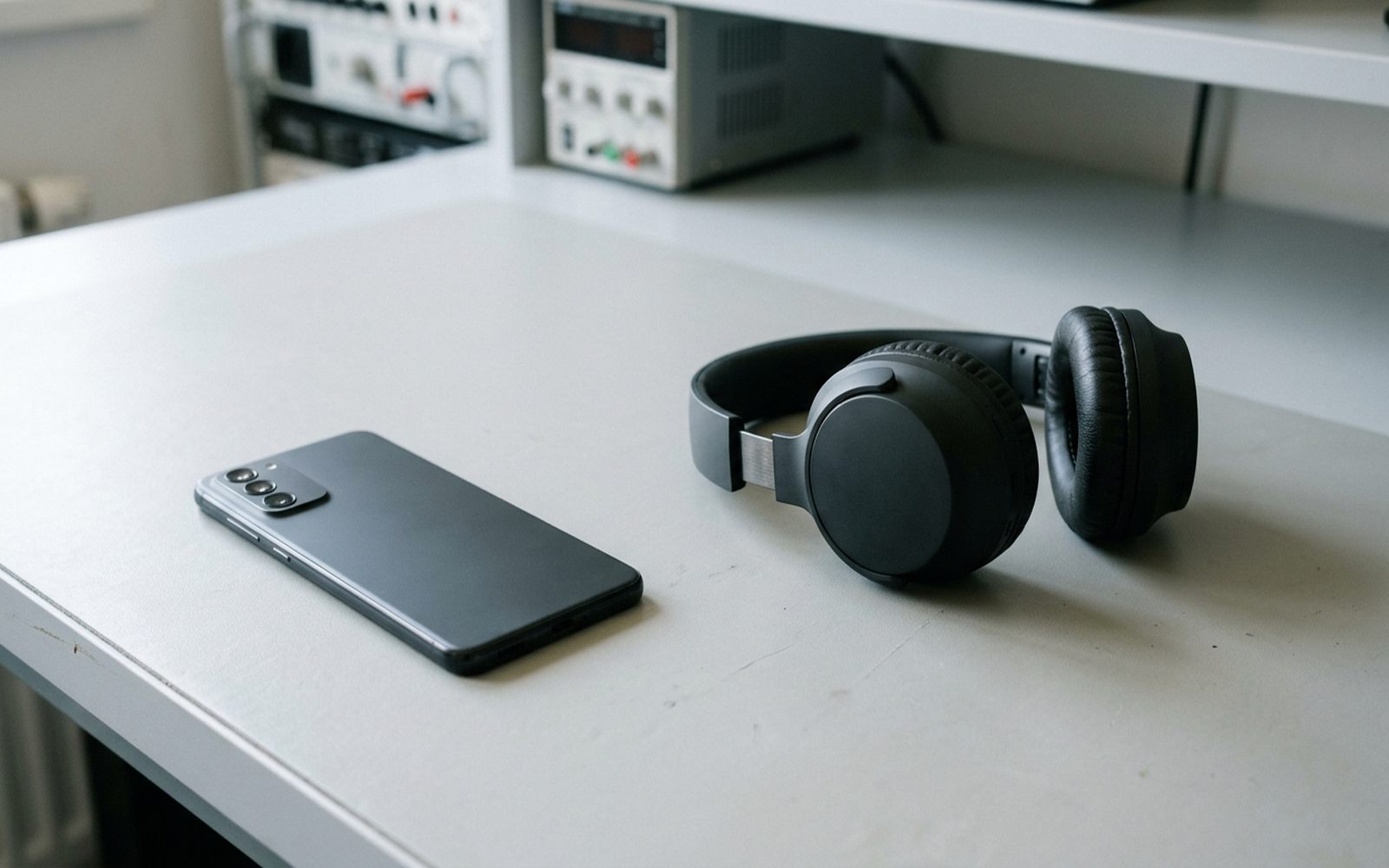
Android documents LDAC choices that favor audio quality, balance quality and connection, favor connection quality, or use adaptive bitrate behavior. The choices exposed by your phone still depend on its software and connected equipment. Selecting a menu item cannot add codec support to incompatible hardware.
For products covered by Sony’s LDAC troubleshooting article, set Bluetooth Connection Quality → Prioritize Sound Quality in Sony | Sound Connect. Check the actual codec below the model name. If it does not become LDAC immediately, Sony advises toggling Bluetooth on the playback device or restarting the headphones. Follow your model’s Help Guide if its controls differ.
Sony warns that the increased data transmission can cause interruptions and recommends Priority on Stable Connection if that occurs. Its codec-display instructions also make applicability depend on the product, operating system, software and settings. Treat the displayed codec as a check of the current connection. These sources do not establish a permanent LDAC lock across reconnects or reboots.
Record the cost of keeping a change and restore what fails
Keep a change only when it meets the task you chose without making required work less reliable. The ongoing costs include battery use under comparable conditions, time spent reopening apps, missed required tasks, Bluetooth interruptions and the effort needed to restore the original value.
| Record | What to write down | Keep-or-restore check |
|---|---|---|
| Baseline and change | Phone, Android/OEM software, relevant app version, exact setting, original value and new value | Only one control differs during the comparison. |
| Battery observation | Percentage-point drop over the same duration in hours; note display use, signal, radios, charging and workload | Compare similar conditions. A single unmatched session cannot establish a saving. |
| App-switching effort | Reloads, any lost place, and time spent recovering during the same task sequence | Restore the value if required work becomes harder. |
| Required alert or task | What should arrive or complete, when you need it, and what actually happened | Restore after a required failure, then investigate the affected app. |
| Bluetooth playback | Active codec, quality mode and interruptions along the same listening route | Return to the working quality/connection policy if playback becomes unacceptable. |
Editorial rollback threshold: if one or more required alerts or tasks fail during your controlled change, restore the original value before further experimentation. This is a conservative acceptance rule you choose, not an Android failure threshold or proof that the setting caused the failure. Define the required event beforehand; a successful spot check does not guarantee future delivery.
Copy this record for each experiment:
Phone / Android or OEM software / relevant app version:
Goal / expected task or alert / needed completion time:
Control / original value / changed value:
Observation duration / workload / display / signal / charging:
Battery observation / reloads / task result / audio interruptions:
Keep or restore / reason / original value restored:
Restore changed controls individually from your notes. Android says the Developer options master switch disables most options with exceptions, so switching it off is not a reliable substitute for checking each recorded value. Turn USB debugging off separately when its session ends. If battery drain remains the issue, continue with the one-change battery and performance diagnostic record.
Method and sources
Updated October 2026. This guide uses Android Developers and AOSP documentation from their official English google.cn mirrors, plus Sony’s product-scoped support instructions, accessed October 19, 2026. The animation example applies the documented ValueAnimator default to a stated scale; it is a timing calculation. The trial choices, observation record and rollback threshold are editorial decision aids. No universal battery saving or persistent codec behavior follows from them.
For related device controls and troubleshooting, browse Android product guides.