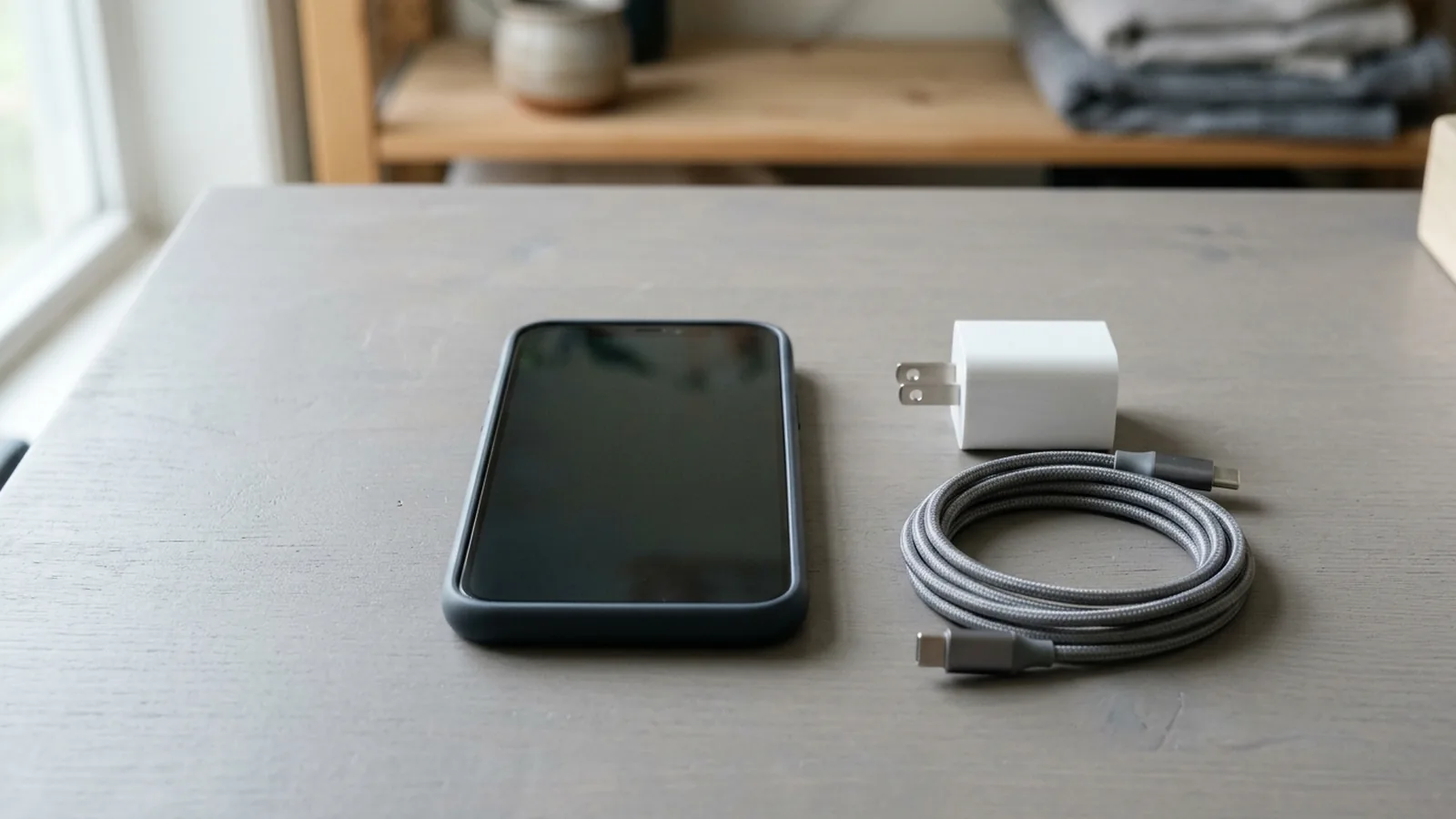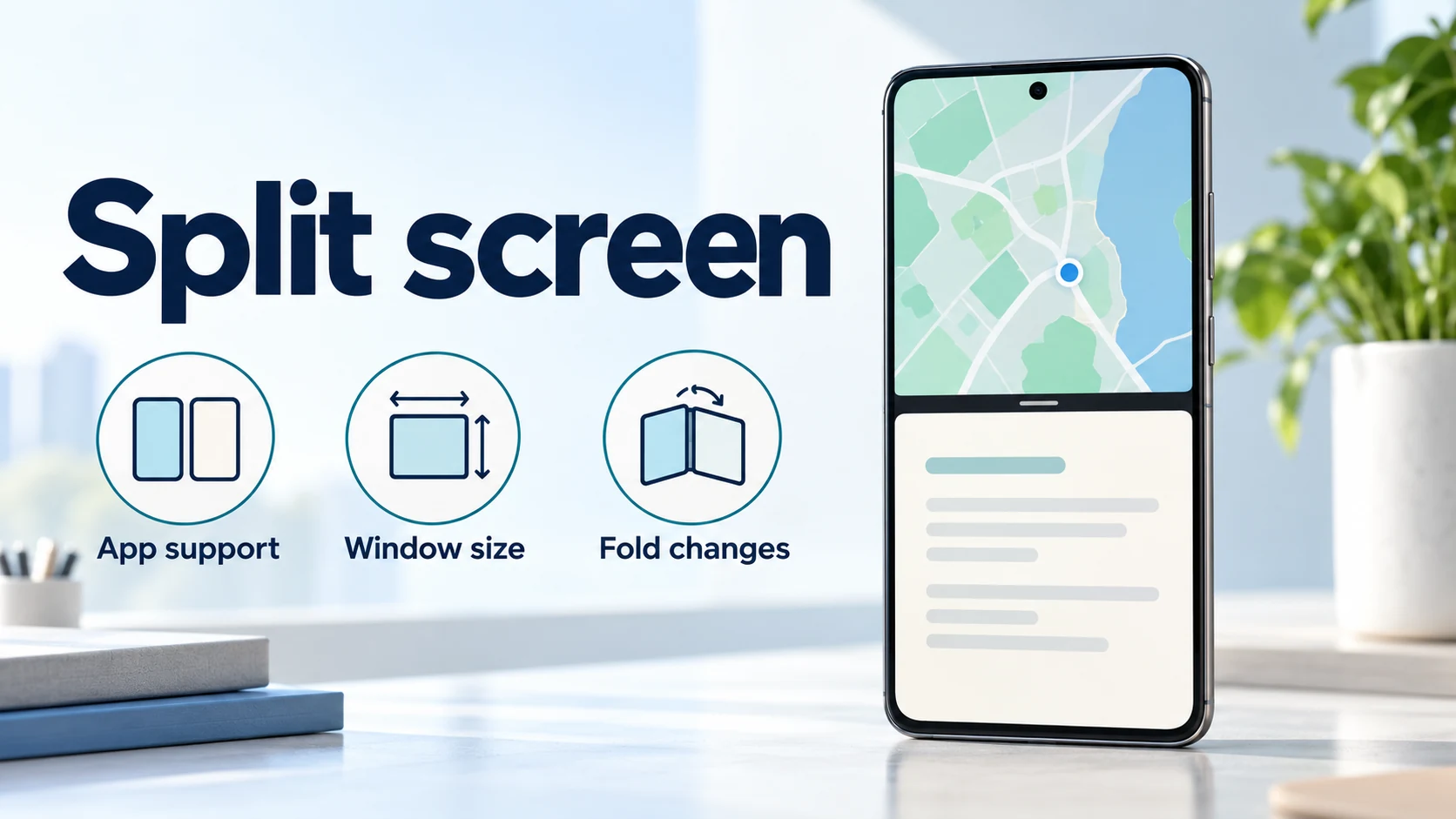
Clear storage fails the account when the goal was only to free temporary files, and the damage is a signed-out app plus files that lived only inside it. Android Help defines the two controls in one sentence pair: Clear cache deletes temporary data, and Clear storage permanently deletes all app data.
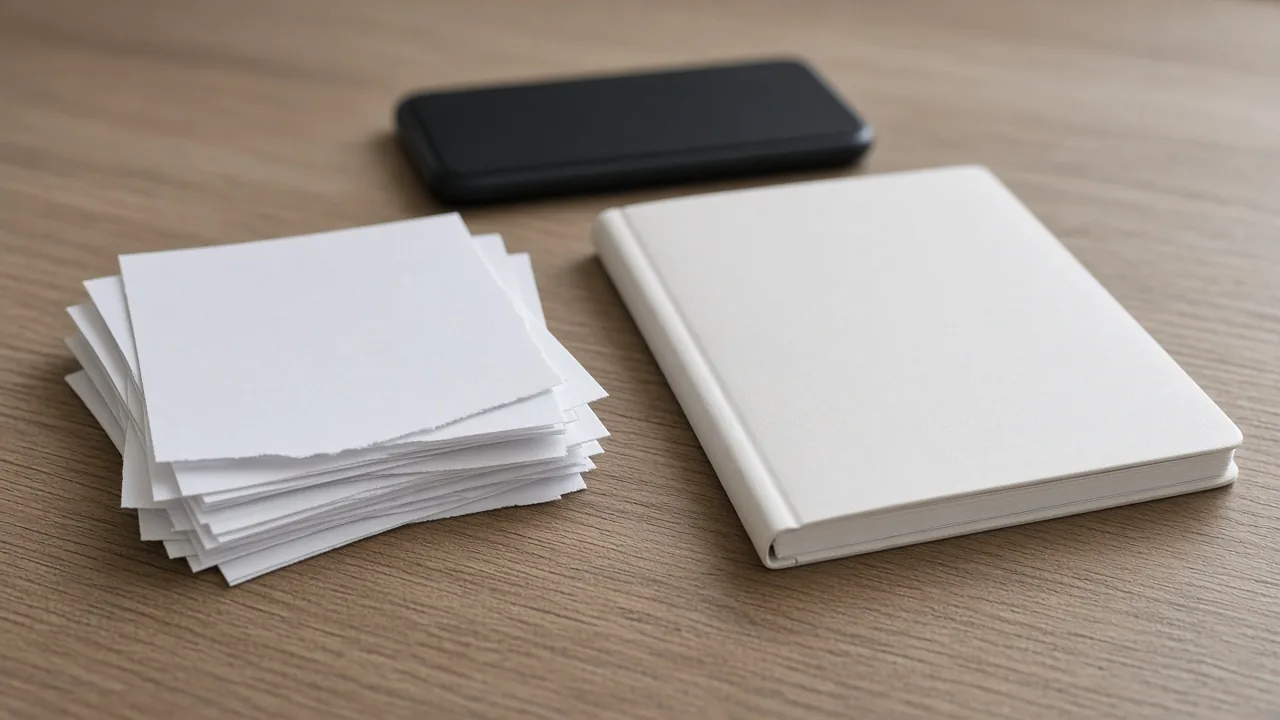
The photograph below is a size comparison, not a settings screenshot and not a claim about any phone model.
What each control removes
| Control | Google’s wording | What you still have | What you lose |
|---|---|---|---|
| Clear cache | Deletes temporary data. Some apps are slow the next time you open them. | Accounts, settings, and files stored as app data | The temporary files for that app |
| Clear storage or Clear data | Permanently deletes all app data. Any data saved in this app will be erased. | The installed app itself | Sign-in, settings, and files kept in that app |
| Uninstall | Any data saved in the app will be erased. You can download a paid app again without buying it again. | The Play purchase record, per Android Help | The app and its on-device data |
Pixel help gives the path for the first two rows. Open Settings, tap Apps, tap See all apps, tap the app, then tap Storage & cache. Clear cache is the temporary-file control. Clear storage or Clear data, then OK, is the data-erasing control. Menus differ by phone. Read the label on the device in your hand, and use the manufacturer page when the labels do not match this path.
Storage and memory are different pools. Android Help says storage is where you keep data, such as music and photos, and memory is where you run programs. Clear cache and Clear storage act on storage. They do not empty the memory the system uses to run apps.
A recovery-menu wipe of the cache partition is a third operation. The steps, and the phones that expose that menu, are in the cache partition guide. Do not open recovery to perform the Settings control described here.
The storage math
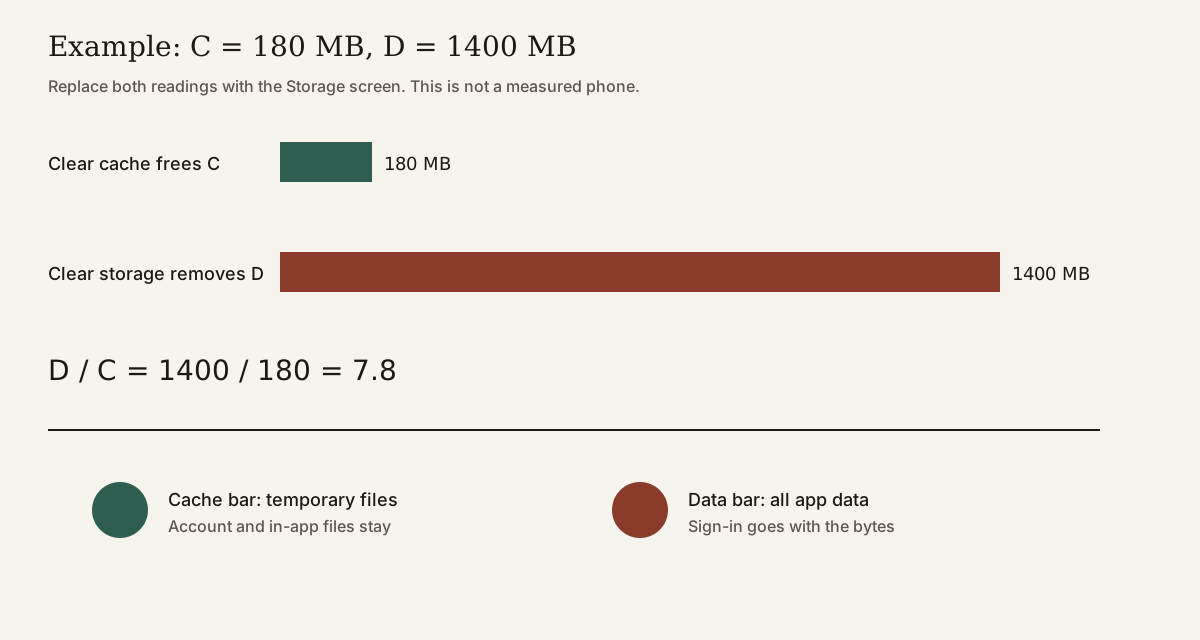
Let C be the Cache figure on that app’s Storage screen. Let D be the app-data figure on the same screen. In the example below, 1 GB means 1000 MB, so the arithmetic stays in one unit. If your screen prints a different unit, convert with the unit it prints before you divide.
Clear cache frees C. Clear storage removes D, and it removes the sign-in state Google describes as all app data.
Worked example, using readings you replace with the numbers on your screen. These are not measurements from a test phone.
- C = 180 MB
- D = 1.4 GB = 1400 MB
- Clear cache frees 180 MB
- 1400 / 180 = 7.8
On these example readings, Clear storage removes about 7.8 times the bytes that Clear cache removes. The larger cost is the account: you sign in again, and files that existed only in the app are gone. If your screen shows a different C or D, recompute D / C with those readings. A rule of thumb: if C is the only number you can afford to lose, stop at Clear cache.
When Clear cache is the whole fix
Use Clear cache when the app misbehaves and you still need the account, or when you need a short-term space gain from that one app. Pixel help says clearing cached data frees space by removing temporary files, and that this is a short-term solution because cached data builds up again. Android Help says some apps are slow the next time you open them.
That rebuild is the failure mode of treating cache clearing as a permanent cleanup. The bytes return as you use the app. If the original problem is still there after one cache clear, another cache clear of the same app does not change the diagnosis. Move to the data control only if you can accept the erasure, or contact the app developer. Pixel help points to the developer when the problem continues after a force stop.
Background battery use is a different fault. Restricting one app is covered in the battery drain guide. Clearing cache does not change a background restriction, and a background restriction does not delete the cache.

The screen in that photograph is off on purpose. Confirm the button text on your phone. A dark screen is not a cleared cache.
When Clear storage is the control you mean
Clear storage is the right control when the app’s saved state is the thing that is broken, and you have another copy of anything you still need. Android Help says to try deleting the data within the app first. That in-app delete leaves a record of what you removed. Clear storage does not.
Pixel help puts a caution on the data step: any data saved in this app will be erased. The confirmation is OK after Clear storage or Clear data. If the button you are about to press does not say cache, assume it erases app data.
Play Store is the documented case where cache and data are sequenced. Google Play Help says clearing the Play Store cache is the most common fix for download problems. The same page says clearing cache and data can delete Play Store settings such as parental controls and password protection, and that the app will ask you to agree to the Terms of Service again. If those settings matter, write them down before the data step, then turn password protection and parental controls back on if the download problem is gone.
Google Play services is the expensive data clear
Google Play Help says it is not recommended to clear Google Play services unless you have tried the other troubleshooting options. Clearing Play services data or storage can delete information saved on the device. The page names passwords, transit cards, COVID cards, and virtual payment cards saved to Google Pay. It also says you reauthenticate payment methods on Google Pay and sign back into your Google Account on all devices.
The order on that page is specific. Clear the Play Store cache. If the problem remains, clear Play Store storage. Only then consider Play services, and only after the other options. A rule of thumb: if the broken app is not Play services, do not clear Play services to tidy storage.
The cost of a wrong data clear is time, not a fee printed on these help pages. Re-entering accounts, replacing a transit card, and confirming payment methods are the bill. There is no published minute count. Count the accounts on the phone before you confirm.

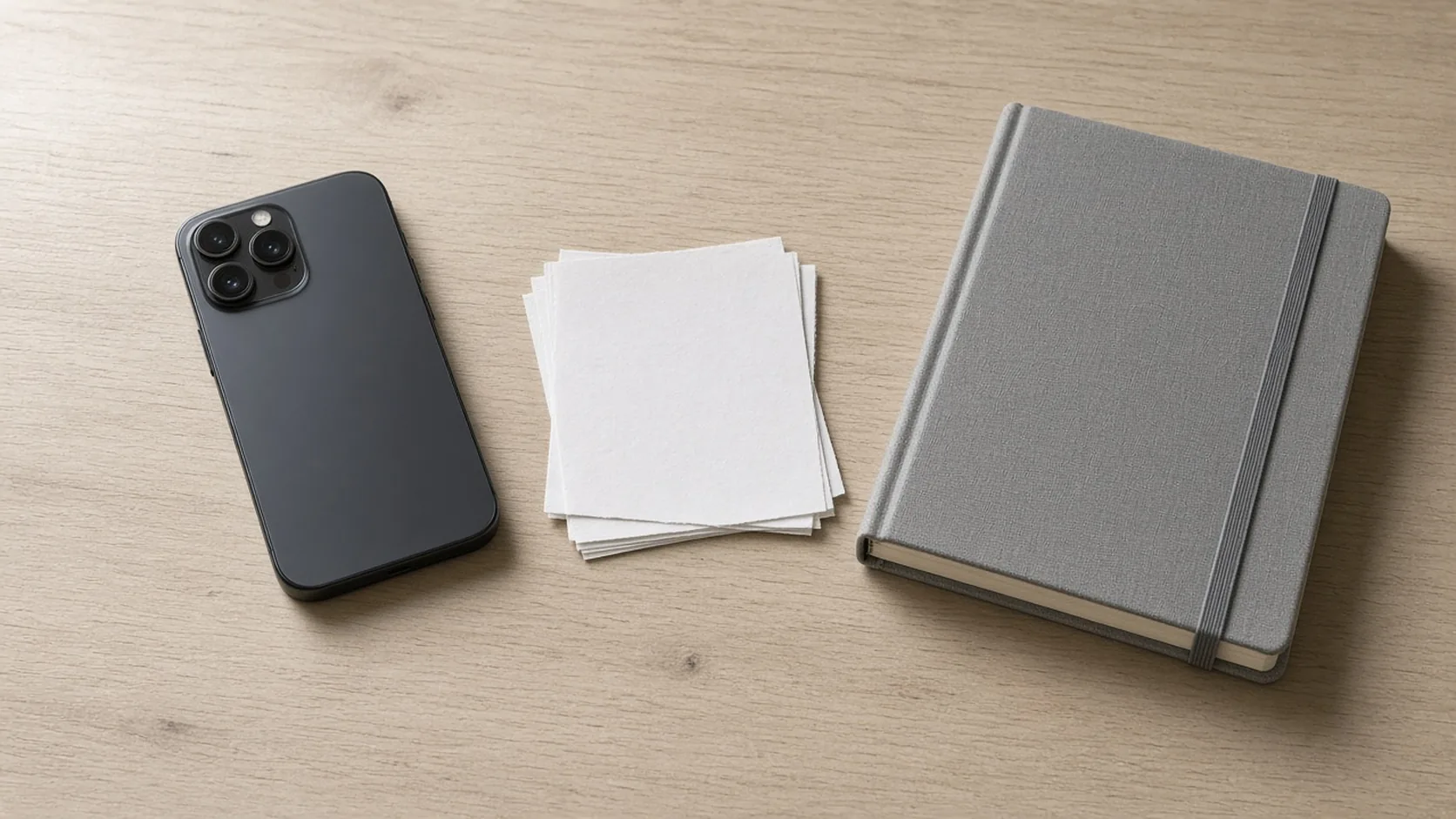
The scrap paper in the bin is the cache you can discard. The closed notebook is the app data that stays unless you press the data control. The photograph is that analogy. It is not a picture of Android’s file system.
A decision you can rerun
- Read the Storage screen and write down C and D.
- If the fault is space or a glitch, and you still need the account, press Clear cache. Freed = C.
- Open the app once. Slowness on that open matches Google’s description of a cache rebuild. If the original fault is gone, stop.
- If the fault remains and you can afford to lose D, delete inside the app first, then press Clear storage or Clear data and confirm.
- If the app is Play services, stop after the Play Store steps unless the other Play troubleshooting options are already done.
Some Pixel troubleshooting steps on the fix-an-app page apply only on Android 8.1 and up. Check the Android version before you treat a missing button as a broken phone. A missing Clear cache label means you follow the manufacturer page, not that you should press the data control as a substitute.