Repeated Android Safe Mode boot attempts can interrupt troubleshooting and make exit confusing. To turn off Safe Mode, usually restart normally; if you need to enter it deliberately, follow the Pixel or Galaxy instructions below, then compare the original symptom with downloaded apps disabled.
- Boot
- Exit
- Isolate Apps
- Check Keys
Android Safe Mode is a way to investigate downloaded apps when a phone restarts, freezes, crashes or runs slowly. An improvement makes an app a likely cause; it does not identify a particular app or establish malware. If every normal restart returns to Safe Mode, check for unwanted button input and accessory interference. If the original fault continues inside Safe Mode, follow the manufacturer’s other troubleshooting branch. Google’s Android guidance establishes the app-isolation workflow.
Turn off Android Safe Mode with a normal restart
Open your phone’s power menu and select Restart normally. Google says this usually exits Safe Mode, while noting that the method varies by phone. After startup, check whether the Safe mode label has disappeared from the bottom of the screen.
On a supported Galaxy, the Safe mode is on notification also offers Turn off, according to Samsung’s instructions. Use it if present. The table below gives the different Pixel exit controls.
Keep entry and exit separate: touching and holding Power off is part of the supported power-menu entry sequence. It is not the normal Restart tap used to leave. If Safe Mode returns, continue to the keys-and-case checks below rather than repeatedly performing the entry gesture.
Boot into Safe Mode on Pixel or Samsung Galaxy
Choose the instructions for your phone family and whether it is currently on or off. There is no universal Android button combination; the Pixel generations below are model groups, not Android version numbers.
| Phone and applicability | Boot from powered off | Enter while powered on | Exit |
|---|---|---|---|
| Pixel 6 and later, including Fold, as grouped by Google | Press Power. When the startup animation begins, hold Volume Down until the animation ends and Safe Mode starts. | Hold Power + Volume Up for a few seconds; touch and hold Power off or Restart; tap OK. | Hold Power + Volume Up for a few seconds, then tap Restart. |
| Pixel 5a and earlier | Use the same powered-off Pixel sequence above. | Use the powered-off route; this avoids extending the older-generation power-menu instructions beyond the steps Google spells out. | Google lists holding Power for about 30 seconds, or until the phone restarts. |
| Galaxy covered by Samsung’s US guide; screens and settings vary by provider, software and model | Turn on the powered-off device; hold Volume Down when the Samsung logo appears. Confirm Safe mode at bottom left. | Hold Side + Volume Down, or use the Quick panel Power icon. Touch and hold Power off, then tap Safe mode. | Restart normally, or use Safe mode is on → Turn off when available. |
Sources: Google’s Pixel entry and exit instructions and Samsung’s Galaxy instructions. Samsung does not specify a universal number of seconds for the cold-boot Volume Down hold. For another phone family, use that manufacturer’s support instructions.
What Safe Mode disables and what to check first
Safe Mode temporarily turns off downloaded apps on Pixel; Samsung describes third-party apps as not running. This is a diagnostic change, not an uninstall, and it does not mean all system or background processes stop. See Google’s Pixel troubleshooting scope.
Before entering, write down the original symptom and the task that triggers it. Screenshot your Home screen if you need to restore widgets: Google warns that some widgets are removed, and Samsung notes that some wallpaper or theme customizations can revert on exit.
On Pixel, entering Safe Mode automatically enables Airplane mode. Google advises turning it off to use features such as Wi-Fi, GPS and calls. Match the network conditions needed for your comparison; a change in connectivity can otherwise change the symptom independently of app isolation.
Try to reproduce the same fault. If the task requires a downloaded app that is now disabled, record the comparison as inconclusive. An unavailable app is not evidence that its fault has cleared. There is no universal observation time or battery-drain threshold in these Safe Mode instructions.
Isolate downloaded apps with one change per restart
If the original symptom clears in Safe Mode, exit and investigate recently downloaded apps individually. Google’s sequence is to remove a candidate, restart normally and check whether the original problem is solved; repeat as needed. Samsung also suggests reviewing apps installed or updated when the issue began.
Rule of thumb: change at most one candidate app between normal-mode retests. If you remove another before checking the effect, you lose a clear link between the change and its result. The removal count follows Google’s one-by-one instructions; the attribution rule explains why the sequence matters.
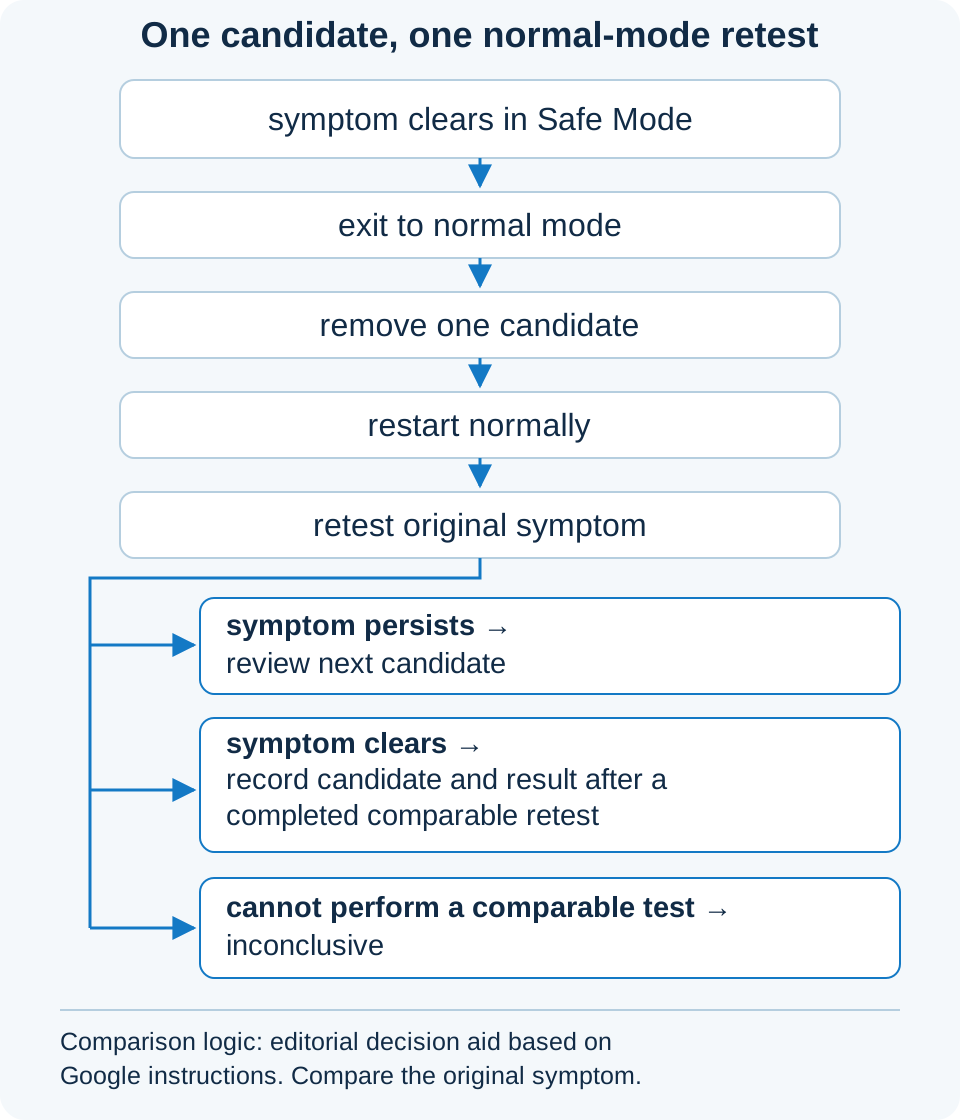
Keep the candidate name, removal, normal restart and symptom result together in your notes. Mark a candidate checked only after that retest; separately record symptom persists, symptom clears, or inconclusive. Pending work can be counted as:
N_pending = N_listed − N_checkedWorked example — hypothetical counts only: 5 listed candidate apps − 2 checked candidates = 3 candidates still pending. These invented counts illustrate bookkeeping, not a device test or an OEM estimate. A checked candidate is not automatically harmless or malicious.
Before removing an app, check whether any local information you need has an app-specific backup or export. Once the cause is isolated, Google says other removed apps can be reinstalled. Restoring the causal app can bring the fault back. If normal mode is stable and the remaining issue is background battery use, continue with background-app battery controls and how to undo restrictions.
Phone stuck in Safe Mode: check keys, case pressure and the screen label
If every normal restart returns to Safe Mode, check the screen label and external button interference before assuming an app is responsible. A recurring diagnostic boot and an original fault that persists inside Safe Mode are different observations.
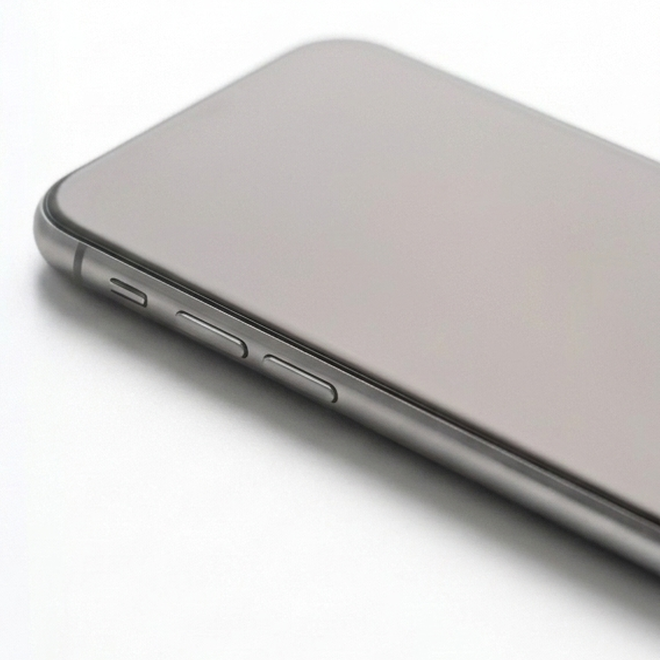
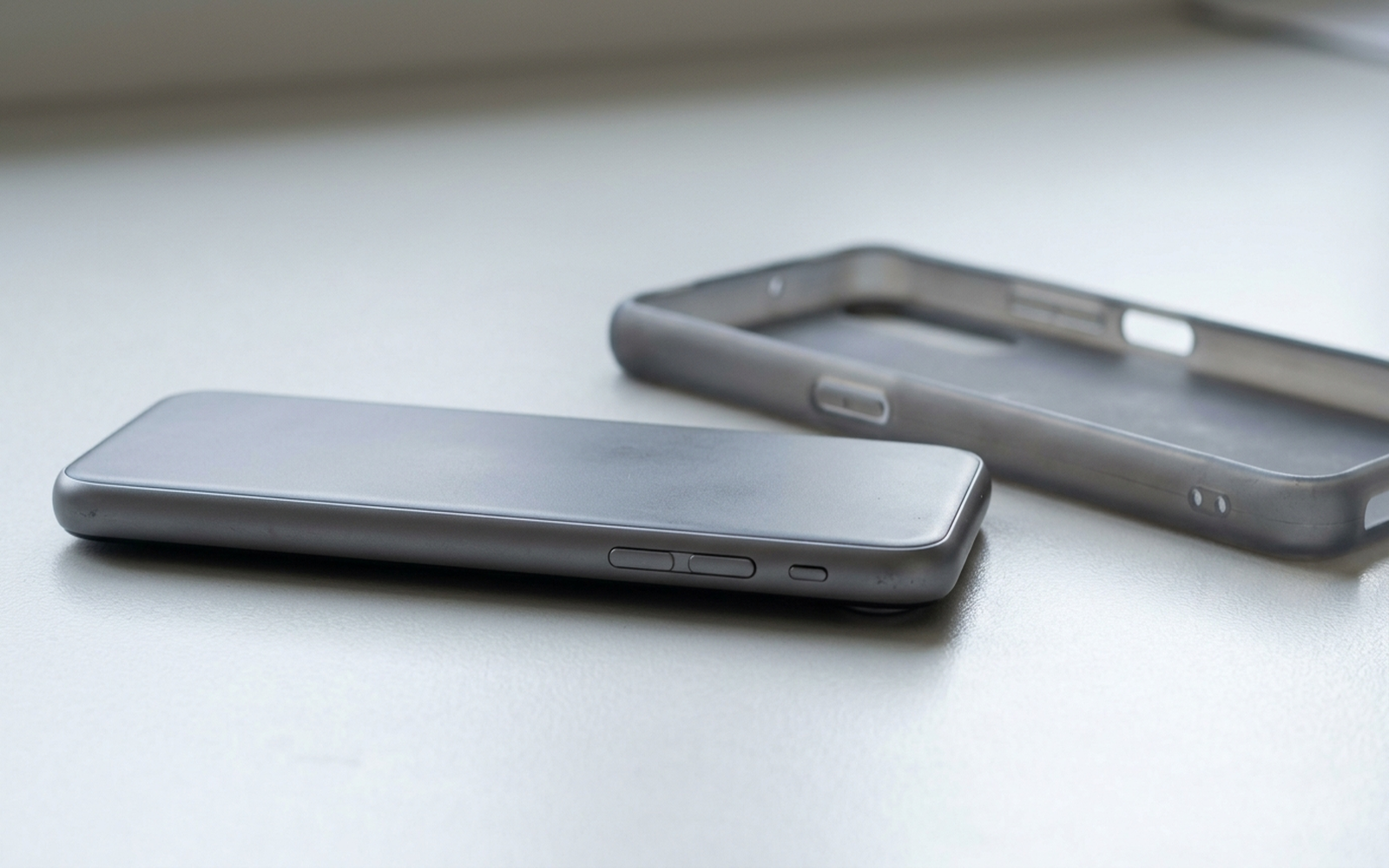
Remove a case, external battery or accessory that touches buttons, then observe whether Volume Down appears trapped or remains depressed. Restart normally without holding it. Google recommends accessory removal and keeping buttons unobstructed; Samsung Australia’s guide says repeated Safe Mode booting can indicate a physical Volume Down problem requiring assessment.
Case-pressure inference: because the documented cold-boot routes use Volume Down, unintended pressure on that key is a plausible reason to inspect the case fit. This combines the OEM boot and accessory guidance; it does not establish that a case causes Safe Mode on every Android device. If the problem persists with accessories removed, seek the manufacturer’s assessment rather than attempting internal button repairs.
| Observed condition | Next check | Dominant Failure Mode & Prevention |
|---|---|---|
| Original symptom clears in Safe Mode | Review recent apps; remove and retest individually. | Several changes obscure the cause. Preserve a per-app removal, restart and result record. |
| Every normal restart returns to Safe Mode | Check Volume Down behavior and remove accessories touching buttons. | Persistent key input may request entry again; this mechanism is an inference from the OEM guidance. Keep buttons unobstructed and seek assessment if it continues. |
| Original symptom continues inside Safe Mode | Follow the manufacturer’s other troubleshooting. | Treating an app as a confirmed cause sends investigation down the wrong branch. Compare the same symptom; persistence alone does not prove hardware failure. |
| Screen says Downloading or Android Recovery | Identify the screen and use the manufacturer’s instructions for that mode. | Confusing boot modes can lead to destructive selections. Do not choose Wipe data as a routine Safe Mode exit. |
| Factory reset is being considered | Check backups, account access and remaining alternatives. | Data removal and restoration work can be avoidable. Try the manufacturer’s prior troubleshooting and verify what is backed up. |
The screen distinction and physical-key possibility come from Samsung’s Australian-variant guide; its regional button timings are not a universal Android exit method. The comparison and prevention choices are editorial decision aids based on the cited OEM instructions.
If the original problem persists, the Android battery drain and performance guide provides broader checks. Safe Mode does not measure wake locks or establish a particular background startup mechanism.
Compare isolation with the time and data cost of a factory reset
Account for backup and restoration before choosing a factory reset. Google recommends trying other solutions first and says a reset erases phone data and uninstalls apps and their data. Material already stored in your Google Account can be restored; that is not a promise that everything on the phone is backed up.
| Option | Time to account for | Data and restoration exposure |
|---|---|---|
| Normal restart and Safe Mode observation | Reboot, reproduce the original symptom and inspect the result. No universal total duration is supplied. | Downloaded apps are temporarily disabled; widgets or customization may need restoring. |
| Candidate app removal | Record the candidate, remove it, restart and retest; account for reinstalling other removed apps. | Check app-specific backup needs before removal; do not assume local data will survive. |
| Factory reset | Backup, reset, restore, account sign-in and reconfiguration. Google says the reset itself can take up to an hour. | Phone data is erased; restoration depends on what was backed up. Reinstalling the causal app can reintroduce the issue. |
The reset duration is from Google’s Charge & connect section, not a complete recovery-time forecast. Before proceeding, confirm that you can access the Google Account on the phone, know its password and the device screen lock, and have verified the information you need is backed up. A reset is not an established remedy for a physically stuck key.
Method and sources
Updated October 2026. This guide uses Google’s Android and Pixel help pages and Samsung’s US and Australian support instructions, accessed October 19, 2026. Model and regional limits remain attached to their procedures. The one-change rule, candidate-count arithmetic and cost ledger organize those instructions; the example counts are hypothetical, and the case-pressure mechanism is an explicitly identified inference.
Use the manufacturer’s support route when normal restarts keep returning to Safe Mode or the original fault continues. If a full wipe is necessary, follow our Android factory reset and FRP lock prevention checklist, or browse Android product guides.