Doze is Android’s idle mode. When your phone sits unplugged with the screen off, Android holds back apps’ background network access, jobs, syncs and standard alarms, then releases them in short maintenance windows. Leave Doze on. If one app’s messages arrive late, change that one app’s battery setting and write down what you changed; use ADB only to test Doze, and undo the test straight away.
This guide belongs to our Android product guides and expands the Doze section of the battery drain and performance overview. It explains what Doze restricts, how light and full Doze differ, why delayed messages arrive in bursts, and what the ADB commands and device_idle_constants keys actually do.
- One app’s messages arrive late: start with the symptom table.
- One app needs to keep running while idle: exempt that app, knowing the exemption is partial.
- You want to force or tune Doze: read the ADB test and the parameter map first.
What Doze does when your phone sits idle
Android’s developer documentation describes Doze as deferring background CPU and network activity for apps when the device goes unused for long periods. It applies to every app on Android 6.0 and later, whatever API level the app targets. Our Android 6.0 Marshmallow history covers its launch.
While full Doze is active, the Android Developers Doze guide lists these limits:
- App network access is suspended.
- App wake locks are ignored.
- Standard
AlarmManageralarms, including exact ones, wait for the next maintenance window. - Wi-Fi scans stop.
- Sync adapters and
JobSchedulerjobs are held, which also holds WorkManager tasks.
Some things keep working. Alarms set as alarm clocks fire normally, and Android leaves Doze shortly before they ring. Apps can schedule special “allow while idle” alarms that fire during Doze, but Android rate-limits them per app; the official pages give different figures, so we don’t quote one. AOSP also notes that SMS, MMS and telephony services work independently of Doze.
The documented list is about timing: it defers or suspends work. Closing or clearing apps is not on it.
Takeaway: Doze postpones background work; your alarm clock and phone calls are outside its limits.
Light Doze vs full Doze
Android 7.0 split Doze into two levels. Once the phone runs on battery and the screen has been off for a while, a lighter set of limits applies even if the phone is moving in your pocket. If the phone then stays still for a while, the full set applies on top. The Android 7.0 behavior changes describe both levels.
| Light Doze | Full Doze | |
|---|---|---|
| Starts when | Screen off, on battery; the phone may be moving | Screen off, on battery, and stationary |
| Introduced in | Android 7.0 | Android 6.0 |
| What it limits | App network access; jobs and syncs deferred | Adds ignored wake locks, deferred standard alarms, no GPS or Wi-Fi scans |
| Maintenance windows | Yes | Yes, further apart over time |
| Ends when | Screen turns on or a charger is connected | Motion, screen on, charger, or an alarm-clock alarm |
| Hardware needed | No motion sensor required | A significant motion sensor |
Full Doze needs evidence that the phone is lying still, which is why AOSP’s platform power management guide requires a significant motion detector for it. Without one, a phone gets only the lighter optimizations.
Doze is often confused with other battery features. They sit at different layers:
| Feature | Scope | What it does |
|---|---|---|
| Doze | The whole phone, while idle | Defers background work for all apps until a maintenance window |
| App Standby | One app you have not used recently | Defers that app’s background network activity |
| Adaptive Battery (Pixel) | Apps you use less often | Lets them run less in the background; Google says it may delay notifications |
| Samsung sleeping and deep sleeping apps | Apps on a list you manage | Deep sleeping apps only work when you open them |
| Per-app battery setting | One app | Optimized by default; turning optimization off lets that app run more |
Our Android 9 Pie explainer covers where Adaptive Battery came from, and the Android 7.0 Nougat overview covers the rest of that release.
Takeaway: With the screen off in a pocket, light Doze already applies; full Doze waits until the phone lies still.
Maintenance windows and what wakes the phone
Doze runs in cycles. Android periodically opens a short maintenance window in which apps run pending syncs, jobs and alarms and use the network, then it returns to idle. In full Doze, AOSP describes each idle stretch as longer than the last, up to a maximum of a few hours. Messages that waited overnight can therefore arrive together when a window opens or when you pick the phone up.
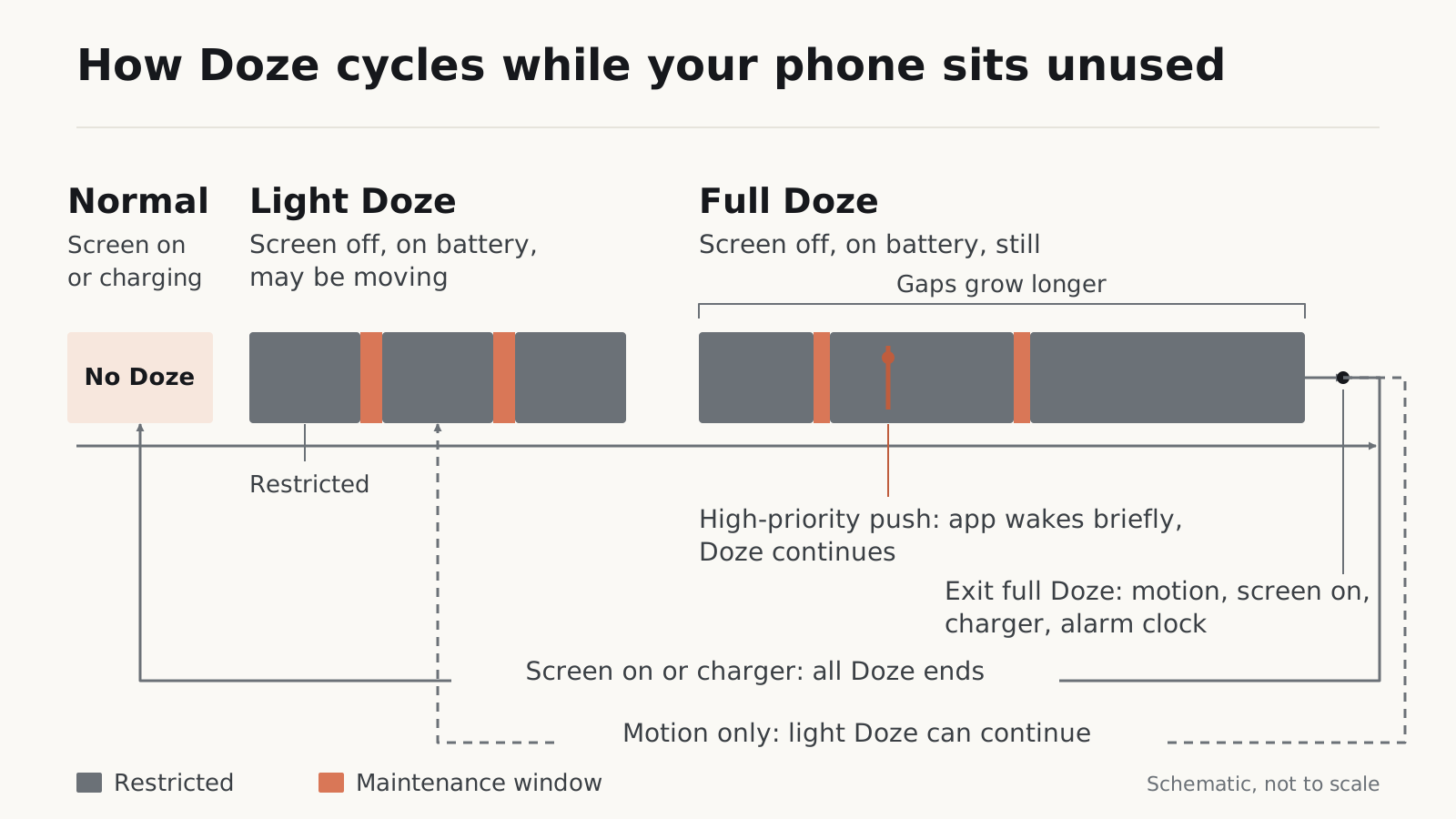
Full Doze ends when you move the phone, turn on the screen or connect a charger, or shortly before an alarm-clock alarm. AOSP also lists user interaction. Notifications are different: AOSP states that they do not take the device out of Doze. A high-priority Firebase Cloud Messaging (FCM) message gives the receiving app temporary network access and partial wake locks, after which Android returns to idle. Normal-priority messages wait for the next window or for you.
Android publishes no single countdown for any of this. The developer guide says “for a period of time”, AOSP says “some amount of time”, and the current AOSP code combines several adjustable timers and conditions. A fixed number of minutes quoted for every phone is not supported by these sources.
Takeaway: A late burst of messages can line up with a maintenance window or with the moment you woke the phone.
Late notifications: Doze or something else?
Doze is one possible cause of a late message. The sender has a large say: the app’s server chooses FCM priority, and Firebase’s priority guidance says FCM may downgrade high-priority messages from apps whose messages do not lead to visible notifications. Our reading of that documentation is that no phone setting can turn a normal-priority message into a high-priority one; we have not tested this.
| What you notice | Layer to check first | First step |
|---|---|---|
| No notifications from one app, even with the screen on | Notification permission or the app’s own settings | Check the app’s notification settings; Android 13 made notifications a permission |
| One app’s messages arrive in a batch after the phone sat still | Doze or that app’s battery setting | Check that app’s battery setting (next section) |
| On a Galaxy, an app stops updating until you open it | Samsung’s deep sleeping list | Check whether the app is listed under Deep sleeping apps |
| Delays began on a new or reset Pixel | Adaptive Battery still learning | Google says optimization can take a few weeks after setup; record and wait |
| The phone is hot and everything is slow | Heat, not idle limits | Use the thermal throttling guide |
| An alarm-clock alarm did not ring | Probably not Doze, since alarm clocks are exempt | Check the clock app and its settings |
Takeaway: Rule out notification permission and manufacturer sleep lists before blaming Doze.
Exempt one app before touching system settings
If one app needs to run while the phone is idle, change that app and leave Doze alone. Google’s Pixel battery help recommends keeping Adaptive Battery and battery optimization on, and warns that turning optimization off lets an app run more and can use more battery than needed.
- Write down the app, your Android version and the app’s current battery setting. Note anything else you rely on while the phone is idle, such as reminders, messages or Find My Device features.
- Change only that app. On a Pixel, open Settings > Apps > See all apps > the app > App battery usage > Allow background usage, and read the options your phone shows; Google notes some steps need Android 14 or later. On a Galaxy, Samsung’s sleeping-apps help uses Settings > Battery and device care > Battery > Background usage limits, where you can remove the app from Sleeping or Deep sleeping apps. Our Pixel and Samsung control guide has both paths in detail.
- Check the function you care about during the next idle period, and battery use the next day.
- If nothing improves, or battery use climbs, restore the original setting.
The exemption is partial. Android’s developer guide says an exempt app can use the network and hold partial wake locks during Doze, but other restrictions still apply to it. The resource-limit documentation adds that job execution quotas changed in Android 16; before that release, an app the user had set to unrestricted battery use had no execution limit. Treat an exemption as more room to run, with limits still in place.
Common mistake: Treating Samsung’s sleeping lists as the Doze exemption list. Removing an app from Sleeping or Deep sleeping apps lifts Samsung’s own limit; Samsung’s help does not say it puts the app on Android’s battery-optimization exemption list, so treat them as two separate settings.
Takeaway: One app, one recorded change, one check, then keep it or put it back.
Test Doze with ADB, then put everything back
ADB lets you force Doze to see how an app behaves without waiting for the phone to idle on its own. It is a test, and Android’s own procedure ends by undoing it. We did not run these commands on a phone for this guide, so we show no output; read what your phone prints.
Before you start:
- Turn on Developer options and USB debugging, connect by USB, and accept the RSA key prompt on the phone only for a computer you trust. The adb documentation says
adb devicesthen lists the phone asdevice. - If the phone shows as
unauthorized, or any command below is rejected, stop there. Your build may not allow it. - Write down the app and the function you are testing, for example “chat messages with the screen off”.
Step 1, look without changing anything:
adb shell dumpsys deviceidle help
adb shell dumpsys deviceidle get light
adb shell dumpsys deviceidle get deep
adb shell settings get global device_idle_constants
The help text lists the commands your build accepts. The last command shows whether a custom tuning string is already stored. Copy its result into your notes before changing anything; null means nothing custom is stored.
Step 2, force Doze with the official test command:
adb shell dumpsys deviceidle force-idleIn current AOSP source, this pushes the phone into deep idle regardless of other device state. It can also refuse, for example with “Unable to go deep idle; not enabled” on a build where full Doze is off. While the phone is forced, leave it alone and watch the function you wrote down: does the message wait? Don’t use this forced state to test how the phone leaves Doze on its own; check recovery only after Step 3.
Step 3, undo the test straight away, even if it failed:
adb shell dumpsys deviceidle unforce
adb shell dumpsys battery reset
unforce returns Doze to normal operation. battery reset clears battery-state overrides used for testing; it does not calibrate the battery or repair its health. After both commands, wake the phone, confirm that waiting messages and syncs arrive, and turn USB debugging off if you no longer need it.
Common mistake: Turning the screen on or plugging in the charger and treating that as the end of the test. In current AOSP source, a forced idle state skips the usual screen-on and charger exits; run
unforceandbattery resetevery time.
Older guides add dumpsys battery unplug as a first step. In Android’s current guide that command belongs to the separate App Standby test, so it is not part of this procedure.
AOSP’s help text also lists disable and enable for Doze itself. Disabling Doze for the whole phone to fix one app removes the idle limits for every app, and unforce does not undo it. Exempt the one app instead.
Takeaway: Force, observe, unforce, reset. Nothing in this test is meant to stay on the phone.
What the device_idle_constants keys mean
“Aggressive Doze” is a label from third-party apps and forum posts, not an Android setting. Most of those tweaks write one string to the global setting device_idle_constants. Current AOSP source still reads this setting and merges it with Android’s DeviceConfig flags, so it has not been removed from AOSP. Whether your phone honors it, keeps it after a reboot or update, or applies the values you expect cannot be read from that source. Manufacturers ship their own builds; our Project Treble explainer covers why Android implementations differ.
| Key | What it controls, per AOSP code comments |
|---|---|
inactive_to |
How long after the phone becomes inactive before Android starts checking the motion sensor |
motion_inactive_to |
After motion is seen, how long before Android looks for motion again |
idle_after_inactive_to |
How long Android watches for motion before treating the phone as idle |
idle_to |
The first full-Doze idle stretch before a maintenance window |
max_idle_to |
The longest full-Doze idle stretch allowed |
idle_factor |
How much each full-Doze idle stretch grows |
idle_pending_to |
The initial length of a full-Doze maintenance window |
light_after_inactive_to |
The delay before the first light-Doze period |
light_idle_to |
The initial light-Doze idle period |
light_idle_maintenance_min_budget, light_idle_maintenance_max_budget |
The bounds on light-Doze maintenance time |
We give no values on purpose. Each build loads its own defaults, and the code scales several of them as Doze cycles, so numbers copied from a forum post may not fit your phone. Entering idle sooner or staying idle longer also makes background work wait longer; that is the trade an “aggressive” preset makes.
If you experiment anyway, keep it reversible:
-
Save the current value with
adb shell settings get global device_idle_constants. -
A write replaces the whole string. Start from the saved string and change one key only:
adb shell settings put global device_idle_constants '<saved string with one key changed>' -
Read the setting back, and check
adb shell dumpsys deviceidle; in AOSP its output includes the constants in use. A setting that was stored has not necessarily changed what the phone does. If the phone refuses the write, stop there. -
Restore it. If the original value was
null, remove the override:adb shell settings delete global device_idle_constantsIf a string was already stored, put back the exact saved string:
adb shell settings put global device_idle_constants '<exact saved string>'
Deleting the key removes only this override. It does not undo changes made through DeviceConfig, a manufacturer tool or an app, and unforce or battery reset do not touch it. AOSP logs a string it cannot parse and keeps the previous values, so a typo can look like “no effect” rather than an error.
Takeaway: The keys exist; a safe universal preset does not. Save, change one key, verify, restore.
When this does not apply
The steps above assume a phone that is idle, on battery, and running a build that exposes Doze normally. They do not fit these cases:
- The phone is charging. AOSP says Doze does not engage while the phone is plugged in, so a night on the charger tells you nothing about Doze.
- You are using the phone. Turning the screen on ends both light and full Doze. Moving the phone ends full Doze, but light Doze limits can continue while the screen stays off on battery.
- The phone may lack the motion sensor full Doze needs. AOSP’s requirement is written for phone makers and does not tell you whether your model has a significant motion detector; without one, only light Doze applies.
- The limit comes from the manufacturer. Samsung’s sleeping lists and Pixel’s Adaptive Battery are separate controls. Their interaction with Doze is not documented in the sources we used, so an ADB Doze test does not tell you about them, and changing them is not a Doze change.
- Your build rejects the commands. AOSP leaves Doze off by default for phone makers to enable, and
force-idlecan refuse. A refused command is your answer for that build; don’t look for workarounds. - You want one preset for every phone. None exists. Defaults for the
device_idle_constantskeys differ by build, and whether a phone honors or keeps a stored string is unknown.
Takeaway: If the phone was charging, in use, or on a build that refuses the commands, fix the app setting or the manufacturer list instead of Doze.
Keep a before-and-after record
Copy this into your notes and fill it in for each change. It is an editorial method for your own observations, not a benchmark.
Date / phone model / Android version and build:
App and function I need while the phone is idle:
Original app battery setting:
Original device_idle_constants value (or null):
The one change I made:
Conditions: unplugged overnight? phone still? Wi-Fi or mobile data?
Battery use before / after (Settings > Battery):
Did the function work? When did messages arrive?
Keep or restore / what I restored:
Compare against your phone’s own normal night, as the battery overview’s one-change record suggests. If you are restricting other apps at the same time, use the background-app record for those and keep the changes on separate days.
Takeaway: If the record does not show a gain without a broken function, put the original setting back.
Related reading
- Android battery drain and performance overview: track battery use and the other causes of a short day.
- Stop background apps from draining battery: restrict one app on Pixel or Galaxy and undo it.
Method and sources
This source-based explainer was prepared with AI assistance and checked against the linked Android Developers, AOSP, Firebase, Google Pixel and Samsung documentation on October 11, 2026. We did not test phones, run the commands on hardware or measure battery life. AOSP source was read from the main branch on that date and may differ from the build on your phone. The cover is an illustration, not a photo of a tested phone, and the diagram is an original schematic; the tables and record are editorial guidance.
FAQ questions come from Google’s US English “People also ask” results for “android doze mode explained” and from public Android Stack Exchange and Stack Overflow questions; answers use the linked official documents.