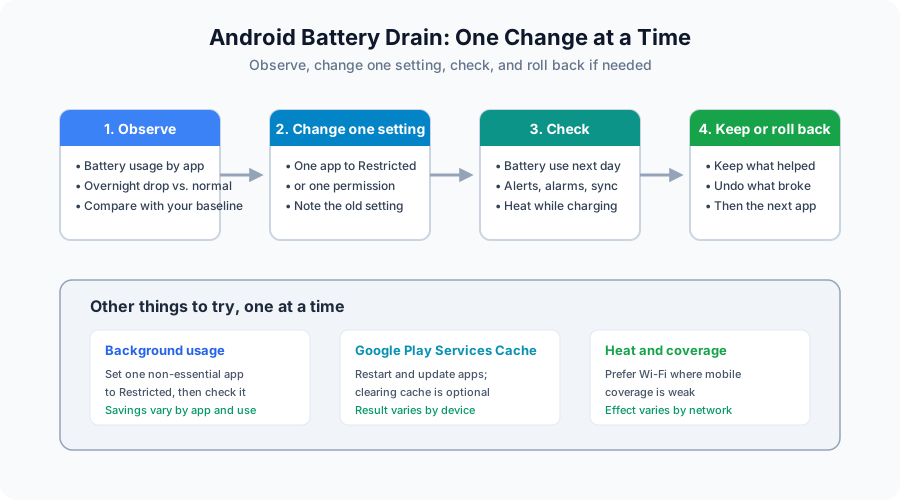
Changing many battery settings at once hides which one helped and can break a needed function. Diagnose drain or lag with one change at a time, then keep it only if battery use and required functions improve together.
If similar battery settings are confusing, use our Adaptive Battery, charging and Battery Saver comparison to choose which control to inspect before changing an app.
Diagnostic loop at a glance
- Observe: read battery usage and record the phone’s own baseline.
- Change one setting: note its original value before changing it.
- Check: compare battery use and needed notifications, alarms and sync over the next day.
- Keep or roll back: restore the original setting if a required function breaks.
This guide covers the main levers Android gives you: battery usage by app, background restrictions, Doze, heat, and the display and radio settings that affect daily runtime. Menus and limits differ by manufacturer and Android version, so treat the Pixel paths below as examples and check your own phone’s settings.
1. Diagnosing Battery Drain Culprits
For app-level controls, use the Pixel and Samsung background battery restriction steps, including how to undo a restriction when a required function stops working.
If the percentage jumps or the phone shuts down while charge is still displayed, use the battery meter checks and Pixel reading-maintenance guidance to separate charging limits, capacity readings, and a support issue.
To stop battery drain, first separate an app problem from normal wear or a recent update:
- Your own overnight baseline: Note the charge before bed and after waking, with the same apps and settings. There is no single “healthy” overnight figure for every phone; compare against your phone’s own normal night, and treat a sudden jump as the thing to investigate.
- Built-in battery usage: On a Pixel, open
Settings > Battery > Battery usageand tap View by apps. An app with high background use relative to the time you actually spend in it is the first candidate to restrict. On Pixel 6 and later,Settings > Battery > Battery diagnosticscan also check for unusual drain. - After an update: Google notes that a Pixel can drain a little more than usual for a few days after a software update while it finishes optimising. Wait a few days before treating that as a fault.
- Google Play services: Google Play services cannot be force-stopped or uninstalled. If it stays near the top of the list for days, restart the phone and update apps first; clearing its cache is a reversible step you can try, then recheck battery usage the next day. Before touching permanent storage, use our Google Play services battery drain attribution and troubleshooting guide to check whether another app or a stuck account sync is driving the activity and avoid erasing Google Pay cards.
Keep a simple record for each change:
| Date | Setting changed (one only) | Battery use before | Battery use after one day | Anything that stopped working | Keep or roll back |
|---|---|---|---|---|---|
Copy this record for each change:
Date / phone / Android version:
Observation window / apps and network conditions:
Setting / original value / changed value:
Battery use before / after one day:
Notifications / alarms / sync checked:
Keep or roll back / reason:
2. Managing Android Doze Mode & Background Limits
Android has built-in idle states that limit background activity when you are not using the phone.
Read the idle states in order
- Screen off, in your pocket: Since Android 7.0, when the phone is unplugged with the screen off but not stationary, Android applies a first subset of limits: it cuts app network access and defers jobs and syncs.
- Screen off and still: After a period of stationary idle, Android applies full Doze limits: it ignores wake locks, defers standard alarms and stops Wi-Fi and GPS scans.
- Maintenance window: Android briefly lets deferred work run, then returns to idle. These windows become less frequent as the phone remains idle.
Apps you rely on for messages or alarms should stay on Optimized, which Google recommends for all apps on Pixel. Set Restricted only on a non-essential app you are investigating, then check that it still does what you need.
To see how the light and full idle states cycle, why delayed messages arrive in bursts, and how to test Doze with ADB and undo the test afterwards, read our Android Doze mode explainer.
If the screen is off and you need the wake-lock names from that window, without root, use the wake lock identification record.
A RAM Plus or memory-extension control does not add memory chips. If apps reload when you leave them, read whether Android virtual RAM is worth leaving on before raising the gigabyte setting. Change that one control, reboot if the phone asks, and write the result in the record above.
3. Thermal Throttling: Why Heat Hurts Both Performance & Battery
Heat affects both speed and battery. There is no single temperature at which every Android phone throttles: each manufacturer sets its own limits, and phones may read processor, battery or skin temperature. Google’s Pixel help says a phone that senses it is too hot may reduce CPU performance, slow charging, turn off the camera flash or camera, limit mobile data or Wi-Fi (including 5G), or enter low power mode, and may shut down if it keeps heating up.
For a detailed cooling sequence and a record of what happens after the phone cools, use the Android thermal throttling causes and fixes guide. For a short charge, an overnight plug-in, a hot phone, or charging while you still use it, the Pixel controls are in fast charging and battery health choices.
To keep the phone fast and its battery healthier:
- Avoid heavy workloads while charging: Google lists using resource-heavy apps or features while charging, video calls, recording video, streaming and long navigation sessions among the things that make a phone warm. Charging also pauses or slows when the phone is too warm.
- Keep it out of the sun and let it cool: If the phone is hot, unplug it, move it somewhere cooler and stop using it until it cools.
- Weak mobile coverage: Where Wi-Fi is available and mobile coverage is poor, Wi-Fi calling can be worth trying; check battery usage afterwards rather than assuming a fixed saving.
4. Practical Checklist to Optimize Your Android Daily Driver
Apply these one at a time and record the effect; the impact depends on your phone and how you use it.
| Action Item | Target Subsystem | What to check afterwards |
|---|---|---|
| Revoke unnecessary location or nearby-device permissions | Location / Bluetooth scanning | Features that need location still work when you open them |
| Set one non-essential app to Restricted | Background activity | Its notifications and sync still meet your needs |
| Try a different preferred network type where coverage is poor | Cellular modem | Calls and data still connect where you need them |
| Clear one misbehaving app’s cache | App storage | The app’s problem is gone; storage freed |
| Turn on adaptive or lower refresh rate if offered | Display | Scrolling still feels acceptable to you |
To choose between a locked standard rate, a locked high rate, and an adaptive mode, use the 120 Hz versus 60 Hz battery comparison, including the same-phone log.
For the separate recovery-menu operation, use the cache-partition eligibility check and cache-only steps before opening recovery; clearing one app’s cache in Settings is a different procedure.
Keep a note of each change and whether battery use improved, and keep only the settings that helped without breaking a function you need. If drain stays unusual after these steps, use your phone maker’s support route; on a Pixel, Google’s battery help page links to it.
Source scope
The linked Pixel and Android developer guidance was reviewed on October 8, 2026. Pixel menu paths are examples; record the actual controls on your phone. This guide provides a diagnostic record rather than a universal drain or temperature threshold.