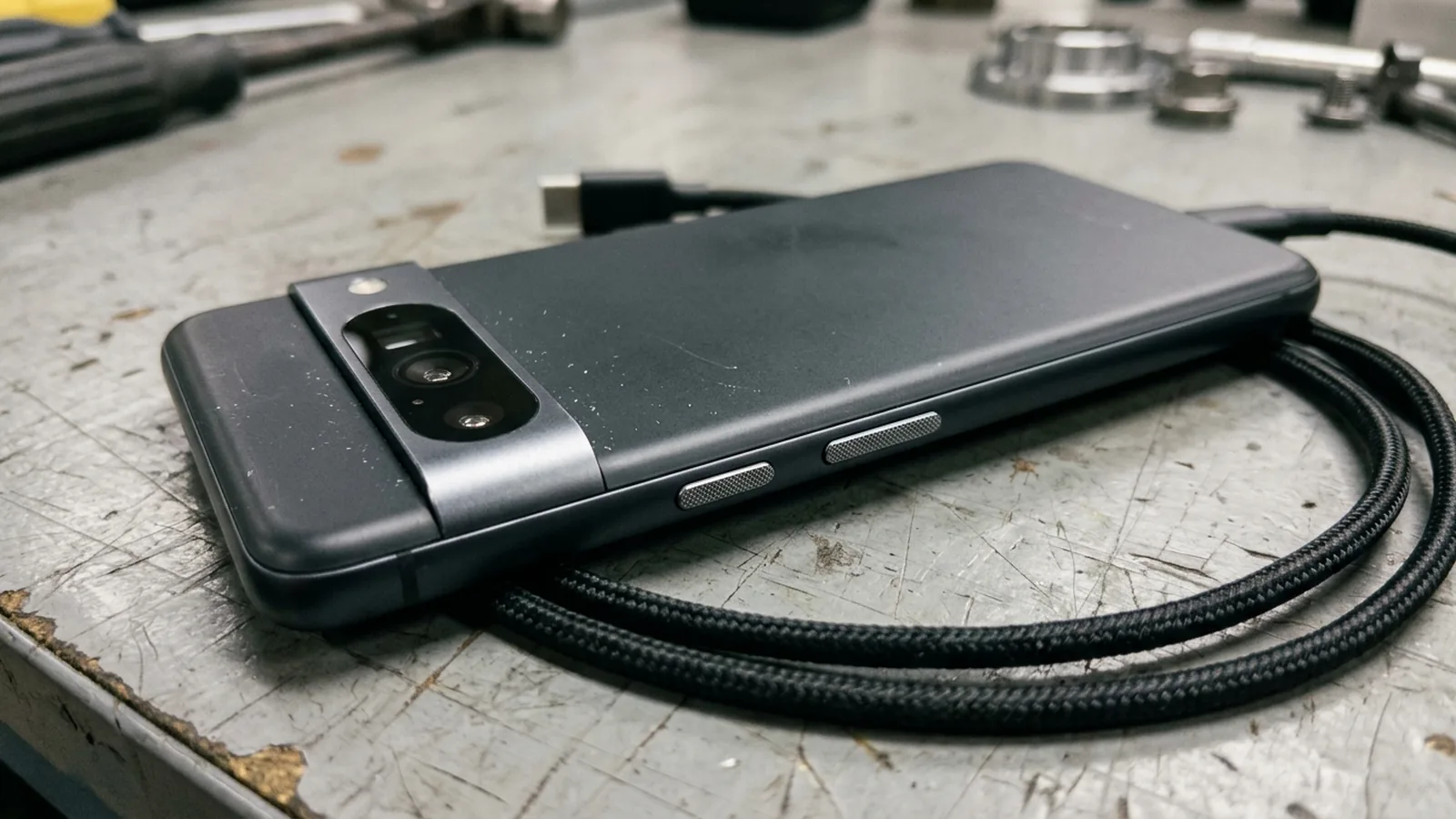
Google Play Services Battery Drain: Attribution and Safer Troubleshooting
Check whether Google Play services battery drain comes from another app or a stuck sync, then follow official update and cache steps before clearing storage.
Read guideTagged articles
Check whether Google Play services battery drain comes from another app or a stuck sync, then follow official update and cache steps before clearing storage.
Read guide
Choose the right Android battery setting: compare Adaptive Battery, charging and Battery Saver, then check delayed notifications without changing every app.
Read guide
Check charging limits, Pixel capacity-reading guidance, and battery health before trying calibration. Use a symptom log for jumps and unexpected shutdowns.
Read guide
Collect an Android wake-lock record without root using adb batterystats, then copy the check-in fields into a time-window log.
Read guide
Choose a locked 60 Hz, a locked high rate, or adaptive refresh on your own Android phone, and log a same-phone comparison with the variables held still.
Read guide
How Android Doze defers background work, what maintenance windows and exits do, and how to test or adjust Doze with ADB without losing your settings.
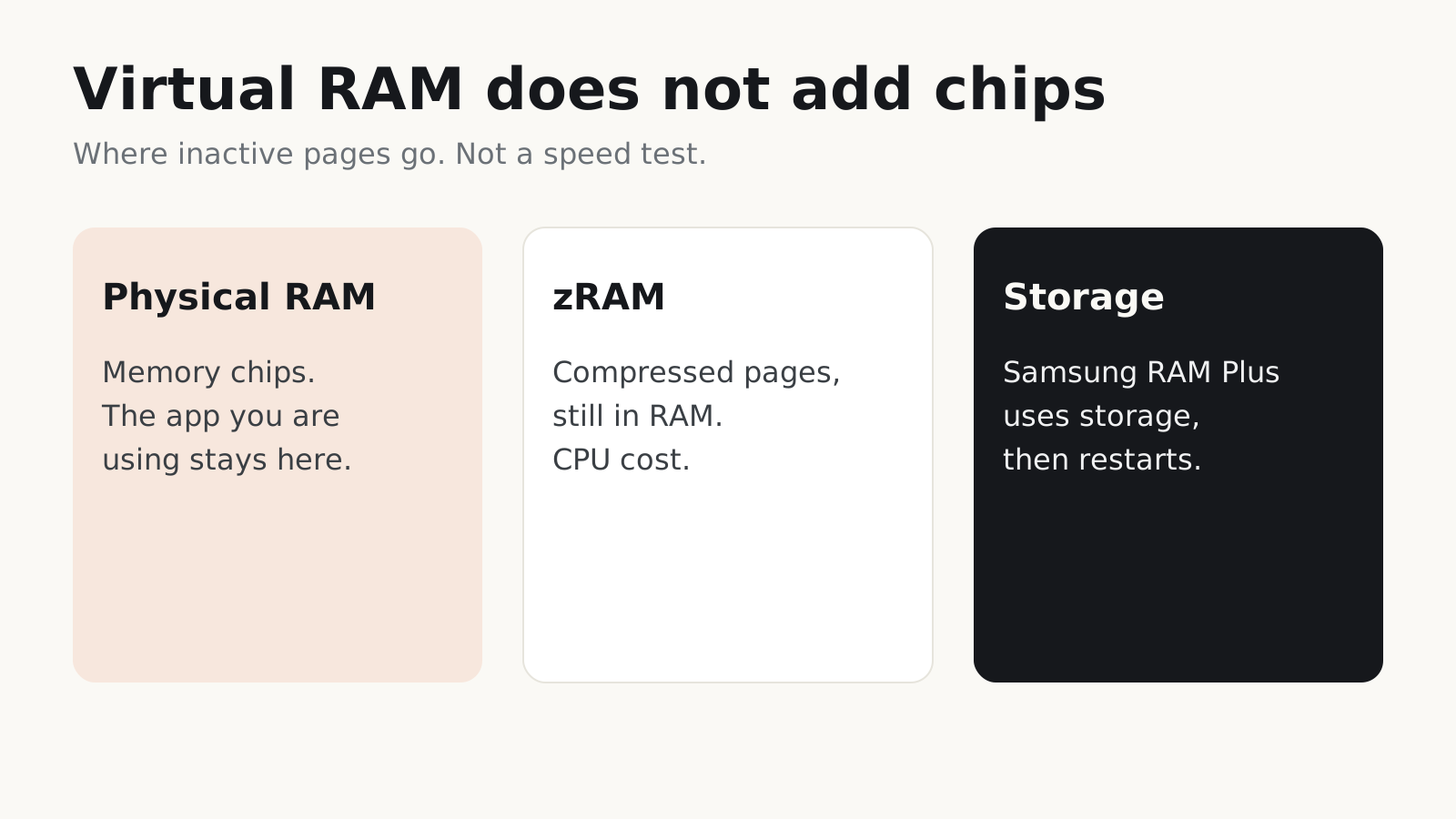
Read guideAndroid virtual RAM is compressed memory or reserved storage, not extra chips. See when to leave Samsung RAM Plus or Xiaomi memory extension on.
Read guide
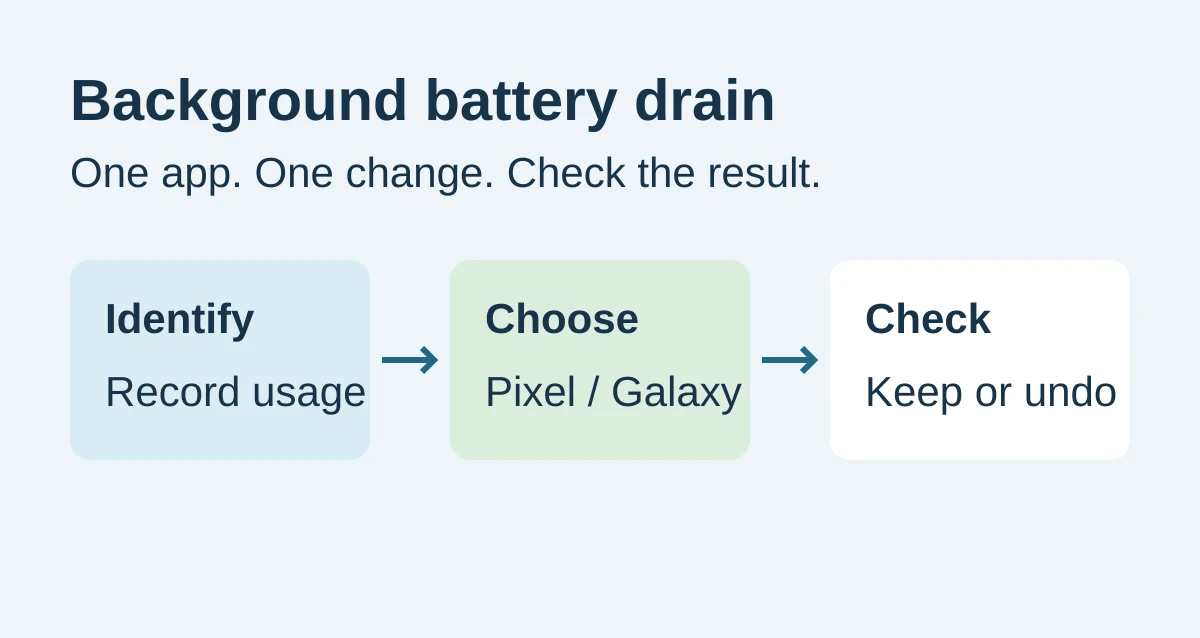
Find a suspect app, choose the right Pixel or Samsung background setting, and check that battery restrictions have not broken the functions you need.
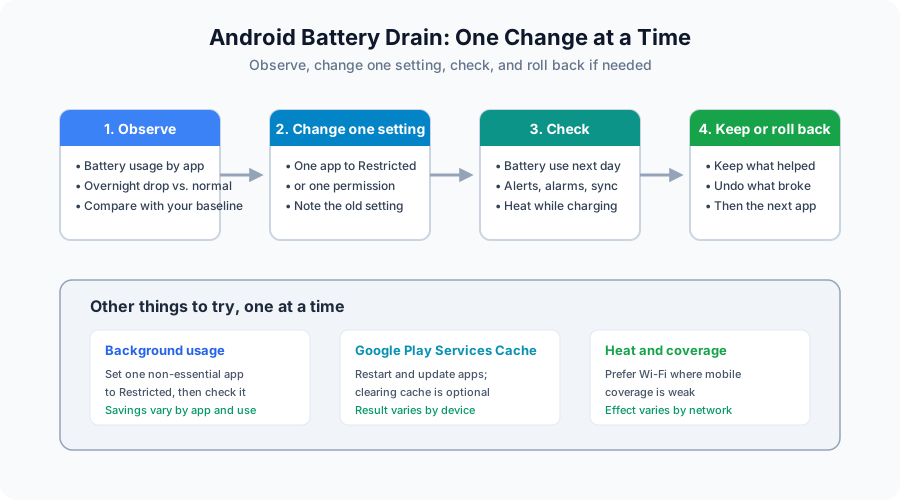
Read guideDiagnose Android battery drain and slowdowns one change at a time: read battery usage, restrict one app, manage heat and Doze, and roll back what breaks.
Read guide