To stop an Android app from draining battery in the background, first identify a suspect in your phone’s battery usage screen. Change one app’s background setting, then check both battery use and the functions you depend on. Start with an app you can comfortably use only when you open it. Restricting every app is a poor troubleshooting experiment: you lose track of which change helped and which broke something.
This guide covers Google’s published Pixel controls and Samsung’s published Galaxy sleep controls. It does not assume that every Android phone has the same menus or a separate “auto-start” switch. For the wider troubleshooting context, see our Android battery and performance guide.
| Need | Jump to the relevant instructions |
|---|---|
| Pixel app controls | Review Allow background usage |
| Galaxy sleep controls | Choose a sleep list |
| A required function stopped working | Restore the original setting |
Identify a candidate before changing its permissions
On a Pixel, open Settings → Battery → Battery usage → View by apps, then select an app to inspect Allow background usage. Google recommends keeping Optimized enabled. Its instructions note that some steps require Android 14 or later; not every listed app exposes adjustable settings. Google’s troubleshooting instructions also recommend leaving Adaptive Battery and battery optimization on.
Before touching a control, write down:
- The app name and the time period shown by the battery screen.
- What you actually asked that app to do: navigation, a download, music playback, a backup, or nothing you remember.
- Its current setting, so you can restore it.
- Any function you need while the app is closed.
A position at the top of the list is a lead to investigate, not proof of a defective app or an abnormal wake lock. This guide uses no universal percentage threshold. Compare your observations with what the app was doing rather than labeling it “rogue” from one number.
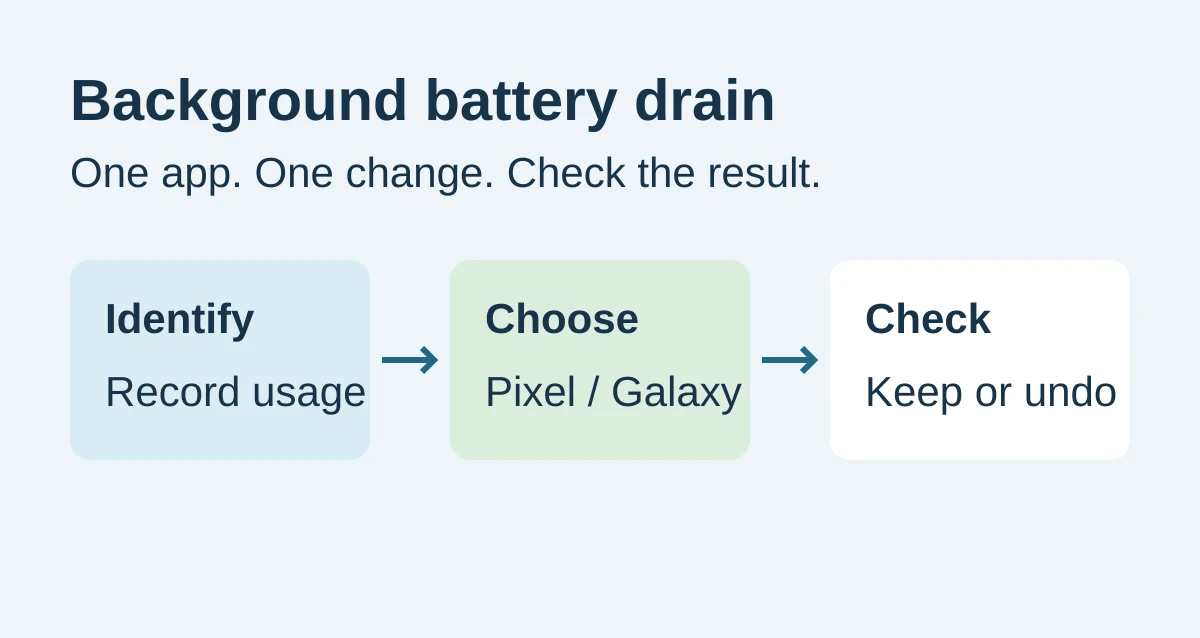
Choose the controls for your phone
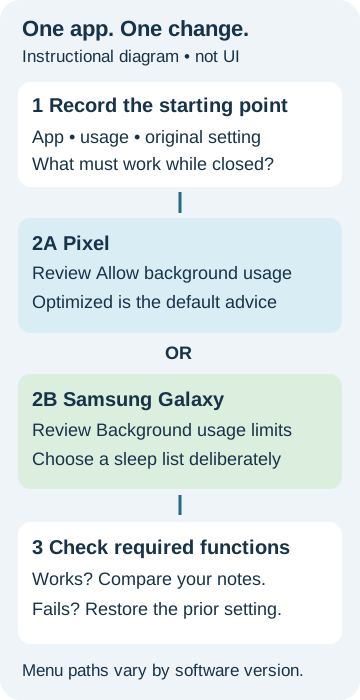
Original decision diagram, not a phone screenshot. Menu labels and availability depend on the device and software version.
Pixel: review the app’s background setting
At Allow background usage, read the options actually shown on your Pixel. You can also reach the per-app list through Settings → Apps → App battery usage. Keep the original setting in your notes before making a change. If that app screen offers Unrestricted, Optimized, and Restricted, select Restricted only for the nonessential app you chose to investigate. Those states are described in Android’s user-initiated restrictions documentation; their availability and precise effects depend on the device.
Do not force-stop essential services as a battery experiment. Google warns that doing so can prevent the phone from working correctly and specifically excludes Google Play services from its force-stop/uninstall advice. These are app-level troubleshooting controls, not a reason to disable Android components.
Samsung Galaxy: choose a sleep list deliberately
Samsung’s US support instructions use Settings → Battery and device care → Battery → Background usage limits. If your software does not show that path, search Settings for “Background usage limits” or consult support for your model; do not substitute the Pixel path.
| Samsung option | Published behavior | A question to answer before using it |
|---|---|---|
| Put unused apps to sleep | Automatically sleeps apps you have not used in a while | Do I want automatic management of seldom-used apps? |
| Sleeping apps | Apps may run in the background when you start using them again | Is this the less restrictive setting I want to try first? |
| Deep sleeping apps | Apps work only when opened, without background operation | Am I willing to open this app whenever I need it? |
| Never sleeping apps | Keeps listed apps from sleeping in the background | Does this particular app need an exception? |
Samsung documents adding apps with + → select apps → Add, and removing them through More options → Remove apps. Removing an app from a sleep list means changing that list, not uninstalling the app.
Understand what a stronger restriction can interrupt
Android’s developer documentation describes Unrestricted, Optimized, and Restricted background states. It warns that restricted apps may not work as expected and that manufacturers determine the precise restrictions. For AOSP Android 9 and later, its examples include background alarms not triggering and jobs not executing. Do not interpret that as a claim that every stock alarm on every phone will fail. Android Developers explains the scope.
For this reason, leave apps responsible for important reminders or communication out of your first restriction experiment. For an app you do restrict, make a short checklist of the functions you personally need: an incoming message with the screen off, a scheduled reminder, an upload, or continued playback. Check the relevant functions before relying on the new setting.
Restore the original setting
If a function stops working, restore the original background setting and repeat the check. On Galaxy, remove the app from the sleep list you changed. Record the result; do not compensate by changing several unrelated permissions at once.
What about auto-start and apps that come back after closing?
There is no single auto-start menu documented across the two manufacturer guides above. Use your device maker’s instructions if it exposes an additional auto-launch control.
Android Developers notes a narrower behavior: for apps targeting Android 13 or later, a restricted state can defer delivery of boot-completed broadcasts until the app starts for another reason. That is not a universal promise to prevent all automatic starts. The same documentation explains that opening a restricted app temporarily changes how the system treats it; restriction resumes after the user moves to another app.
The useful question is therefore whether unwanted background activity falls while your required functions still work—not whether an app can ever run again. This procedure needs neither a task-killer app nor developer process-limit settings.
Keep a before-and-after record you can use
Select and copy this blank template into your notes for one candidate at a time. It records your observations, not a laboratory battery benchmark.
App:
Phone / software version:
Original setting / sleep list:
Changed setting:
Time changed:

Before observation:
  Start / end:
  Charging interruptions:
  Battery reading:
  Screen / network / app tasks:
After observation:
  Start / end:
  Charging interruptions:
  Battery reading:
  Screen / network / app tasks:
Differences between periods:
Required background functions:
Function checks / results:
Decision:
  Keep / restore / investigate
Restored setting / time:
Function recheck:
For heat, Doze and other possible causes, continue with the Android battery and performance overview.
If you cannot reproduce a benefit, restore the setting before selecting another candidate. If the same problem persists without a clear app-level cause, use your manufacturer’s troubleshooting and support route rather than applying progressively harsher restrictions to the whole phone.
Method and sources
This is a source-based settings guide, prepared with AI assistance and reviewed on October 8, 2026 using the linked Google, Samsung, and Android documentation. We did not perform device battery tests, measure savings, or capture system screenshots. The observation log and one-change-at-a-time procedure are editorial troubleshooting suggestions. Manufacturer instructions establish the menu paths and restriction behavior; the results on your phone still need checking.