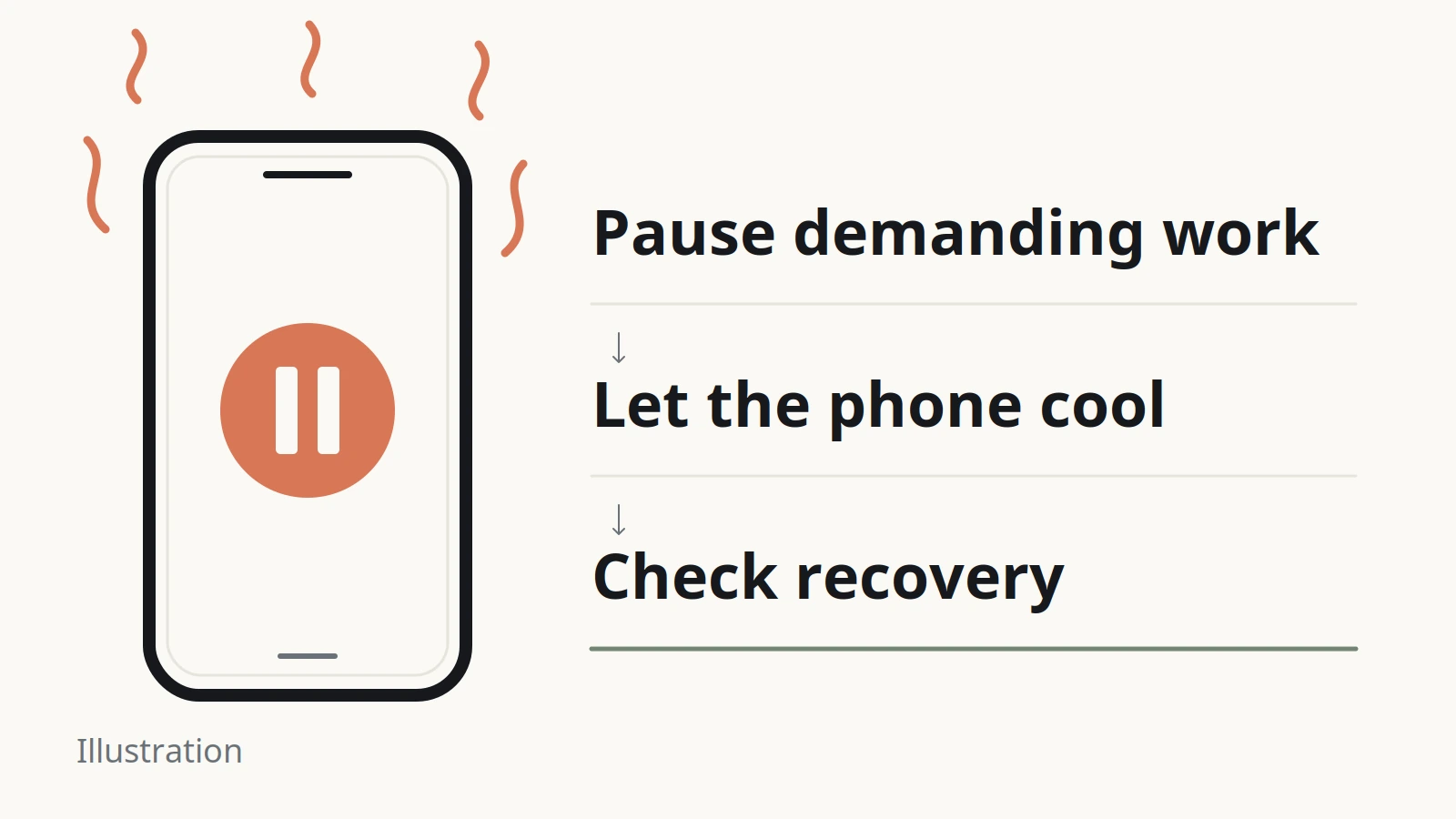
A heat-related interruption can waste a recording session and disrupt smooth gameplay. For heat-related Android slowdowns, stop demanding work, disconnect charging and let the phone cool; then reduce the workload before trying again. Keep thermal protection enabled.
If you searched for an Android thermal throttling fix, this guide helps you separate a heat-related limitation from ordinary slowness, choose a practical adjustment and record the result. It belongs to our Android product guides. For runtime problems across the whole day, start with the battery drain and performance overview.
- Hot now: pause first; investigate after cooling.
- Slow only after sustained work: note the task and any thermal warning.
- Still slow after cooling: follow the app, storage or connection branch instead.
What Android thermal throttling actually changes
Thermal throttling limits performance in response to heat. It is a protection mechanism, and restoring a sustainable workload is the useful goal.
Android’s thermal-management documentation describes monitoring and mitigation through the system thermal service. Different sensors can cover the processor, battery and outer surface. A temperature displayed for one part is not automatically the temperature or limit of another.
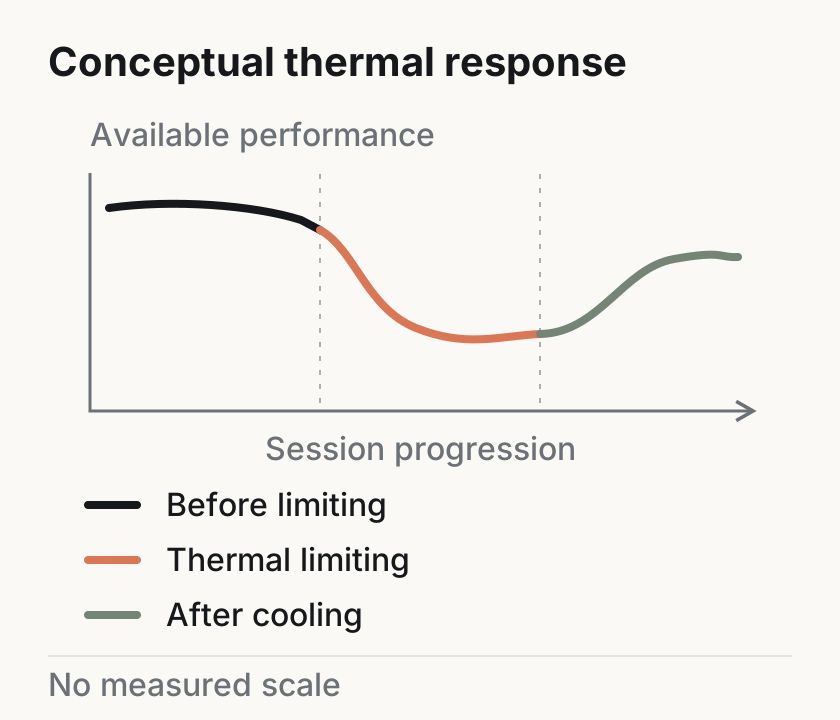
The visible effect can extend beyond frame drops. Google’s Pixel heat guidance lists possible CPU, charging, camera and connectivity restrictions. Samsung’s Galaxy guidance describes dimming, closing apps and paused charging. These are manufacturer examples, not a checklist every Android model follows.
Background battery management is a separate subject: our Android Pie Adaptive Battery explainer describes how app-usage patterns inform background activity management. A thermal warning calls for cooling rather than changing every background setting.
Takeaway: Respond to the heat and workload, while leaving the phone’s protection in place.
Check whether heat explains the slowdown
A slowdown that appears as the phone heats up is a clue, not a confirmed diagnosis. Start with the phone’s own warning or diagnostics, then note what happens after cooling.
| What you observe | What it suggests | Next action |
|---|---|---|
| A thermal warning, followed by limited features | The device is reporting thermal stress | Pause the task and follow its cooling instructions |
| Stutter develops during sustained work, then eases after cooling | Heat deserves further investigation | Record conditions and change one workload setting |
| Only an online task stalls | Connection trouble is another candidate | Check that connection separately |
| The phone remains slow after cooling | Heat alone does not explain the problem | Review app updates, storage and ordinary slowdown guidance |
For Pixel temperature diagnostics, Google’s dedicated temperature page specifies Pixel 6a and later: Settings → Battery → Battery diagnostics → Phone is very warm. Check availability on your device. It displays an estimated device temperature and states such as Normal, Warm and Elevated, not a CPU-core reading. On Pixel, Warm means expected operation, although brightness or network speeds may already be reduced to prevent further heating. That state label alone does not establish whether the CPU is throttling.
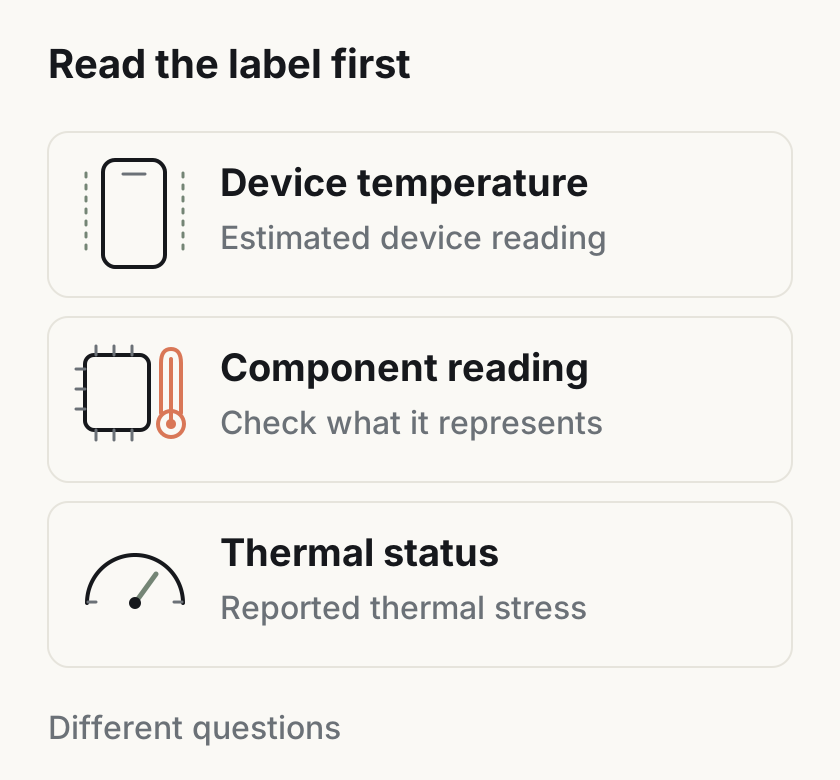
For a suspect app, use the one-app battery investigation. Low-memory behavior is another distinct topic covered by Android Go’s low-memory design; this does not establish that your particular slowdown is a memory problem.
Common mistake: Treating one battery-temperature reading as proof of CPU throttling. Keep the sensor label and the phone’s own warning with your notes.
Takeaway: Collect the warning, task and recovery pattern before choosing a cause.
Cool the phone before troubleshooting
When the phone is too hot, stop using it and let it cool before running checks. Google advises unplugging it and moving it to a cooler place. Samsung likewise advises stopping use until it cools.
- Pause demanding work. Stop the game, recording, video call or other active task.
- Disconnect charging. Record that it was plugged in; do not keep the task running to test the charger.
- Move away from heat. Choose a cooler, ventilated place out of direct sunlight.
- Wait for cooling. Follow the device’s instructions before resuming. There is no cooling duration specified by this guide.
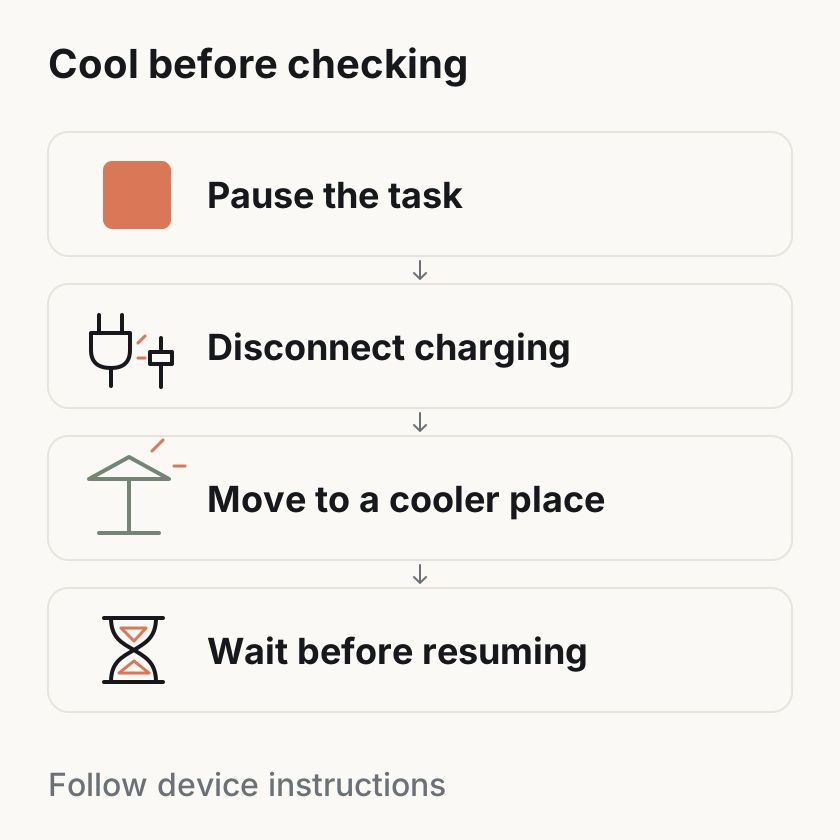
After cooling, record whether the warning and interruption cleared before returning to the task. If you are also investigating shortened runtime, resume the broader battery troubleshooting checklist separately.
Takeaway: Cooling comes before experiments; do not keep stressing a phone displaying a heat warning.
Reduce the workload for the next session
Choose one change that matches the task you were doing. Android Developers’ Thermal API guidance recommends lowering workload as thermal pressure rises; it is developer guidance, not a universal user switch.
The table below translates that principle and manufacturer heat advice into editorial suggestions. Try only settings your app or device offers.
| Situation to record | Adjustment to try after cooling | What to observe |
|---|---|---|
| A demanding game | Lower its graphics quality or frame-rate target | Whether interruptions ease and the experience remains acceptable |
| Demanding use while plugged in | Keep charging and the demanding session separate | Whether the same task behaves differently unplugged |
| Recording plus other active tasks | End the other tasks before recording | Whether the recording completes without the previous interruption |
| Navigation in direct sun | Move out of direct sun and pause somewhere cooler | Whether the warning clears before resuming |
| A transfer alongside another task | Finish the transfer separately | Whether overlapping work was part of the pattern |
| High display brightness | Lower brightness if practical | Whether the screen remains usable and heat warnings recur |
A requested frame-rate setting is an input, not proof that the phone delivers that rate throughout the session. For compute-heavy features, the on-device versus cloud AI guide explains where work happens; use it to describe your task, not to assume a cloud option is cooler.
If a nonessential app is involved, read the effects of stronger background restrictions before changing its setting. Keep required reminders and communication in your checks.
Common mistake: Disabling thermal mitigation to preserve a peak score. AOSP explicitly advises keeping thermal mitigation enabled; a higher score is not a resolution of the heat problem.
Takeaway: Test a relevant workload reduction, without treating it as a guaranteed performance gain.
Keep a recovery record
Write down the cooling-only result before judging a settings change. This is a personal troubleshooting log, not a benchmark or formal thermal test. First note whether warnings and interruptions clear with cooling alone. Only then consider changing one workload setting for a later session; do not deliberately reproduce overheating.
| Record | During the original session | After cooling only | During a later adjusted session |
|---|---|---|---|
| Device | Model and software version | Any change | Note an intervening update |
| Task | App and task requested | Paused for cooling | Name the one setting adjusted |
| Charging | Plugged in or unplugged | Disconnected if plugged in | Record the new state |
| Surroundings | Sunlight, warm location, ventilation | Where the phone cooled | Where you resumed |
| Device feedback | Warning or diagnostic state | Cleared or still present | Absent or returned |
| Result | Stutter or another interruption | What recovered before a setting change | What happened during the task |
| Decision | Pause and cool | Resume or seek support | Keep, restore or investigate |
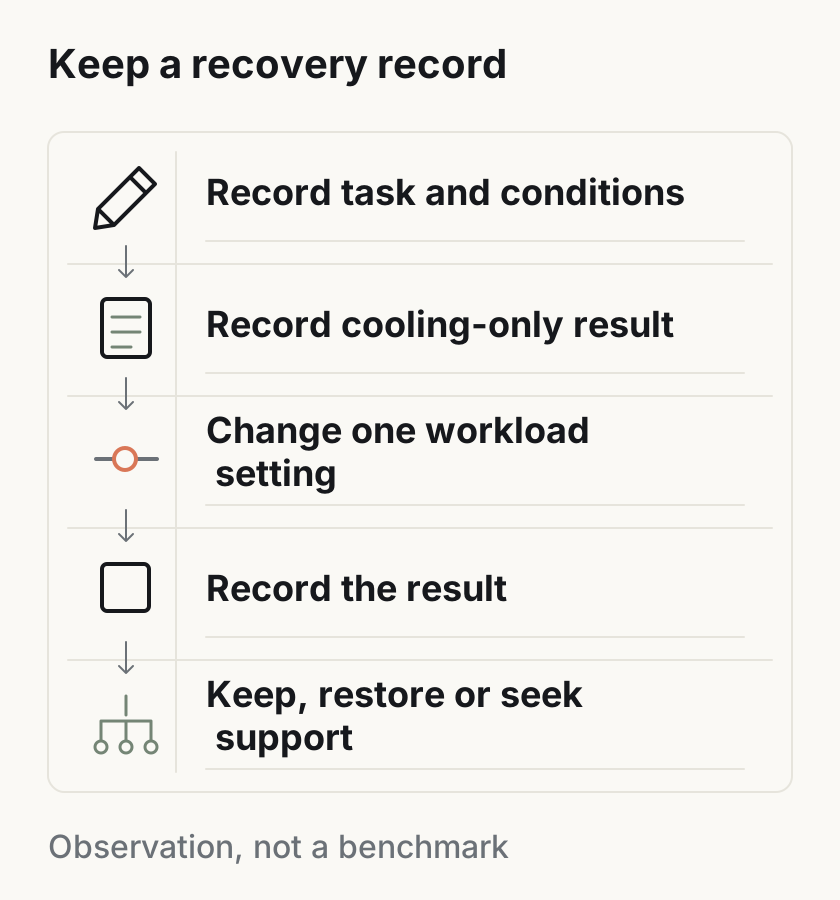
Avoid changing graphics, charging, network and app restrictions together. If the outcome differs, you would not know which change contributed. If notifications or another required function stop working, restore the background setting you changed.
Use the battery guide’s record of one setting change if runtime is also part of the problem. A thermal observation and a battery observation can share notes without sharing a diagnosis.
Takeaway: Keep the setting that helps your task without breaking a function you need, and retain the notes if support is needed.
When this does not apply
Cooling and workload adjustments have limits. Use the branch that matches the remaining symptom:
- Repeated shutdown or persistent excessive heat: contact the device maker. Google directs repeated heat-related shutdowns to Pixel support; Samsung directs users to support if a device stays too warm to touch.
- Slow even after cooling: follow Google’s ordinary Pixel slowdown guidance, or the equivalent for your manufacturer. That covers connection, updates, apps and storage.
- An app reports no throttling: do not rely on that result alone. Android Developers documents thermal API implementation limits on some devices, including a status that can remain NONE despite throttling.
- A universal temperature threshold or fixed cooling time is proposed: this article supplies neither. Its schematic cannot diagnose your device or set a new thermal limit.
Takeaway: Stop repeating the same workload when the problem needs model-specific support or a different troubleshooting path.
Related reading
- Android battery drain and performance — track battery use and other causes of daily slowdown.
- Background-app battery restrictions — investigate one app and restore a setting that interrupts required functions.
- Android product guides — find adjacent device and platform explanations.
Takeaway: Continue with the guide that matches the symptom left after cooling.
Method and sources
This source-based explainer was prepared with AI assistance and checked against the linked official documentation on October 8, 2026. We did not test phones, measure temperatures or frame rates, or rank devices. The diagrams are original illustrations; the observation tables and single-variable comparisons are editorial suggestions.
Official platform documentation supports the mechanism; manufacturer help supports the named device behavior. Neither establishes the cause of an individual reader’s slowdown. All accessed October 8, 2026. This first version adds the mechanism, cooling sequence and recovery worksheet. FAQ demand comes from the US English Google PAA snapshots for “android thermal throttling fix” and “phone overheating and lagging”; answers use the linked official documents.