Unexpected shutdowns cause downtime and can lose unsaved work even while the screen shows charge. Before trying to calibrate an Android battery meter, check the phone’s charging limits and battery health, then follow the instructions for that exact model. Google’s Pixel guidance does not call for running the battery to zero to teach it its capacity.
A charging limit, a charge percentage, and remaining battery capacity answer different questions. A limit controls where charging stops; the percentage is the current charge reading; capacity describes how much the battery can hold compared with when it was new. A full reading does not establish that an aged battery has regained its original capacity.
Match the symptom before changing anything
Use the first matching row as a starting point. These are checks to help describe the problem, not a diagnosis of the battery or charging hardware.
| What you see | Check first | Next action |
|---|---|---|
| Charging consistently stops at a selected limit | The phone’s charging settings and any protection message | On a supported Pixel, check the controls below before treating the stop as a faulty meter. |
| The percentage jumps after charging or restarting | Record the readings and whether the phone also switches off | Follow only your maker’s documented reading-maintenance steps; keep a symptom log. |
| The phone dies at 20%, or another displayed level | Record that level, what the phone was doing, and any heat or health warning | Contact the maker’s support if shutdowns recur. The displayed number alone cannot identify the cause. |
| Runtime is shorter but the reading falls steadily | Battery usage and, where available, battery health | Use the battery drain and performance guide to investigate usage separately. |
| The case or screen is lifting | The manufacturer’s damaged-battery guidance | Stop the calibration attempt and arrange support; do not press the cover back down or pry the phone open. |
If the phone cannot stay on reliably, keep the record short and contact support. There is no need to reproduce a shutdown deliberately to fill in the table.
Is a Pixel charging limit making the reading look wrong?
A predictable charging stop can be intentional. In Google’s Pixel battery-life guidance, Limit to 80% is available on Pixel 6a and later. Check Settings > Battery > Battery health > Charging optimization and write down the selected option before changing it. Another Android brand may use different names and eligibility rules.
Google also documents automatic protection on Pixel 3 and later running Android 11 or later. Prolonged charging in heat, or remaining on charge for several days, can trigger a stop around 70–80% with a Protecting your battery notification. Check the message; a plateau by itself does not prove the gauge needs recalibration. The protection ends when its triggering conditions no longer apply.
A hot phone requires attention to its charging conditions. Google’s charging instructions say charging can pause when a Pixel gets too warm and resume after it cools. For charging habits and the difference between heat, accepted charging speed, and capacity, see fast charging and Android battery health.
What does Google actually say about maintaining Pixel readings?
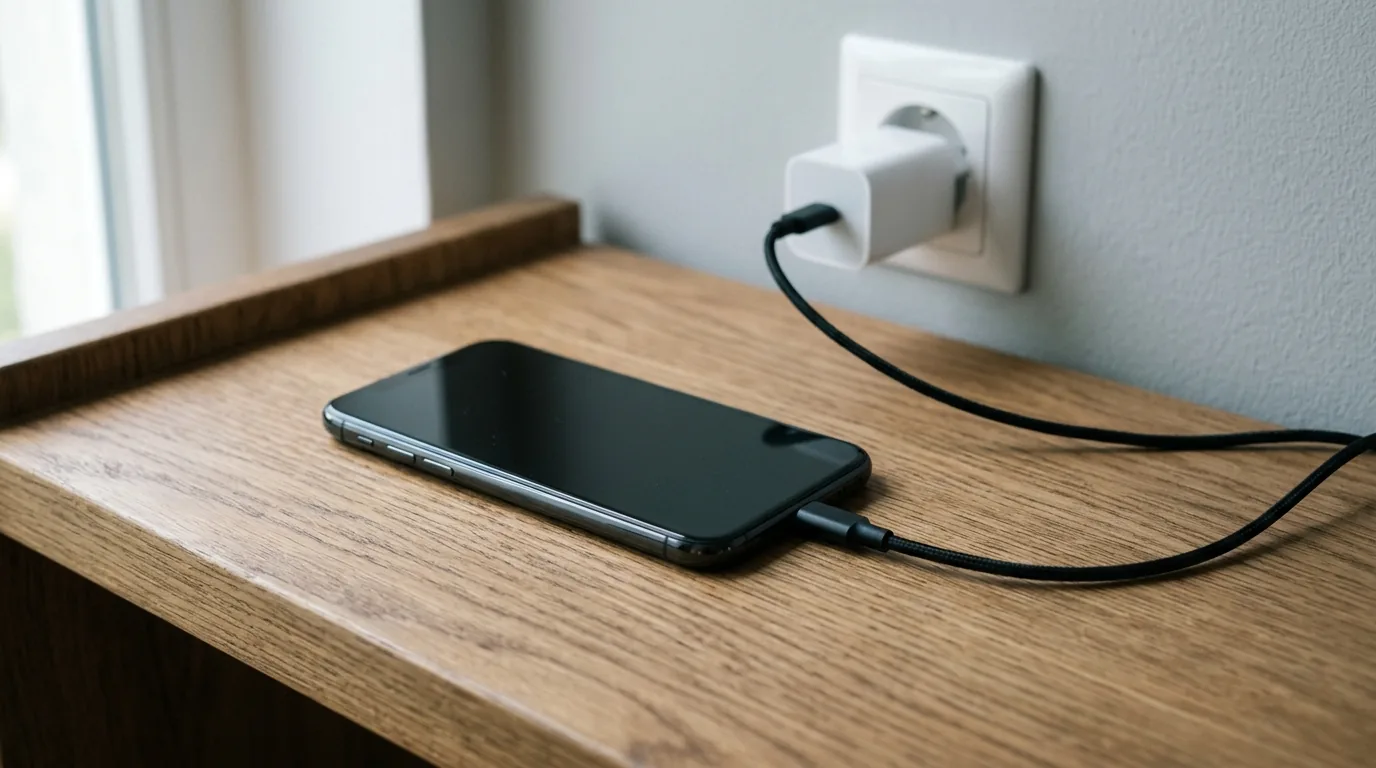
Google’s current battery-life page says a Pixel needs a complete charge every tenth cycle to maintain accurate battery capacity readings, including when the 80% limit is enabled. It says to keep the phone connected for at least 30 minutes after the display reaches 100%. This is Pixel guidance for capacity readings, not a promise to fix every jumping charge indicator.
For a Pixel covered by that guidance:
- Check the model, software version, charging option, and protection messages. Use the current Google instructions if your menus differ.
- When the documented full-charge maintenance occurs, let it finish. A full charge despite the selected limit can be part of this process.
- Once the screen reads 100%, leave the charger connected for at least another 30 minutes, provided the phone is not showing a heat or battery problem.
- Return to normal use and record whether the symptom recurs. Do not add forced shutdowns or repeated empty-battery restarts.
A cycle does not mean one plug-in session. Google’s battery explanation counts partial discharge and recharge toward cycles. You do not need to empty the phone to manufacture a cycle for this procedure.
For another brand, check that maker’s current help for your model. The sources reviewed here do not establish a universal Android calibration sequence or a guaranteed improvement in percentage accuracy.
Will resetting battery stats or using a calibration app help?
Battery-usage history is a different thing from battery health. Android’s developer documentation describes batterystats as diagnostic information about usage, including history and per-app statistics. It does not present those statistics as a battery repair procedure.
The primary sources reviewed for this guide do not document deleting batterystats.bin, rooting the phone, or installing a calibration app as a way to restore lost capacity. Leave those steps out of this check. Record the existing usage information before clearing anything that could remove useful troubleshooting context.
If a battery was recently replaced, use the instructions supplied by the maker or repair provider for that installation. A replacement-battery procedure should not become a recurring deep-discharge routine for every Android phone.
Check health, then prepare a useful support record
On Pixel 8a and later, Google’s battery-health page documents Settings > Battery > Battery health; estimated capacity is under Battery capacity. It describes Reduced as capacity below 80% and recommends considering replacement. Unavailable means the status cannot be determined. These labels concern capacity, not today’s charge level.
The same page says Pixel 6a, Pixel 7, Pixel 7 Pro, Pixel 7a, Pixel 8, and Pixel 8 Pro do not display battery health status. An absent menu therefore does not establish that the battery is healthy or faulty. For another model, leave the field unknown until you verify what its own diagnostics provide.
Copy this record for the maker or repair provider. Enter observations rather than an assumed diagnosis.
| Field | Your observation |
|---|---|
| Exact phone model and Android version | |
| Date and time of the symptom | |
| Percentage before shutdown or before/after the jump | |
| Plugged in or unplugged; charger and cable used | |
| App or activity in progress | |
| Heat, charging-limit, or protection message | |
| Battery health/capacity, if the model provides it | |
| Recent repair, replacement battery, or software change | |
| Whether it happened again during normal use |
Repeated shutdowns with charge displayed, failure to charge or turn on, reduced health, or a lifting screen belong with support rather than repeated calibration attempts. Google’s charging page directs power problems to support, and its health page gives a separate repair route for swelling. Do not open the phone or try to push a lifted cover back into place.
If the phone stays on and the issue is ordinary drain, continue with the battery-usage checks linked above. More model-specific explanations are collected in our Android product guides.
Method and source scope
Reviewed October 15, 2026. This guide combines the linked Google Pixel Help pages and Android developer diagnostics documentation into a symptom checklist. Pixel controls and eligibility are identified beside the relevant steps. We did not test a phone, measure a runtime gain, or establish the cause of an individual shutdown. The record is for observations; a repair decision requires the maker’s or repair provider’s assessment.