A wake lock can waste charge while the screen stays off. With a computer and USB debugging, you can collect the record without root by running adb shell dumpsys batterystats. The dump is a record for the window you write down. It does not turn the lock off.
A partial wake lock keeps the CPU running while the screen and keyboard backlight are allowed to go off. Pressing the power button turns the screen off, and the CPU stays on until every partial wake lock has been released. That behavior is the PowerManager definition, read on 13 October 2026. The practical record is a check-in dump: rows labeled wl for wake locks and rows labeled uid for the package name. You need USB debugging and adb. Root is not part of that setup. For the wider screen-off drain checks, use the battery drain and performance guide. This page is one of the Android product guides.
| Item | Documented tool | What you get |
|---|---|---|
| Screen-off CPU hold | PARTIAL_WAKE_LOCK in PowerManager |
CPU stays on after the power button turns the screen off, until every partial wake lock is released |
| Wake-lock rows | adb shell dumpsys batterystats --checkin |
A wl row: wake lock name, full time, full count, partial time, partial count, window time, window count |
| Package name | uid rows in the same check-in file |
UID and package name. One UID can list more than one package |
| A clean collection | adb shell dumpsys batterystats --reset |
Erases previous battery collection data. The setup page says the output can be very large if you skip the reset |
| Activity chart | Battery Historian, optional | The setup page, last updated 2026-05-19, says the tool is no longer actively maintained. The chart shows when a component is active, not how much battery it used |
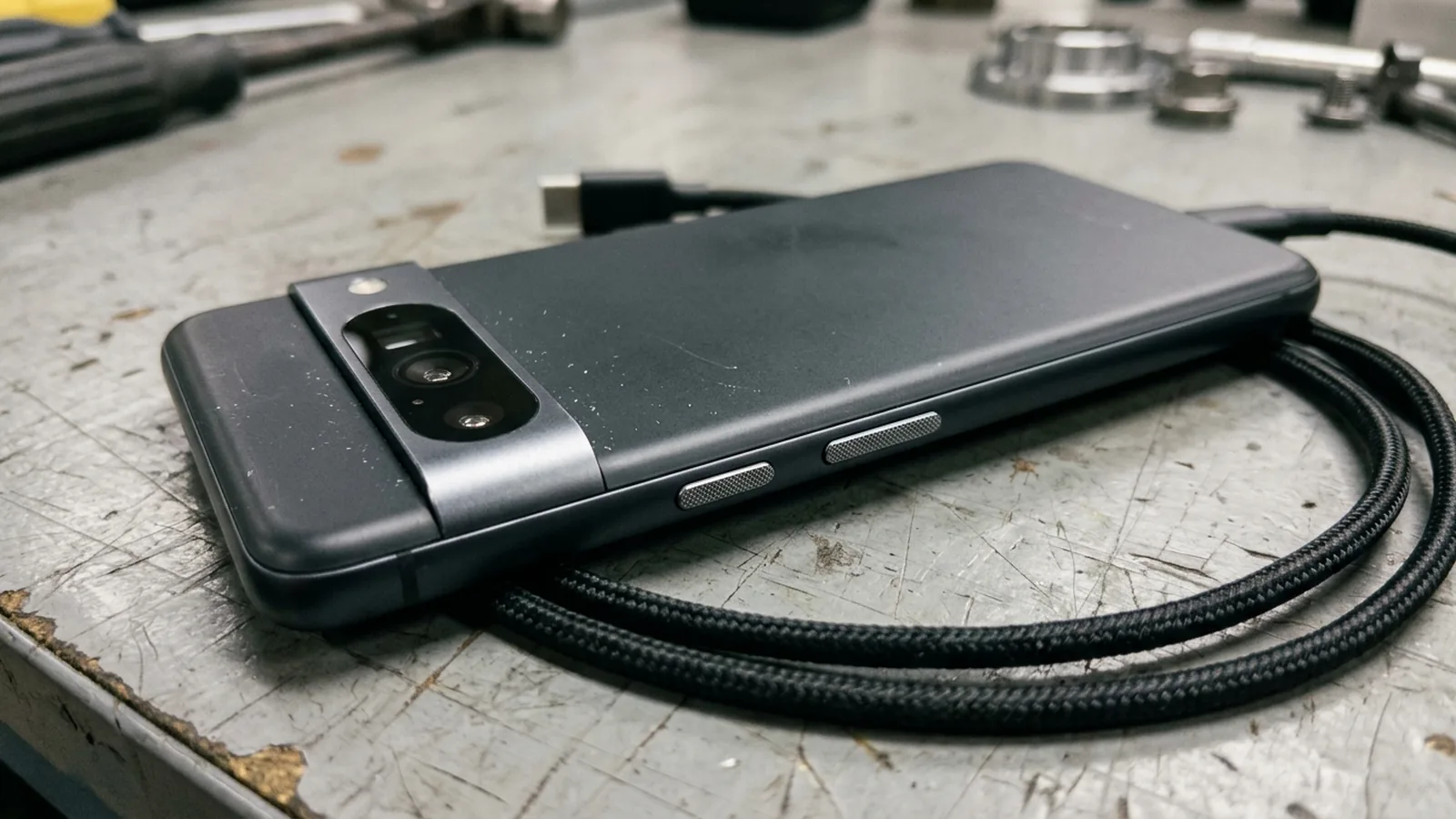
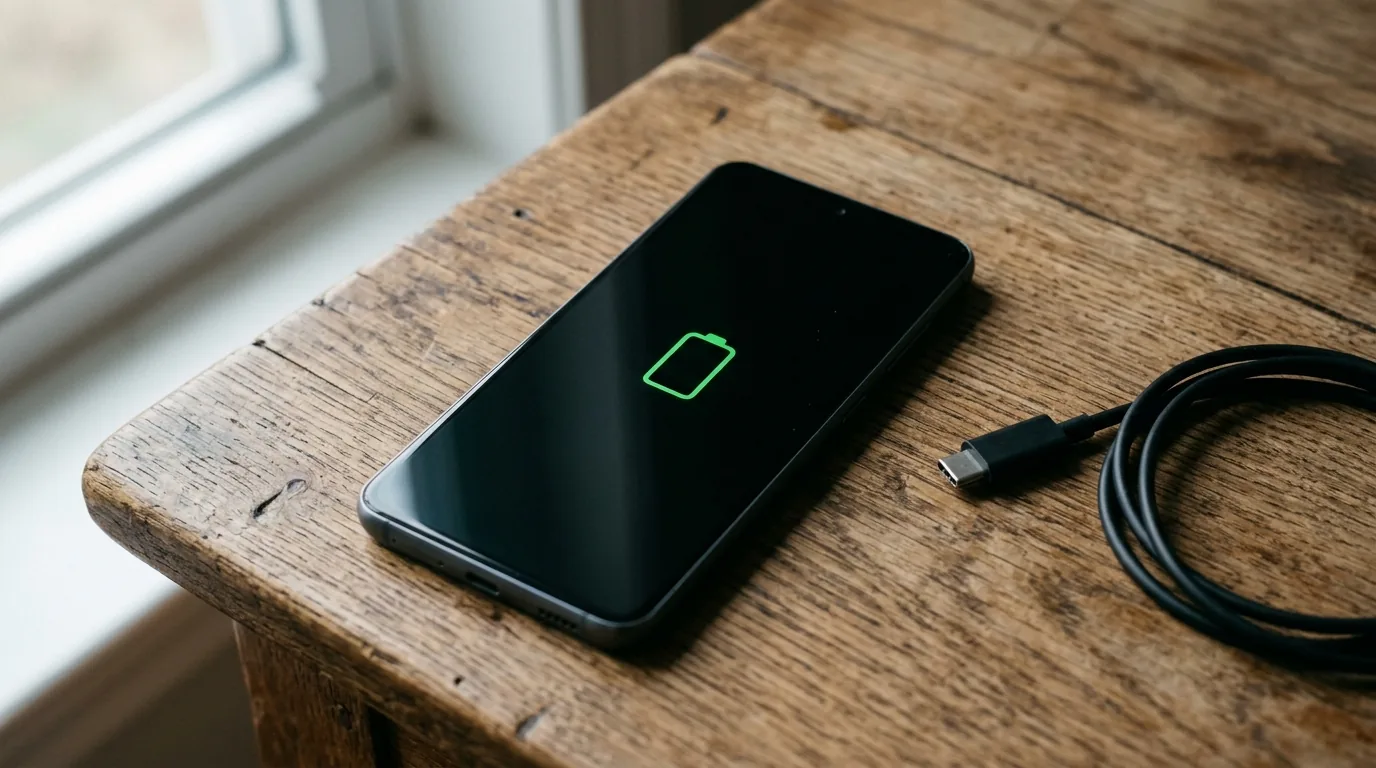
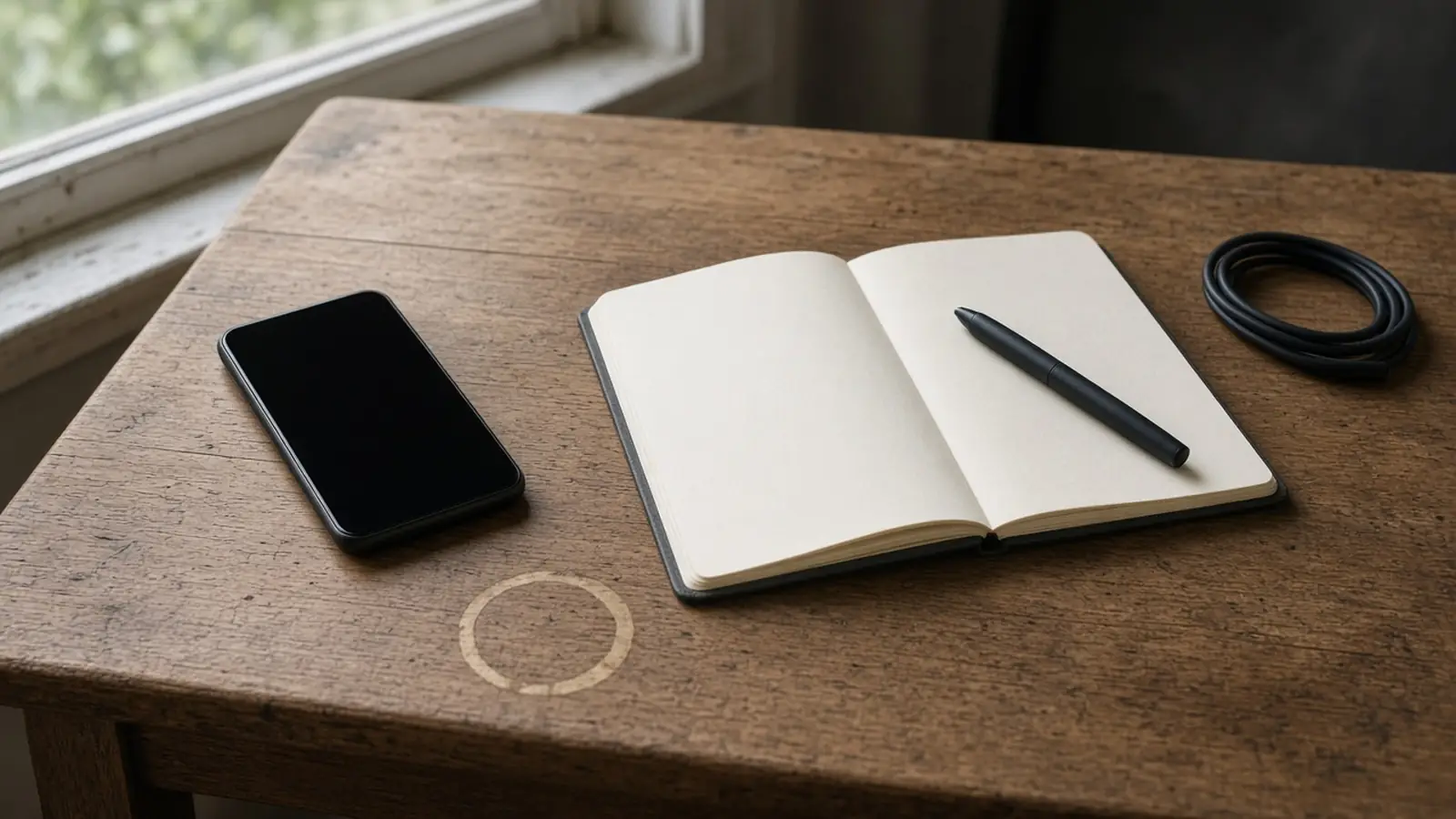
The photo above is that setup: the phone is off the charger, the cable is coiled, and the glass is face down.
Which tools can list wake locks without root?
PowerManager also defines full and screen levels. FULL_WAKE_LOCK and SCREEN_DIM_WAKE_LOCK were deprecated in API 17, and SCREEN_BRIGHT_WAKE_LOCK was deprecated in API 15. The reference says a power-button press releases those screen locks and turns both the screen and the CPU off. The check-in row still prints separate full, partial, and window fields. Copy each field as printed. The number in the full-time column is the field the table calls full time.
Use the check-in dump as the record. The other tools in Android’s own debugging pages either draw a chart from that kind of data, or they belong to someone who is building the app.
| Tool | What the current page says | What you need | Where it stops |
|---|---|---|---|
dumpsys batterystats |
“Debug wake locks locally,” last updated 2026-10-01, says adb shell dumpsys batterystats gives a detailed history of wake locks held by each app. The dumpsys battery section says the output is organized by UID and includes a history of battery-related events, global statistics, and approximate power use per UID |
A computer, adb, and USB debugging | Approximate power use is labeled approximate. This page does not turn those figures into a percentage |
| Check-in CSV | adb shell dumpsys batterystats --checkin prints machine-readable rows. A wl row’s remaining fields are wake lock, full time, f, full count, partial time, p, partial count, window time, w, window count. A uid row’s remaining fields are UID and package name |
The same adb setup | The page lists the field names and does not state a unit for the time fields. Copy them as printed |
--charged package-name |
The dumpsys page’s example is battery statistics for one package since the device was last charged | You already know the package name | That cut is since last charge. It is a different cut from a window you time with a clock |
| Battery Historian | Converts a bugreport into an HTML chart. Android 7.0 and higher uses adb bugreport [path/]bugreport.zip. Android 6.0 and lower uses adb bugreport [path/]bugreport.txt. Omit the path and the file is created in your home directory. The setup page says a bugreport can take several minutes and that you should leave the cable connected until it finishes |
USB debugging, plus Docker if you follow the documented image gcr.io/android-battery-historian/stable:3.1 |
Optional. The same page says Battery Historian is no longer actively maintained and points developers toward system tracing, the Macrobenchmark power metric, or the Power Profiler |
| Background Task Inspector | Android Studio can monitor wake locks, alarms, and jobs. While a WorkManager job runs, it holds a wake lock attributed to the app. Some APIs acquire wake locks that are attributed to the app even when that app’s own code does not create them | The app’s project, open in Android Studio | A tool for the person building the app, not a readout for every phone on a desk |
| System tracing | The same debug page says system tracing records a wide range of device activity over a short period and produces a trace file | A developer trace setup | A short trace, not a substitute for the check-in file from a screen-off window you timed |
| Wakelock Detector on Google Play | The listing, which shows an update date of 2 April 2017, says the LITE version is meant to work without root and that you have to follow extra setup steps | Whatever that 2017 listing’s setup asks for | A product page from 2017. It is not evidence that a current phone can open the app and see locks with no preparation |
| NoWakeLock | The project README, read on 11 October 2026, lists root as required for the Xposed framework, names EdXposed and LSPosed, and lists Android 7.0 through 15. It says Samsung One UI is not supported and that MIUI support is partial | Root and an Xposed framework | Outside this page. The README is a blocking tool with those requirements, not an adb readout |
A 7 September 2017 XDA article finds a lock with Better Battery Stats, after an adb permission grant, and then changes an app op so the system ignores that app’s wake locks. This page does not repeat the blocking command. The article is from 2017, and extending it to every current phone would go past what that page shows.
Takeaway: Collect the check-in file. Treat Battery Historian as an optional chart of activity, and only if you already accept a tool the setup page no longer maintains.
What do you copy into the time-window log?
Turn on USB debugging before any of the commands. Android’s developer-options page, last updated 2026-10-01, says the Developer options screen is available by default on Android 4.1 and lower. On Android 4.2 and higher you enable it. The same page says that on some devices the screen might be located or named differently.
Find the Build number, then tap it seven times until the phone shows “You are now a developer!” The page’s examples for the Build number are:
| Phone the page names | Where it puts Build number |
|---|---|
| Google Pixel | Settings > About phone > Build number |
| Samsung Galaxy S8 and later | Settings > About phone > Software information > Build number |
| LG G6 and later | Settings > About phone > Software info > Build number |
| HTC U11 and later | Settings > About > Software information > More > Build number, or Settings > System > About phone > Software information > More > Build number |
| OnePlus 5T and later | Settings > About phone > Build number |
USB debugging then sits under Developer options, and the path depends on the Android version the same page lists:
| Android version on that page | USB debugging path |
|---|---|
| Android 9 (API 28) and higher | Settings > System > Advanced > Developer Options > USB debugging |
| Android 8.0.0 (API 26) and 8.1.0 (API 27) | Settings > System > Developer Options > USB debugging |
| Android 7.1 (API 25) and lower | Settings > Developer Options > USB debugging |
Android 16 (API 36) and higher also documents Wireless debugging at Settings > System > Developer options > Wireless debugging. The page says you pair the phone to the computer after that. It does not print the pairing taps on that screen, so use the pairing steps on the phone in front of you. The Stay awake switch in Developer options keeps the screen on while the phone is plugged in. That switch is not a partial wake lock, and it is not this record.
Connect the phone and confirm adb can see it. The Battery Historian setup page uses this order: adb kill-server, then adb devices. If the list is empty, the page says to confirm the cable and that USB debugging is on, then stop and restart adb.
adb kill-server
adb devices
To start a fresh collection, the same page uses:
adb shell dumpsys batterystats --resetResetting erases previous battery collection data. Unplug the phone so the window draws from the battery, which is the condition that setup page sets before you exercise the device. Write the clock when you unplug, and write it again when you plug back in. Leave the screen off for that interval if the problem you care about happens with the screen off. The docs do not set a minimum length for that interval. The length in your log is the length you used.
Plug the phone back in, run adb devices again, and write both of these files. The first is the human-readable dump from the setup page. The second is the check-in file whose columns are documented.
adb shell dumpsys batterystats > batterystats.txt
adb shell dumpsys batterystats --checkin > batterystats-checkin.txt
If you already know the package and you want the cut “since last charge,” the dumpsys page’s example is:
adb shell dumpsys batterystats --charged package-nameReplace package-name with the package you already know. Do not treat that file as the unplugged interval in your notebook unless the last charge and your clocks are the same interval.
In the check-in file, each row starts with a placeholder integer, a user id, an aggregation mode, and a section identifier. The mode i is information not tied to charged or uncharged status. The mode l means --charged, usage since last charge. The mode u means --unplugged, and the dumpsys page says that mode was deprecated in Android 5.1.1. Read the letter before you name the window.
On a wl row, copy the wake lock name and the three pairs that follow: full time and full count, partial time and partial count, window time and window count. The markers between them are f, p, and w. Leave the time fields as printed. On a uid row, copy the UID and every package name listed for it. The sample in the dumpsys page shows UID 1000 beside android, com.android.providers.settings, com.android.inputdevices, and com.android.server.telecom. That sample is the documentation’s example, not a reading from your phone. If your file lists several packages on one UID, keep all of them.
A kwl row is a kernel wake lock, with a name, a time, and a count. Keep it on its own line in the log. It is a different section from wl.
If you already know the package and you want its UID, the dumpsys page says to run adb shell dumpsys package your-package-name and look for userId. Its example command is adb shell dumpsys package com.example.myapp | grep userId, and the sample line is userId=10007 gids=[3003, 1028, 1015]. Use your package in the command. The number 10007 is the example in the documentation.
PowerManager tells developers to prefix a wake lock tag with a unique name and a colon, and its example is gmail:mytag. It also says to use constants rather than timestamps in the tag, and to avoid colliding with platform tags such as *alarm*. A tag you do not recognize can be a library or a platform tag. The debug page says some APIs acquire wake locks that are attributed to the app even when the app does not create them in its own code. Copy the tag. Do not rename it to an app you merely suspect.
The check-in file holds more than wake locks. The documented sections include battery level, discharge, network totals, and many others. A bugreport, which Historian needs, is described on the developer-options page as a copy of the current device log files. Keep the raw files. Share the sheet below, not the raw dump, if you post the case anywhere public.
| Keep on the sheet | Leave in the raw file |
|---|---|
Clock start, clock end, and whether you ran --reset |
The rest of batterystats.txt |
| Phone model and Android version, as the phone shows them | Bugreport zip or txt, if you made one for Historian |
Aggregation mode letter (i or l) |
Network, signal, and battery-level sections |
| UID, every package name on that UID, and the wake lock tag | Kernel wake lock rows, unless you also copy those onto their own line |
| Full, partial, and window time and count, as printed | Any conversion of those times into a battery percentage |
Copy this blank sheet once per window:
Phone model / Android version:
Window start clock / end clock:
Cable unplugged for that window? yes or no
Reset command run before the window? yes or no
Aggregation mode letter (i or l):
UID:
Package names on that UID:
Wake lock tag:
Full time / full count, as printed:
Partial time / partial count, as printed:
Window time / window count, as printed:
Kernel wake lock name / time / count, if you are keeping one:
Same tag in a second dump collected the same way? yes, no, or not collected
Who you will ask, if anyone:
How do you tell one row from a repeat?
One wl row is one observation in that file. The aggregation letter says what cut the file claims: l is since last charge, and i is not tied to charged status. Your notebook clocks are the interval you watched. If those two intervals differ, say so. Do not relabel an l row as “the minutes the screen was off.”

Common mistake: Reading the partial time as a battery percentage, or as proof that one app caused the drain. The check-in table names time and count fields. The dumpsys page calls power use per UID approximate, and it does not publish a cutoff that makes a lock a fault.
A second window is how you show a repeat. Run --reset again, unplug, write new clocks, plug back in, and run the same dump commands. The same wake lock tag in both check-in files, with the same kind of reset ahead of each window, is the repeat you can describe. Different tags, or a second file you collected without a reset, are not the same comparison. Resetting erases previous battery collection data, so the second dump is not a continuation of the first file.
Battery Historian, if you use it, graphs whether a component is active over the timeline. The setup page says the chart does not show how much battery the component used. A colored bar is not a milliamp-hour figure, and this page has no chart of its own.
A production phone does not have to expose the same fields. If the check-in file has no wl section, write that down next to the command you ran. Stop there. Guessing a menu that might hide the field is how a record turns into fiction.
Takeaway: Two dumps, the same commands, the same tag: that is a repeat of the name. One row is one observation, inside the cut the aggregation letter names.
When do you hand the sheet to a developer?
Hand the sheet to the developer of the package named on the UID, or to the phone maker’s support channel, when one of these is true:
- The
wlsection is missing, so you cannot name a lock from this file. - The UID lists packages you do not recognize, or the tag matches the kind of platform tag PowerManager warns developers about, such as
*alarm*. - The same tag appears in two windows you collected the same way, and you want that app’s behavior changed.
- You are looking at an app you can build. In that case the documented monitor is Android Studio’s Background Task Inspector, including jobs that hold a wake lock while they run.
You are done with this page once the sheet is filled or the missing section is written down. Changing the app, blocking a lock, or installing a framework that needs root is a different task. Android’s wake lock guide, last updated 2026-10-01, tells developers that holding wake locks can have a dramatic impact on battery life and that a lock should be held for as short a time as possible. That is guidance to the person who writes the app. It is not a measurement of the phone on your desk.
Method and sources
Official pages were read from the cached copies taken on 11 October 2026, or fetched again on 13 October 2026 when a page was not in that cache. No command in this article was run on a phone for this page. No battery percentage is computed here.
- Android Developers, “Debug wake locks locally,” last updated 2026-10-01 UTC. Cached fetch 2026-10-11. Used for
adb shell dumpsys batterystatsas a history of wake locks held by each app, for system tracing as a short trace, and for Background Task Inspector, including WorkManager jobs that hold a wake lock attributed to the app. - Android Developers, “Use wake locks,” last updated 2026-10-01 UTC. Fetched 2026-10-13. Used for the statement that holding wake locks can have a dramatic impact on battery life.
- Android Developers, PowerManager reference. Fetched 2026-10-13. Used for the partial, full, screen-bright, and screen-dim level definitions, for the power-button behavior of a partial wake lock, for the deprecation of
FULL_WAKE_LOCKandSCREEN_DIM_WAKE_LOCKin API 17 and ofSCREEN_BRIGHT_WAKE_LOCKin API 15, and for the tag guidance, including thegmail:mytagexample and the*alarm*collision warning. - Android Developers, dumpsys, battery diagnostics and the check-in table. Fetched 2026-10-13. Used for
--charged,--checkin, thewl,uid, andkwlfields, the aggregation letters including the Android 5.1.1 deprecation ofu, the UID 1000 sample, and theuserIdexample10007. - Android Developers, “Profile battery usage with Batterystats and Battery Historian,” last updated 2026-05-19 UTC. Cached fetch 2026-10-11. Used for the maintenance warning, the reset command,
adb devices, the unplug step, the human-readable dump path, the Android 7.0 and 6.0 bugreport split, the Docker image name, and the chart limitation. - Android Developers, “Configure on-device developer options,” last updated 2026-10-01 UTC. Fetched 2026-10-13. Used for the seven-tap Build number step, the versioned USB debugging paths, Wireless debugging on Android 16, the Stay awake switch, and the description of a bug report as device log files.
- Google Play listing for Wakelock Detector [LITE], update date shown as 2 April 2017. Cached fetch 2026-10-11. Used only to record that the listing says the no-root build needs extra setup steps.
- XDA, “How to Stop Wakelocks from Any Android App Without Root,” 7 September 2017. Cached fetch 2026-10-11. Used only to mark that article as a 2017 blocking tutorial, which this page does not extend.
- NoWakeLock README. Cached fetch 2026-10-11. Used for the README’s own root, Xposed, Android 7.0 through 15, One UI, and MIUI statements.