Do not factory reset or trade in your old phone too early—verify which transfer path moved your files and sign-in state first.
Before switching to a new Android device, users should charge both devices, make sure they can unlock the old device with a PIN, pattern, or password, sign in with a Google Account on the old device to transfer the most data, back up data, and check for a Wi-Fi connection.
Copying apps and data from an old Android device to a new Android device (some steps requiring Android 10 and up) requires an internet connection (Wi-Fi recommended on both devices), supports the same data via either the cable or wireless option, and can only be performed once (recommended during setup).
Before recycling, donating, or trading in an old Android device, users should clear their data and reset the device to factory settings only after confirming that all data has been copied over to the new device.
What does a stock Android cable, wireless, or cloud backup transfer actually move?
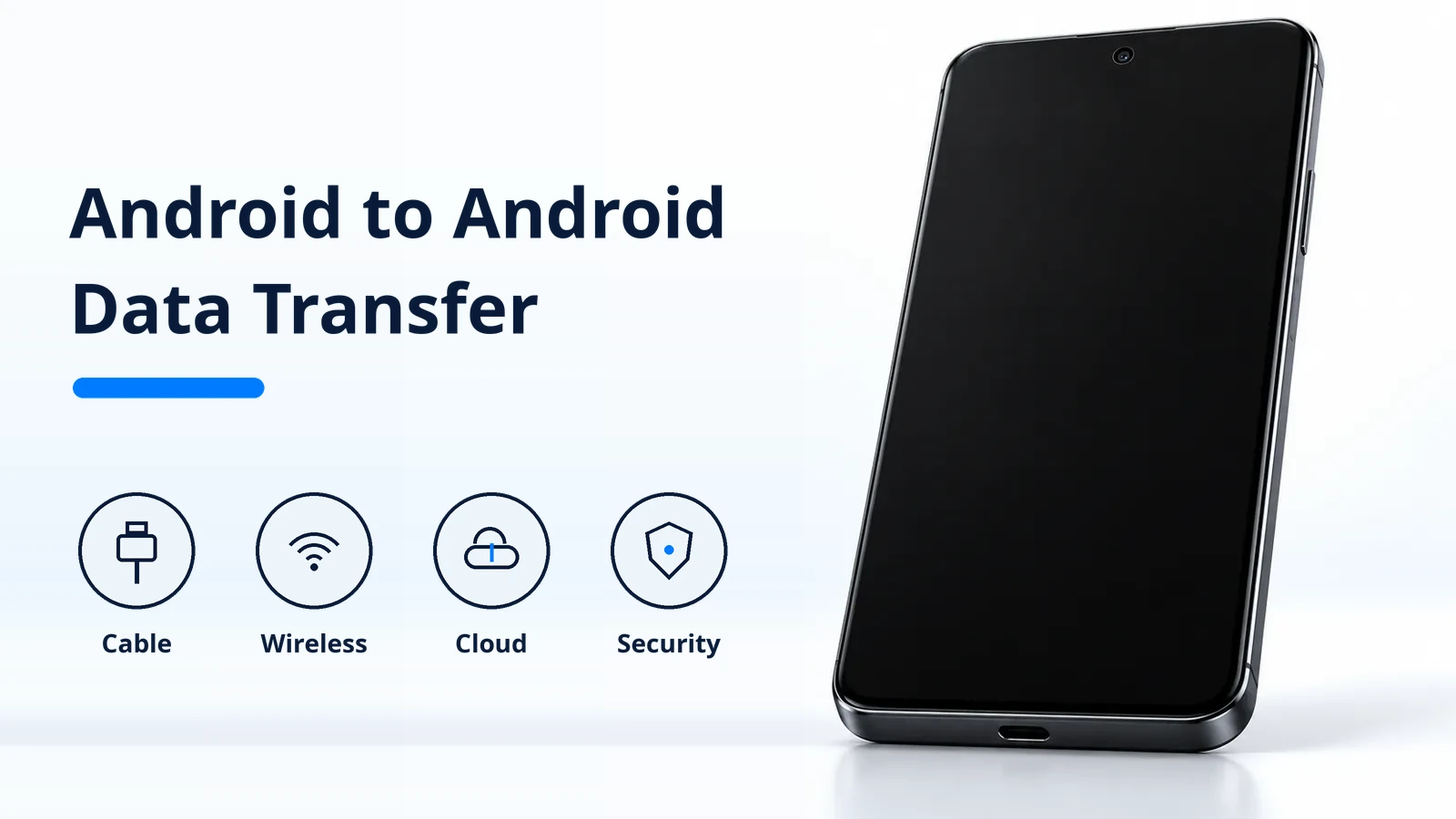
Stock Android setup gives you three paths to transfer data from Android to Android: a direct cable connection, a wireless setup link, or a cloud backup restore.
When switching from an Android device during setup, users select Android device, scan the QR code to pair devices, enter their PIN, pattern, or password to transfer Wi-Fi credentials and Google accounts, and choose to copy apps and data; transferring Google Maps data also transfers Timeline data.
During Android setup, data that copies includes apps and certain app data, music, photos, videos, contacts stored on the phone or SIM card, text messages, most phone settings (varying by phone and Android version), multimedia in text messages, wallpaper, and call history.
During Android setup, data that will not copy includes downloads (like PDF files), photos, videos, and music stored in hidden folders, apps not from the Google Play Store, data from apps that don’t use Android backup, accounts other than Google Accounts and their data, contacts and calendars synced to services other than Google, ringtones, and certain phone settings.
When copying apps and data with a cable (recommended), the new device displays “Copying your data…” while in progress and the old device shows “Copying’s done.” when finished; depending on how much data is transferred, this process could take from a few minutes to over an hour.
To copy apps and data wirelessly without a cable, users tap No cable and Transfer wirelessly > Next on the new device, enter their PIN on the old device, open the Google app on the old device and search “set up my device”, verify that shapes and numbers match on both phones, and tap Next > Copy.
When restoring data from an Android backup without the old device, users need their Google Account and password, tap Skip when asked to set up using another device, connect to Wi-Fi, provision their SIM, sign in with their Google Account, and may need to enter the PIN, pattern, or password of the old device to restore the selected backup.
Android Google Account backup cannot be used when setting up a personal device with a work profile or for work only, or when setting up a company-owned device, and a backup from a higher Android version cannot be restored onto a phone running a lower Android version (with some steps working only on Android 9 and up).
All Android backup data is encrypted in transit between the device, Google services, and data centers, and some data is end-to-end encrypted with the device’s screen lock PIN, pattern, or password; however, photos and videos in Google Photos and MMS media received from a carrier are not encrypted by the device’s screen lock.
To help protect backed-up data, Google instructs users to use a PIN, pattern, or password screen lock instead of a swipe or Smart Lock; users can back up to 15 GB of storage at no charge for their Google account, and a Google One backup can take up to 24 hours.
Automatic Google Account phone backup includes apps and app data, call history, contacts, device settings, and SMS and MMS messages, plus RCS messages when using Google Messages, phone call settings and blocked numbers when using Phone by Google, and pictures and videos when using Google Photos.
Google Drive does not have a built-in “Backups” tab; active backups are managed in the Google Account dashboard, where backups are managed collectively so selecting Delete all data permanently deletes all device and WhatsApp data for that account.
Restoring backed-up data onto a new phone during initial setup or after a factory reset can take up to 24 hours to complete fully, and both devices must be on the same Android version or the new device must be on a later Android version.
How do Pixel Android Switch and Samsung Smart Switch differ on cables, chargers, and data?
Moving to a Google Pixel or a Samsung Galaxy adds brand-specific setup tools and hardware rules on top of the stock Android transfer flow. If you also move media between operating systems after setup, see our guide on how to share files between Android and iPhone.
When transferring data from an Android device to a Pixel, users should update Google Messages to the latest version and set it as the default messaging app, move any messages stored on the old device’s SIM card to main storage before starting, and if the transfer is interrupted, complete it later with the Android Switch tool in Pixel settings.
When transferring data to Pixel 8 and later, users can pair their previous Android or Pixel device wirelessly, with a cable, or both, and for Pixel 9 and later, users can transfer data from their current device during initial setup and add additional data post-setup.
Google reported that using a cable to switch from iOS to Android is 40% faster to transfer data compared to 2023, and that Pixel 9 (and more Android phone makers in 2025) allows users to complete initial setup and copy data from their old device later via Settings.
To transfer data with Wi-Fi to Pixel Fold, Pixel 7 Pro, and earlier, the previous Android device should run on Android 5 or later and the Pixel phone should run on Android 12 or later; Express Transfer copies all of the same data as Custom Transfer as long as the data is backed up in the user’s Google Account.
In Google’s Pixel transfer compatibility table comparing “Other Android to Pixel” vs “Pixel to Pixel”, Recordings and Home screen layout do not transfer from Other Android to Pixel (No) but do transfer from Pixel to Pixel (Yes), whereas eSIM, Google Account, Device Settings, Calendar events, Text messages + attachments, Files & Folders, and Wi-Fi login details transfer in both cases (Yes).
When transferring from Other Android to Pixel, Passwords and Passkeys, Notes, and Alarms transfer only if the user uses a Google app like Google Keep or Google Password Manager, and Apps transfer only if the app was downloaded or purchased through Google Play Store.
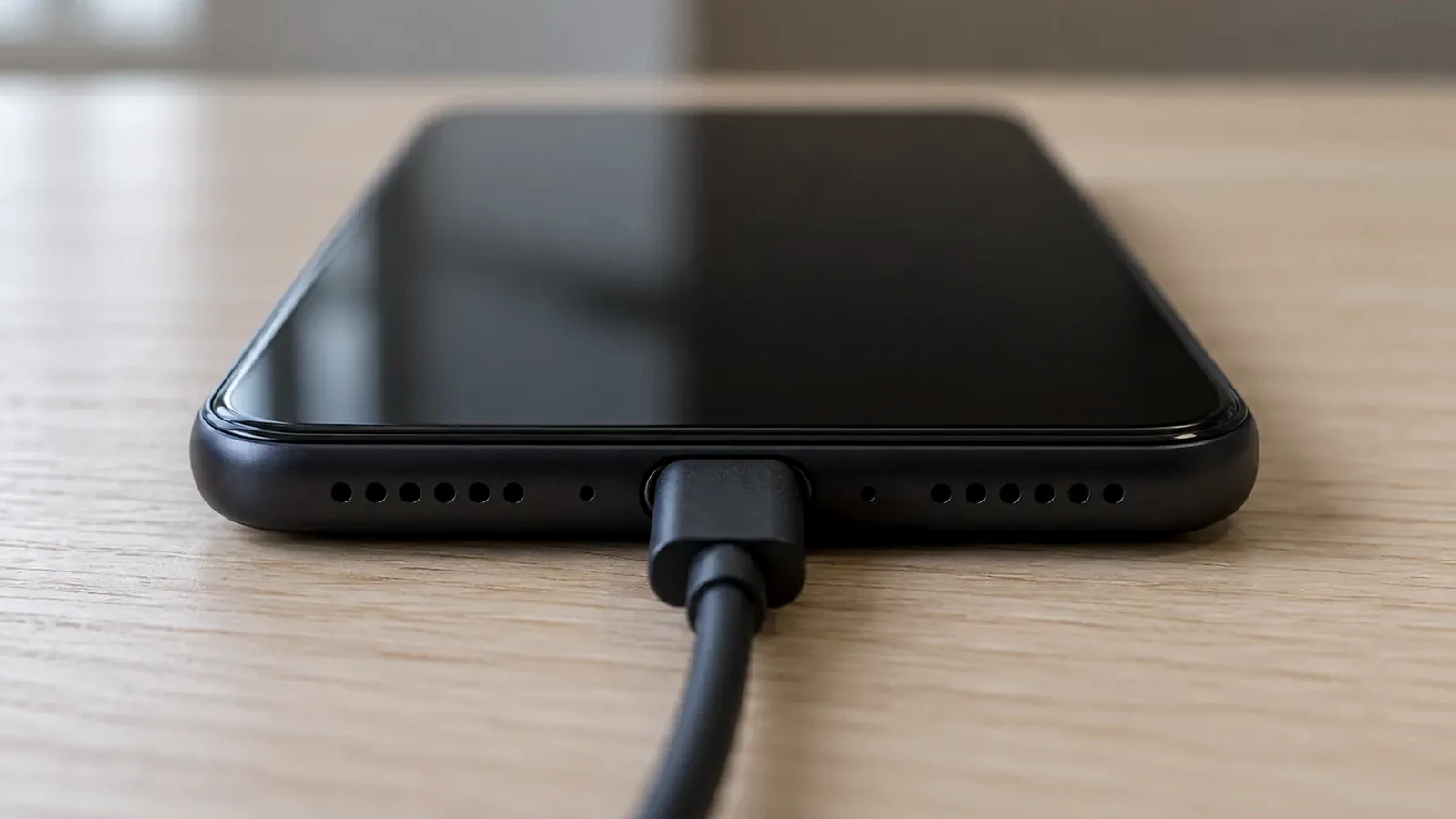
To transfer data with a USB-C cable (and no QR code) to Pixel 8 and later, users tap 5 times on the screen when prompted to “Copy data from your Android device,” tap Next, unlock the previous Android device, and connect the devices with a USB-C cable (or Quick Switch Adapter plugged into the Pixel phone).
Samsung Smart Switch transfers content from previous Android or iOS devices to Galaxy phones and tablets only (it cannot transfer content to an iOS device); for a wired USB cable connection, both devices must be at least 20% charged, and while wired transfers support the most types of data, they do not allow keeping the devices connected to a charger during the process.
In Samsung Smart Switch, users can choose to transfer Everything, Just accounts, calls, contacts, and messages, or Custom; if a user chooses Everything and has Secure Folder set up, they are prompted to unlock the old phone, and for a wireless transfer, both phones should be plugged into their chargers and placed within 4 inches of each other.
On Samsung’s Switch to Galaxy from Android page, Samsung states that Smart Switch is already installed on the new Samsung device and must be downloaded on the old device, requires fully charged devices, a charger for each device, and (for wired transfer only) a USB cable from the new device, or a USB cable from the old device plus a USB OTG adapter; wireless transfer is preferred.
A USB-OTG adapter was provided in-box with the Galaxy S10+, S10, S10e, Note10+, Note10+ 5G, and Z Flip, while newer Galaxy phone models do not come with this adapter; when using an external hard drive via an OTG cable with Galaxy devices, the drive must be formatted as FAT or exFAT to be recognized.
From an Android device, Samsung Smart Switch can transfer Personal content (Contacts, S Planner, Calendar, Messages, Memo, Call logs, Clock, Samsung Pass, Secure Folder, and Internet), App data (Images, DRM-free Music, DRM-free Videos, Documents, Story Album, and Apps), and Settings (Email, Wallpaper, Lock screen, Radio, and Preferences), though some content can only be transferred between two Galaxy devices and data from synced accounts only appears after logging into the account.
Samsung Smart Switch explicitly excludes from backup and transfer: contacts saved on the SIM card, social networks, Google accounts, and work email accounts; calendar appointments synced with external accounts (such as Google) and calendar stickers; app data saved in private storage; Social Hub and Premium (Push email) accounts; and live wallpapers and themes.
Why do some app logins and files vanish in the cloud but move over a cable?
Understanding why an app restores its state over a cable while losing data in a cloud backup requires looking at how Android packages app directories. For everyday storage cleanup on an active phone, see our breakdown of clearing app cache versus clearing storage data on Android, and review our guide to Android Private Space and theft protection for local compartment rules.
Auto Backup for Apps automatically backs up user data from apps that target and run on Android 6.0 (API level 23) or higher by uploading it to the user’s Google Drive, where it is end-to-end encrypted on devices running Android 9 or higher using the device’s PIN, pattern, or password, and every app can allocate up to 25 MB of backup data per app user at no charge.
By default, Auto Backup includes shared preferences files, internal storage files accessed by getFilesDir() or getDir(String, int), SQLite database files in getDatabasePath(String) (including SQLiteOpenHelper), and external storage files in getExternalFilesDir(String), while excluding temporary files in getCacheDir(), getCodeCacheDir(), and getNoBackupFilesDir().
Auto Backup data is stored in a private folder in the user’s Google Drive account limited to 25 MB per app without counting toward the user’s personal Google Drive quota; only the most recent backup is stored, and if an app’s data exceeds 25 MB, the system calls onQuotaExceeded() and does not back up data to the cloud.
Automatic cloud backups occur when the user has enabled backup on the device (in Settings > System > Backup in Android 9), at least 24 hours have elapsed since the last backup, the device is idle, and the device is connected to a Wi-Fi network (if the device user hasn’t opted in to mobile-data backups); during Auto Backup, the system shuts down the app and by default ignores apps running in the foreground unless android:backupInForeground is set to true.
Apps targeting Android 6.0 (API level 23) or higher participate in Auto Backup by default because android:allowBackup defaults to true, and can opt out by setting android:allowBackup to false; however, for apps targeting Android 12 (API level 31) or higher on devices from some device manufacturers, specifying android:allowBackup=“false” disables cloud-based backup and restore (such as Google Drive backups) but does not disable device-to-device transfers for the app.
Auto Backup supports cloud backups to Google Drive, direct device-to-device (D2D) transfers, and (available from Android 16 QPR2) Cross-Platform Transfers inside the data-extraction-rules XML format used by apps targeting API level 31+ on Android 12 or higher.
On Android 9 (API level 28) or higher, apps can restrict sensitive data backup using clientSideEncryption (requiring a PIN, pattern, or password screen lock) or deviceToDeviceTransfer (transferring only to another device that supports local device-to-device transfer, such as Google Pixel).
In data-extraction-rules, cloud-backup, device-transfer, and cross-platform-transfer rules apply only to that transfer type (for example, excluding a large file from Google Drive backups while transferring it during D2D transfers); if a section such as device-transfer is missing, that mode is fully enabled for all content except no-backup and cache directories.
Setting the disableIfNoEncryptionCapabilities flag in the cloud-backup section ensures the backup happens only if it can be encrypted (such as when the user has a lock screen) and stops backups from being sent to the cloud if the user’s device cannot support encryption, whereas D2D transfers are not sent to the server and continue to operate even on devices that do not support encryption.
Android Developers advises against storing user credentials and authentication tokens in shared preferences or a file (recommending Block Store APIs instead), and recommends excluding files with device-specific identifiers such as Firebase Cloud Messaging (FCM) registration tokens and large files that cause an app to exceed the 25 MB backup quota.
For apps that target Android 12 (API level 31) or higher, running the “adb backup” command excludes private app data from any system data exported from the device unless the developer explicitly opts in by setting android:debuggable to true in the app’s manifest file.
Under OWASP category MASVS-CODE: Code Quality, the Standard Android Backup system always encrypts backup data in transit and at rest, and starting from Android 9, when a lock screen is set, encrypts backup data with a key protected by the lock screen secret that is not known to Google; if the device-transfer attribute is not set in backup_rules.xml on Android 12 (API level 31) and higher, all application data will be transferred during a D2D migration.
Why do banking locks, passkeys, Google Authenticator, WhatsApp, and carrier profiles stall during a transfer?
Even when general app files copy cleanly, hardware-bound keys, two-factor codes, encrypted chat databases, and embedded carrier profiles follow separate security rules. Before wiping your previous handset after verifying these accounts, follow our Android factory reset and backup checklist.
Android Keystore key material can be bound to the secure hardware of the Android device—such as the Trusted Execution Environment (TEE) or Secure Element (SE)—so its key material is never exposed outside of secure hardware and cannot be extracted from the device even if the Android OS is compromised or internal storage is read.
Devices running Android 9 (API level 28) or higher can include a StrongBox KeyMint backed by an embedded Secure Element (SE) or integrated Secure Enclave (iSE) with its own CPU and secure storage, supporting RSA 2048, AES 128 and 256, ECDSA/ECDH P-256, HMAC-SHA256 (8 bytes to 64 bytes), and Triple DES.
Credential Manager’s Restore Credentials feature generates a restore key after user authentication and transfers it either via cloud backup (requiring Google Account sign-in, Android data backup enabled, and a screen unlock mechanism; otherwise throwing E2eeUnavailableException and calling createCredential() with isCloudBackupEnabled = false for local D2D transfer) or via USB cable / wireless Wi-Fi D2D transfer.
When pairing Restore Credentials with Auto Backup (dataExtractionRules), Android Developers instructs apps to exclude raw authentication tokens, hardware-bound Android Keystore ciphertext, and the local has_synced_restore_credential marker so stale session state is not copied onto the new device.
Restore Credentials supports only one account per app, may return no credential if an enterprise IT policy disables cross-device backup or credential transfer inside a managed work profile, and is supported on Android phones, foldables, and tablets running Android 9 (API level 28) or higher with Google Play services version 242200000 or higher.
According to the Android Developers Blog (November 2024), on average 40% of people in the US reset or replace their smartphones every year, and Restore Credentials uses a FIDO2 / passkey-compatible restore key requiring a minimum Jetpack Credential Manager library version of 1.5.0-beta01 and minimum GMS version 242200000.
Google Play’s Zero-Tap Sign-In standard requires any app supporting user sign-in (optional or mandatory, with games currently exempt) to automatically restore a user’s sign-in state when moving from one Android device to another using the Android Restore Credentials API, with enforcement starting in April 2027.
Google Authenticator requires Android version 6.0 or above to run, and synchronizing verification codes across devices via a Google Account requires Google Authenticator version 6.0 or above on Android (or version 4.0 or above on iOS); in version 7.0, the time correction setting was removed and the app uses the operating system time setting.
When setting up Google Authenticator on a device for a Google Account, it may take up to 7 days for Google Authenticator to show up as an available option for sign-in, though a trusted passkey or security key may speed up the process.
Selecting “Use Authenticator without an account” removes verification codes from all Google Accounts and stores them only on the local device so codes are not available on other devices; to transfer local codes manually, users tap Menu > Transfer codes > Export codes on the old device to generate QR codes and tap Menu > Transfer codes > Import codes on the new device to scan them.
To transfer WhatsApp data from an Android device to a new Android device, users open WhatsApp > More > Settings > Chats > Chat backup > Back up on the old phone, install WhatsApp on the new phone and sign in with the same phone number, and when prompted choose either Transfer from old phone (to restore via WiFi) or Restore from backup (to restore via Cloud).
WhatsApp cannot merge chat history created on a new phone with chat history previously created on an old phone (restoring old chat history replaces any new chat history on the new phone), and cannot transfer WhatsApp data to a new phone number unless the user first changes their phone number on the old device before transferring.
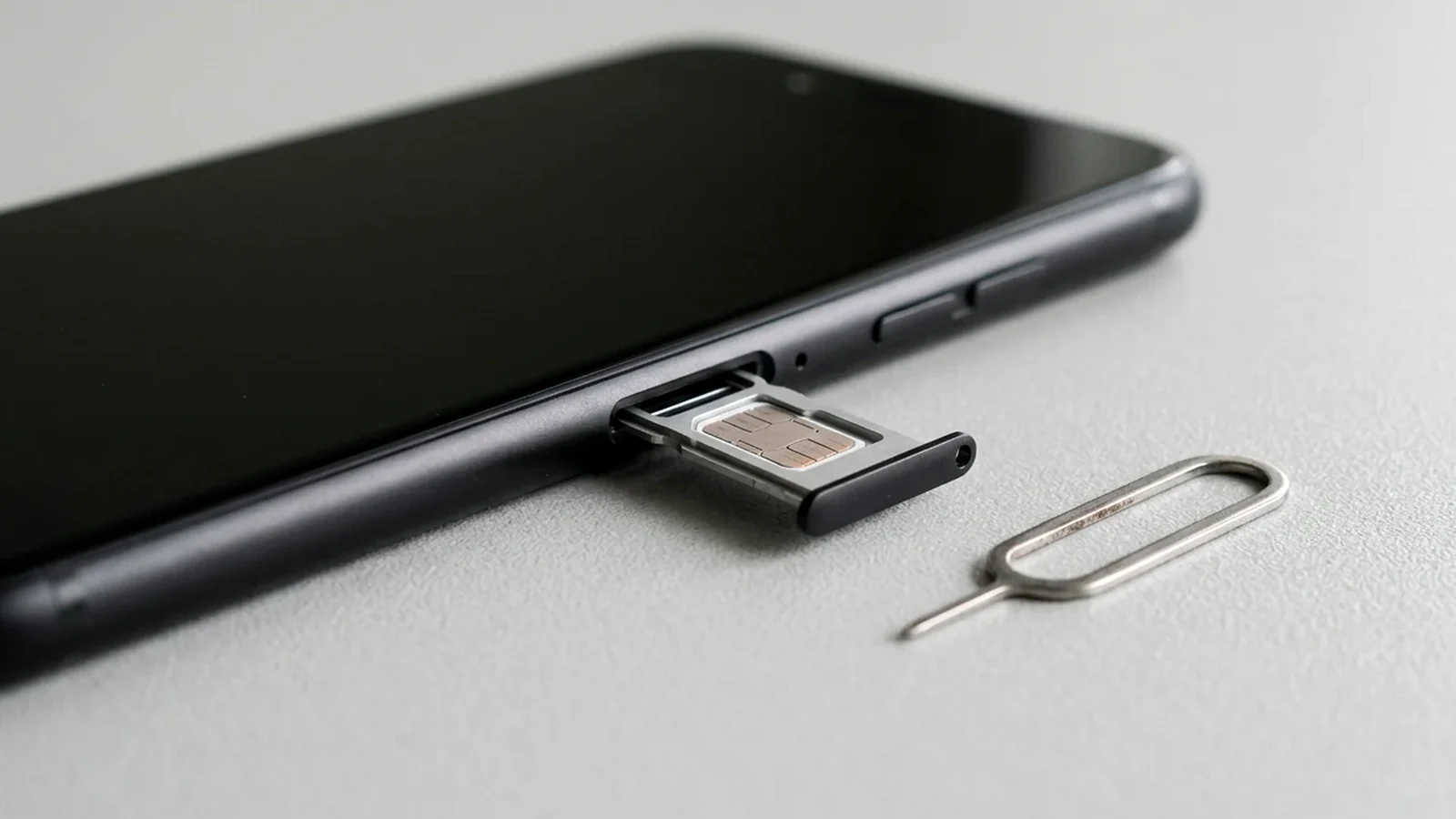
Pixel 3a or later Pixel phones support Dual SIM Dual Standby (DSDS) with one physical SIM card and one eSIM; in the US, Pixel 10 or later (except Pixel 10 Pro Fold) can only use an eSIM, and Pixel 7, Pixel 7 Pro, or later phones can use 2 eSIM profiles at once if the carrier allows it.
To delete an eSIM on a Pixel phone, users open Settings > Network & internet > Mobile network, select the eSIM, and tap Erase eSIM; to require a password to delete an eSIM, users enable Settings > Security > Advanced > Confirm SIM deletion.
In Android 9 and higher, eSIM operations managed by EuiccManager and the Local Profile Assistant (LPA) can encounter resolvable errors (EuiccManager#EMBEDDED_SUBSCRIPTION_RESULT_RESOLVABLE_ERROR) when downloadSubscription requires a carrier confirmation code or when switchToSubscription requires user consent to deactivate an active SIM.
Save your Android to Android transfer verification checklist
Use this checklist to record your verification items on both handsets before resetting or trading in the old phone:
- Old and new phone models, Android versions, and chosen transfer path.
- Screen lock credential status, Google Account sign-in state, and Wi-Fi connection on both phones.
- Messaging app default status, local chat backup completion, and any messages moved from card storage to phone storage.
- Authenticator app account sync state or exported transfer QR codes verified on the new phone.
- Banking, wallet, and passkey sign-in verification on the new handset.
- Active voice and text line check on the new phone before erasing any carrier profile or resetting the old phone.
Browse our Android product guides for related setup and troubleshooting walk-throughs.
Sources
- Google Android Help — Switch to a new Android device
- Google Android Help — Copy apps and data from an old to a new Android device
- Google Android Help — Back up or restore data on your Android device
- Google Pixel Phone Help — Transfer data from an Android phone to a Pixel
- Google Pixel Phone Help — How to use dual SIMs on your Google Pixel phone
- Google Account Help — Download and install Google Authenticator
- Google Android Help — Transfer WhatsApp data to a new Android
- Android Developers — Back up user data with Auto Backup
- Android Developers — Behavior changes for apps targeting Android backup and restore
- Android Developers — App backup best practices
- Android Developers — Restore Credentials guide
- Android Developers Blog — Introducing Restore Credentials for Android apps
- Android Developers Blog — Providing a secure and seamless device migration experience
- Android Developers — Android Keystore system
- Samsung US Support — Transfer content with Samsung Smart Switch
- Samsung US Support — What can be transferred with Smart Switch
- Google The Keyword — Android switching updates
- Samsung US — Switch to Galaxy from an Android phone
- Android Open Source Project — Implementing eSIM