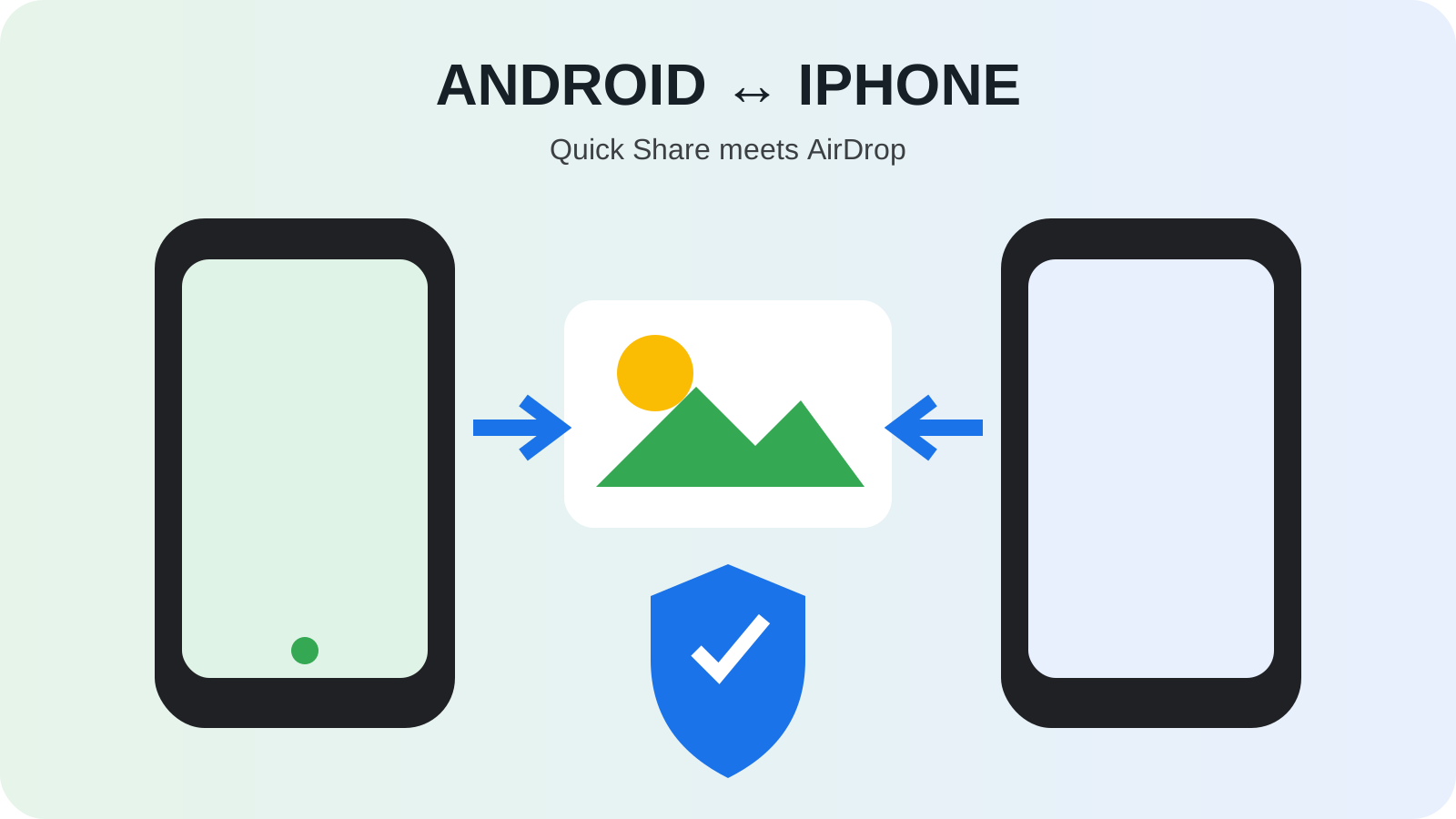
Can you AirDrop from Android to iPhone? Yes, on Android devices with Quick Share support for AirDrop. Other devices may offer a QR download instead. Check the exact phone and direction before following a tutorial: having a Quick Share button alone does not establish Apple compatibility.
Documentation checked October 8, 2026. This guide compares official instructions; it is not an all-device hands-on test.
Choose the transfer you need
Start with the phone holding the file. Sending a photo from Android is a different task from receiving one from an iPhone, and success in one direction is not your test for the other.
| Your situation | Start here |
|---|---|
| Android supports direct Apple sharing | Android-to-iPhone steps |
| iPhone is sending to a compatible Android receiver | iPhone-to-Android steps |
| Android offers a QR download for Apple devices | QR download; both phones need internet |
| Compatibility or the required option is missing | Model and software requirements |
Use one small, non-sensitive file for the first attempt. Once the recipient opens it successfully, select the larger batch. This makes it easier to distinguish a connection problem from a problem with one file, its format or the app used to open it.
Which phones are supported?
The Google help page currently lists Pixel 8a or later for sending, but its receiving instructions specify Pixel 9 or later, excluding Pixel 9a. It also names selected devices from other Android brands without a complete model list. These sections do not provide one consistent, universal compatibility matrix. Verify the direction on your exact phone; do not assume Pixel 8 or 8 Pro support from the family name.
| Device or requirement | Evidence to check |
|---|---|
| Pixel | Google’s direction-specific instructions above; ambiguous models remain unconfirmed here |
| Galaxy S26, S26+, S26 Ultra | Samsung documents Apple sharing for these models |
| Other Galaxy or Android models | A model-specific support statement and the relevant software feature |
| iPhone receiver | AirDrop visibility and the selected Android device’s compatibility |
Samsung’s requirements specify Quick Share 13.8.51.27 or newer and Google Play services 26.11.xx or newer for its documented Galaxy Apple-sharing feature. Its model footnote is dated March 2026. Treat that as a documented starting list, not a complete September rollout list. A newer version number alone does not prove that another model is eligible.
When checking compatibility, write down the model, OS version, Quick Share version and which direction you need. That is more useful than comparing two phones described only as “a Samsung” and “an iPhone.” Keep a separate result for sending and receiving.
Send from Android to iPhone
For a compatible Galaxy, Samsung’s Apple-sharing instructions give this sequence:
- In Galaxy Settings, open Connected devices, then Quick Share. Enable Share with Apple devices.
- On the iPhone, open Settings, General, then AirDrop. Choose Everyone for 10 Minutes.
- Open the file on Android. Use Share, choose Quick Share, then select the iPhone.
- Accept the incoming request on the iPhone.
On a compatible Pixel, use Share and Quick Share after making the iPhone visible; the Galaxy-only toggle is not a Pixel requirement. Google’s instructions describe that route.
The screens for these steps are shown on Samsung’s Apple-sharing support page (Galaxy-only switch; Samsung documents Quick Share 13.8.51.27+ and Play services 26.11.xx+ for its Galaxy S26-series feature) and Apple’s AirDrop guide (Everyone for 10 Minutes). Neither page states the exact OS build shown.
After acceptance, check the actual received file. For a photo, compare the image you intended to send; for a document, open it and check the filename. An accepted request and a usable copy are two separate checkpoints. Keep the original until the recipient confirms the result.
Send from iPhone to Android
First prepare the Android receiver. For supported Pixels, Google specifies Quick Share Receive mode or temporary public visibility. For compatible Galaxy devices, use Samsung’s Apple-sharing setting and receiving screen. Refer to the compatibility section before assuming the receiving function is available.
On iPhone:
- Open Photos or Files and select the items.
- Open the share sheet and choose AirDrop.
- Select the visible Android receiver.
- Approve the incoming transfer on Android, then open the received item.
For the receiving and sending screens, see Samsung’s Quick Share requirements and Apple’s AirDrop guide. A supported Pixel uses Receive mode or its own visibility setting, without the Galaxy switch.
The iPhone share-sheet sequence follows Apple’s AirDrop guide; Android eligibility comes from Google and Samsung. Apple’s instructions for two Apple devices, including newer AirDrop-code behavior, should not be treated as a promise that the same prompt appears with Android.
If the Android phone never appears, return to compatibility and receiving visibility. Repeatedly changing the iPhone sender’s own receiving setting does not establish that the Android phone can receive.
Use a QR download when direct sharing is unavailable
For the Apple-download route, open Quick Share on Android and choose Use QR code. Scan with the iPhone, open the download page and save the files. Google says this method needs internet on both devices and stores encrypted transfers on its servers for 24 hours. It is not offline AirDrop, and these instructions do not establish an equivalent iPhone-to-Android QR sending route. Google’s QR instructions
Before sending a large batch, confirm that the QR opens an Apple-compatible download page. QR is a way of opening a destination, not a description of how the file travels. Keep the Android sender available until the receiver has saved and opened the copy; do not use a temporary transfer link as a permanent archive.
If the other phone does not appear
Samsung’s troubleshooting guidance recommends checking Wi-Fi and Bluetooth, keeping the devices nearby and restarting after a failed connection. On Galaxy, also recheck its Apple-sharing option. Its documentation notes that Wi-Fi can disconnect temporarily during Apple sharing.
Apple advises keeping Wi-Fi and Bluetooth enabled and disconnecting Personal Hotspot. The iPhone’s temporary public receiving mode expires, so re-enable it if preparation took longer than expected.
Use these checkpoints to decide what to investigate next:
| What you observe | Next useful check |
|---|---|
| No compatible sharing option | Confirm model and software support before treating it as a discovery fault |
| Device appears but nothing arrives | Check whether the recipient accepted and whether either screen shows an error |
| Transfer completes but file will not open | Check the received file and app; repeating discovery settings is unlikely to explain a format issue |
| QR page opens but download stops | Check the internet connection for this route and try a small file |
| A work-managed device shows a restriction | Ask its administrator which transfer method is permitted; do not remove management settings |
These are diagnostic checkpoints, not a claim that we reproduced every failure. When asking for help, report the exact step where the result differs, the two device models and whether you used a nearby device entry or a QR web download.
Keep current instructions separate from the launch history
Our Quick Share and AirDrop launch history explains the November 2025 milestone. Use this page for today’s practical decision, and the historical article for what Google announced at the time. Neither an old launch list nor an announced future expansion should substitute for checking your current device.
Copy a transfer record
Copy this table into your notes and fill it separately for each direction. Record the versions actually installed; the official images above do not identify a tested OS build pair.
| Field | Your record |
|---|---|
| Android model and regional variant | — |
| Android OS / One UI, if applicable | — |
| Quick Share / Google Play services versions | — |
| iPhone model / iOS version | — |
| Direction: Android → iPhone or iPhone → Android | — |
| Method: direct nearby transfer or QR download | — |
| Result: discovered, accepted, saved and opened | — |
| Error or failed step / date | — |