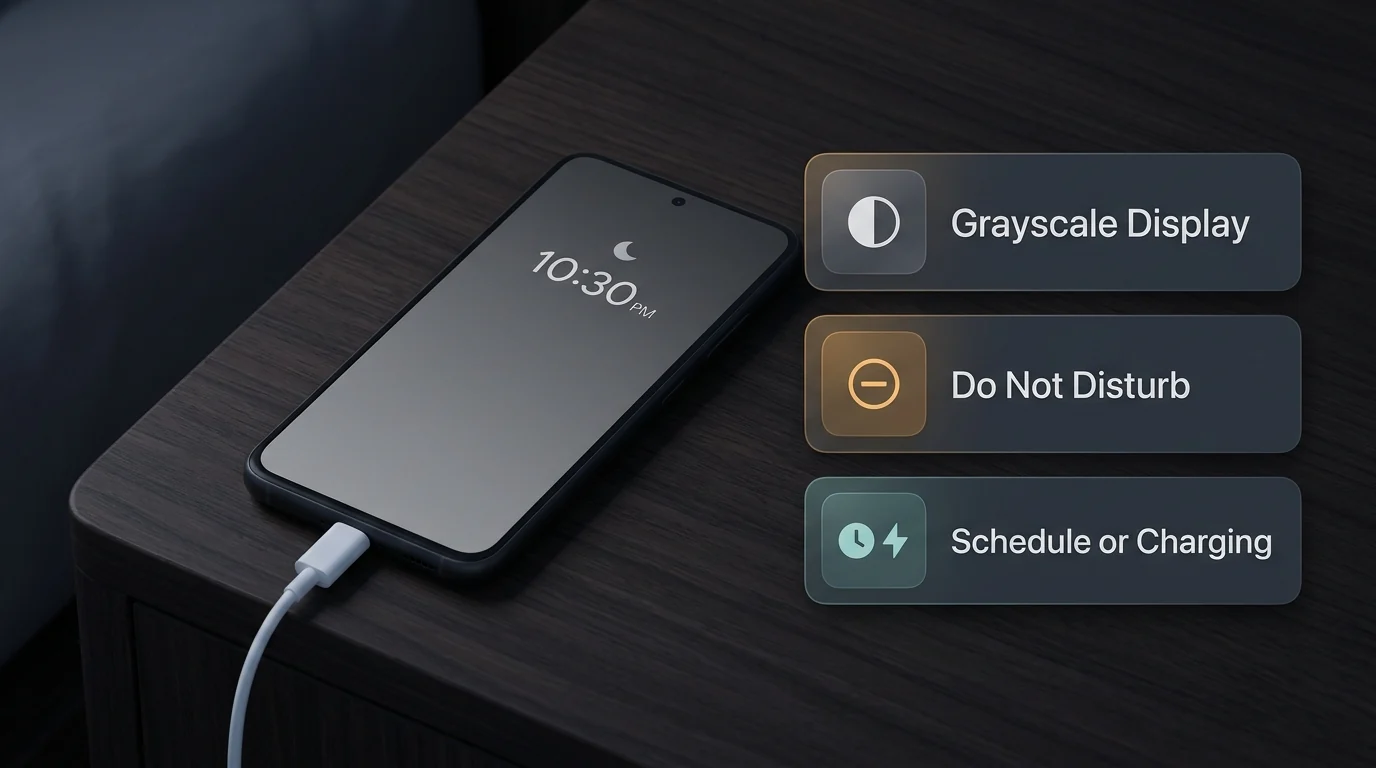
Bedtime mode on Android is a Digital Wellbeing routine that silences interruptions with Do Not Disturb and dims or switches your display to grayscale on a fixed schedule or while charging overnight. Toggle Quick Settings to end it tonight, or disable the underlying schedule, charging window, and Clock routine to turn it off permanently.
How Does Bedtime Mode Work in Android Digital Wellbeing?
Bedtime mode in Digital Wellbeing automates overnight screen dimming and Do Not Disturb—with Grayscale, Keep the screen dark, Dim the wallpaper, and Dark theme—whenever your schedule or charging window starts. Google introduced Digital Wellbeing with Android 9 Pie on August 6, 2018, to curb smartphone overuse, covered in our Android 9 Pie overview.
The sleep-hygiene goal behind those display and schedule controls aligns with federal sleep guidance. The NHLBI Healthy Sleep Habits guide recommends using the hour before bed for quiet time away from bright artificial screen light because that light can signal the brain that it is time to be awake, and advises keeping weeknight and weekend sleep schedules within about an hour of each other. For adults aged 18 years and older, MedlinePlus Healthy Sleep guidance lists 7 to 9 hours a day as the general sleep recommendation.
Screen Options and Interruption Controls at Bedtime
According to Google Android Help, Bedtime mode separates interruption silencing from display changes so you can keep notifications quiet without forcing every visual effect. Under Digital Wellbeing, you configure Do Not Disturb for Bedtime mode alongside four optional screen behaviors, while the Keep the screen dark setting can also be reached under Settings > Digital Wellbeing & parental controls > Bedtime mode > Customize:
| Bedtime Option | What It Changes While Active | Where to Configure | Scope and Behavior |
|---|---|---|---|
| Grayscale | Changes your screen to black and white | Digital Wellbeing > Bedtime mode > Screen options at bedtime > Grayscale | Removes color cues while Bedtime mode is active |
| Keep the screen dark | Turns off the always-on display at bedtime | Digital Wellbeing > Bedtime mode > Customize > Keep the screen dark | Prevents the lock screen from staying lit overnight |
| Dim the wallpaper | Dims your wallpaper and lock screen at bedtime | Digital Wellbeing > Bedtime mode > Screen options at bedtime > Dim the wallpaper | Reduces lock-screen and home-screen brightness appearance |
| Dark theme | Makes your screen background black at bedtime | Digital Wellbeing > Bedtime mode > Screen options at bedtime > Dark theme | Applies Dark theme only while Bedtime mode is turned on |
| Do Not Disturb for Bedtime mode | Silences calls, messages, and app alerts per filter rules | Digital Wellbeing > Bedtime mode or Settings > Modes > Bedtime | Critical system security notifications still appear |
Bedtime mode also differs from Focus mode inside Digital Wellbeing. While Bedtime mode manages overnight display options and Do Not Disturb, Google Android Help explains that Focus mode pauses chosen distracting apps so you cannot open them and do not receive notifications from them during the day.
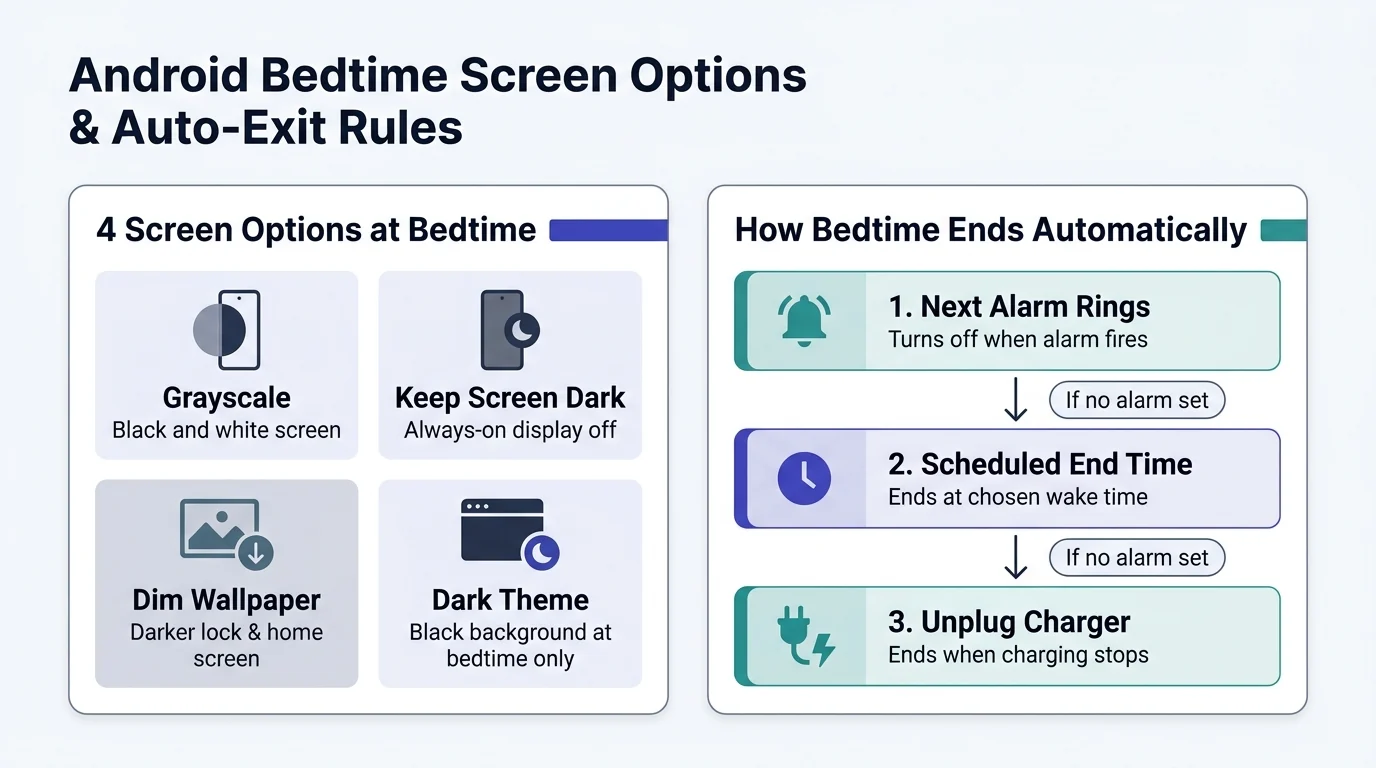
When morning arrives, Turn off Bedtime at next alarm governs how the session ends. Google Android Help states that turning this option on turns Bedtime mode off at your next alarm; if no alarm is set, Bedtime mode turns off at the scheduled end time or when you stop charging your device, depending on which trigger routine you selected.
How Do You Turn Off Bedtime Mode on Android Quickly?
To turn off Bedtime mode on Android right now, swipe down from the top of the screen into Quick Settings and tap the Bedtime mode tile, or open Modes on Android 14 and later. On Samsung Galaxy phones, open Quick settings and tap Sleep mode, or tap Turn off on a paired watch.
Google Android Help notes that once Do Not Disturb or custom notification modes such as Bedtime mode are configured, Quick Settings serves as the fastest manual on/off switch. On Samsung Galaxy devices paired with a compatible watch, Samsung Support notes that turning Sleep mode off from either the phone Quick settings panel or the watch turns it off across both devices.
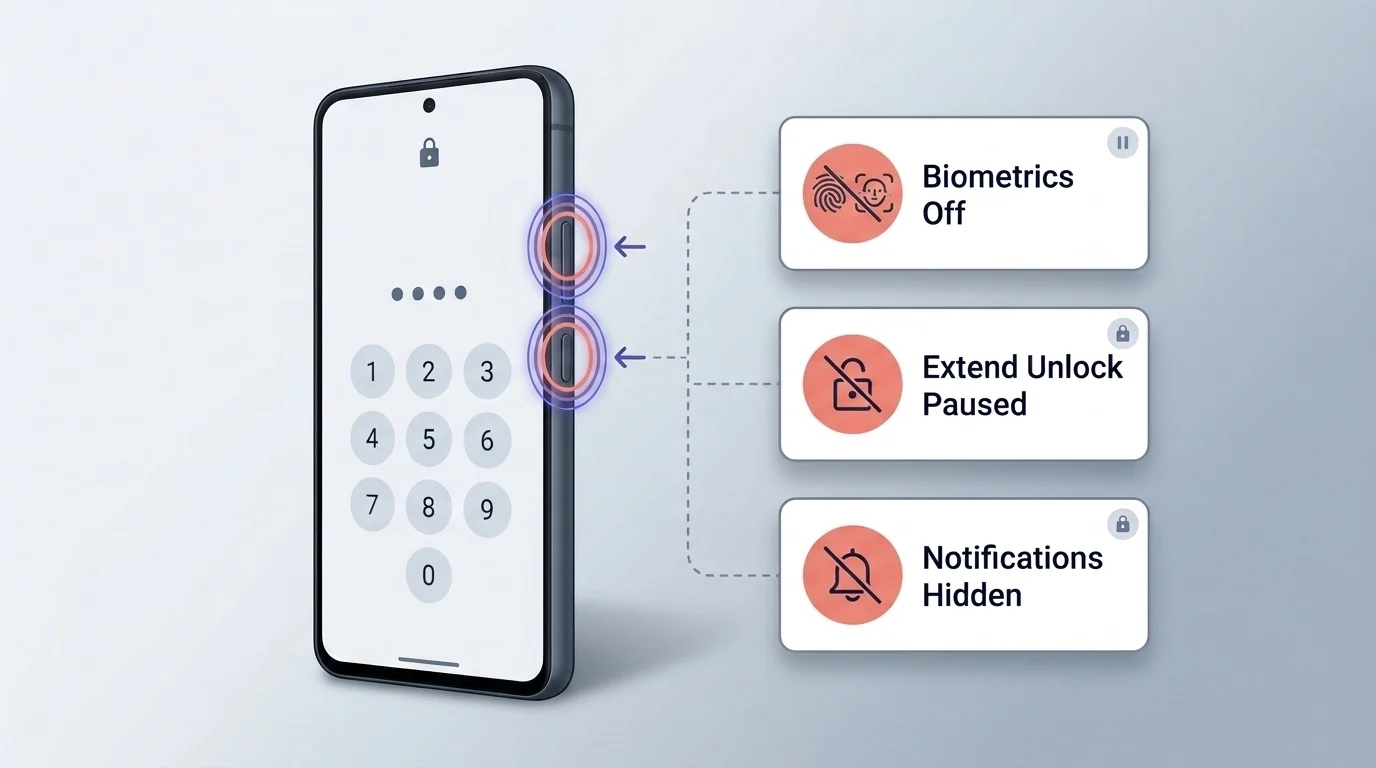
Quick Settings only overrides the active session. It clears grayscale, restores the always-on display and wallpaper brightness, and ends the current Bedtime silence, yet it leaves every saved schedule and charging rule untouched so the mode turns itself back on at the next trigger window.
Why Does Bedtime Mode Keep Turning Itself On?
Bedtime mode keeps turning itself on because tapping Quick Settings leaves automatic routines active across Digital Wellbeing, Android 14 and later Modes, the Google Clock Bedtime tab, standalone Do Not Disturb rules, or Samsung Modes and Routines. If any automatic trigger stays on, grayscale and silencing restart on the next evening or charging cycle.
The most frequently overlooked repeat trigger is the charging rule. Under Settings > Digital Wellbeing > Bedtime mode > Bedtime routine (and under Settings > Modes > Bedtime on Android 14 and later), Google Android Help documents two distinct activation triggers:
- Use a schedule: Turns Bedtime mode on automatically at your chosen start and end times on your preferred days of the week.
- Turn on while charging: Uses configured After and Before times and turns Bedtime mode on automatically whenever you plug your phone in to charge during that time frame.
Even if you clear the fixed daily schedule, plugging the phone in during an active After and Before charging window silently switches grayscale and Do Not Disturb back on. Three other layers can also trigger a nightly sleep routine independently:
- Google Clock Bedtime tab: Google Clock Help shows that the Schedule card under the Clock app Bedtime tab includes its own Bedtime mode switch that silences your phone and removes screen color at bedtime.
- Separate Do Not Disturb time rules: Google Android Help lists automatic time rules under Settings > Sound & vibration > Do Not Disturb > Turn on automatically, which can mute notifications overnight even when Bedtime mode itself is off.
- Samsung Modes and Routines plus Galaxy Watch sync: On Samsung Galaxy devices, Samsung Support documents Settings > Modes and Routines > Modes tab > Sleep with automatic event triggers under Turn on automatically, and notes that activating Sleep mode on a paired watch or phone automatically syncs Sleep mode across devices.
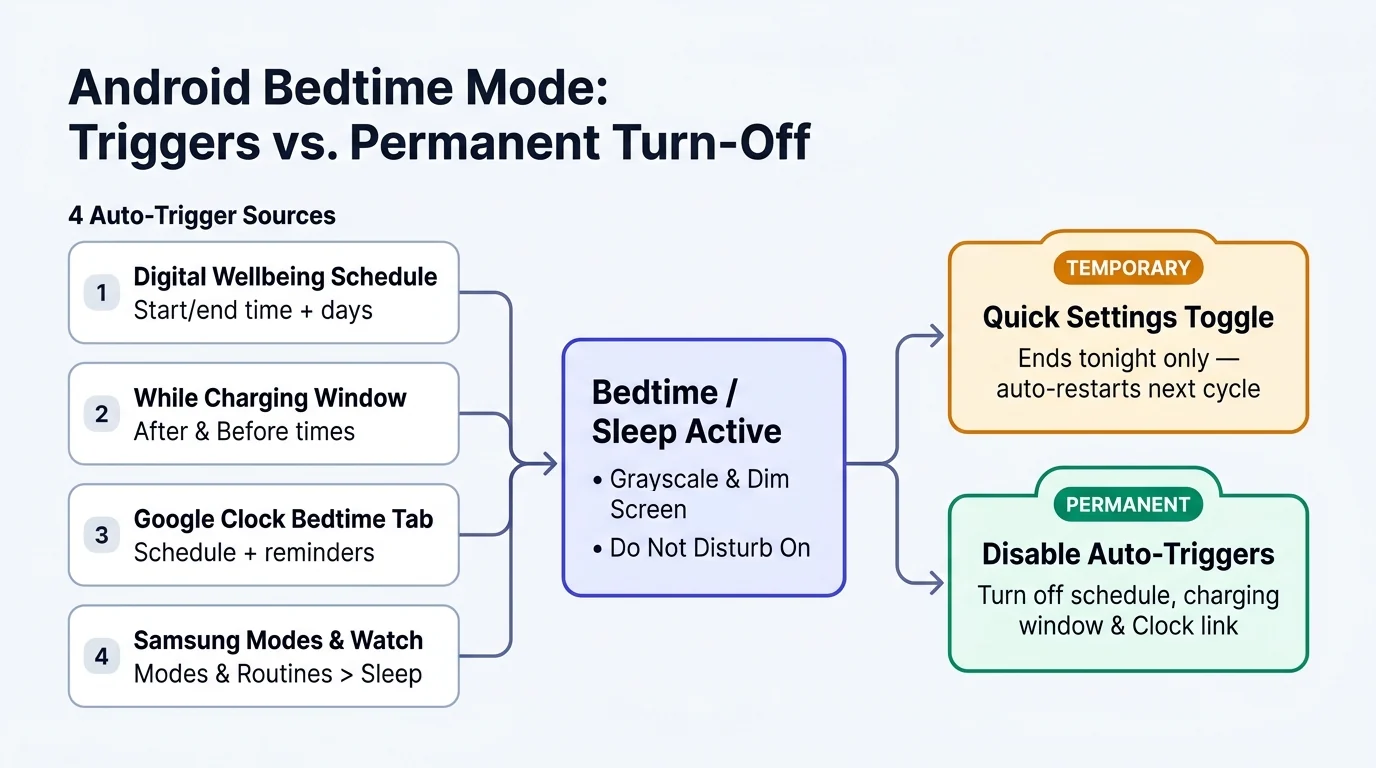
| Trigger Source | Menu Path | What Starts Bedtime or Silence | Effect of Quick Settings Toggle Off |
|---|---|---|---|
| Digital Wellbeing fixed schedule | Settings > Digital Wellbeing > Bedtime mode > Bedtime routine > Use a schedule | Configured start time and chosen days of the week | Ends current session; restarts on next scheduled day |
| Digital Wellbeing charging window | Settings > Digital Wellbeing > Bedtime mode > Bedtime routine > Turn on while charging | Plugging in the charger between configured After and Before times | Ends current session; restarts when plugged in during window |
| Android 14 and later Modes schedule | Settings > Modes > Bedtime > When to turn on automatically | Enabled Bedtime routine schedule or charging trigger | Ends active mode; restarts on next automatic rule match |
| Google Clock Bedtime schedule | Clock app > Bedtime tab > Schedule card > Bedtime time | Clock Bedtime schedule with Bedtime mode enabled | Ends active session; Clock schedule can re-trigger next night |
| Standalone Do Not Disturb rule | Settings > Sound & vibration > Do Not Disturb > Turn on automatically | Saved automatic time rule | Silences notifications again at next rule start time |
| Samsung Galaxy Sleep mode | Settings > Modes and Routines > Modes tab > Sleep | Configured Turn on automatically triggers or paired Galaxy Watch Sleep sync | Turns off current session; resumes on next trigger or watch sync |
How Do You Turn Off Bedtime Mode Permanently?
To turn off Bedtime mode permanently on Android, disable both Use a schedule and Turn on while charging in Digital Wellbeing or Android 14 and later Modes, turn off Bedtime mode in the Google Clock Bedtime tab, and clear any standalone Do Not Disturb rule or Samsung Sleep trigger. Steps vary by device.
Complete Bedtime Trigger Source Verification Checklist
Work through this ordered audit checklist so no secondary app or watch trigger re-enables grayscale or overnight silencing tomorrow:
- Clear Digital Wellbeing routine triggers: Open Settings > Digital Wellbeing > Bedtime mode > Bedtime routine and turn off both Use a schedule and Turn on while charging so neither a fixed start time nor an After and Before charging window remains active.
- Check unified Modes on Android 14 and later: Open Settings > Modes > Bedtime, inspect When to turn on automatically, and disable the active Bedtime routine schedule or charging trigger.
- Disable the Google Clock Bedtime link: Open the Clock app, tap the Bedtime tab, tap the time under Bedtime on the Schedule card, and turn off Bedtime mode so the Clock app stops silencing your phone and removing screen color.
- Audit standalone Do Not Disturb rules: Open Settings > Sound & vibration > Do Not Disturb > Turn on automatically and disable or delete any separate overnight time rule that would still mute calls and alerts.
- Clear Samsung Sleep mode and watch sync (Galaxy phones): Open Settings > Modes and Routines, select the Modes tab, tap Sleep, turn off automatic conditions under Turn on automatically, and confirm your paired Galaxy Watch is not re-enabling Sleep mode.
- Confirm Quick Settings is off: Swipe down from the top of the screen and verify the Bedtime mode, Modes, or Sleep mode tile is inactive so the current session ends immediately.
How Do You Stop Bedtime Reminders on an Android Phone?
To stop Bedtime reminders on an Android phone, open the Clock app, tap the Bedtime tab, tap the time under Bedtime on the Schedule card, and switch off Reminder notification. On Samsung Galaxy devices, stop mode-related alerts under Settings > Modes and Routines > More options > Settings > Notifications.
Many users turn off Digital Wellbeing grayscale and still receive a nightly prompt telling them it is almost time for bed because reminder alerts live in the Google Clock app rather than inside Digital Wellbeing screen options. Inside the Clock Bedtime tab Schedule card, Google Clock Help separates three distinct toggles:
- Reminder notification: Sends the bedtime reminder alert ahead of your scheduled sleep time. Turning only this switch off stops the reminder notification while leaving your alarm intact.
- Bedtime mode: Silences your phone and removes screen color at bedtime.
- Sunrise alarm (under Wake up): Slowly brightens your screen 15 minutes before your morning alarm starts, independent of evening reminders.
If you want to keep a regular morning alarm without any bedtime prompts or nighttime tracking, disable Reminder notification and Bedtime mode on the Clock Bedtime card while keeping your regular alarm schedule active.
How Do You Change Sleep Mode on an Android Phone?
On Android 14 and later builds, change Bedtime settings under Settings > Modes > Bedtime or Settings > Digital Wellbeing > Bedtime mode > Bedtime routine to edit schedules, charging windows, and notification filters. On Samsung Galaxy phones, open Settings > Modes and Routines > Modes tab > Sleep to change triggers and actions.
Google Android Help notes that on Android 14 and later, Settings > Modes > Bedtime > Set up Bedtime groups your schedule under When to turn on automatically, lets you pick Use a schedule or Turn on while charging, and exposes Notification filters for People, Apps, and Alarms & other interruptions. You can also adjust how hidden alerts appear under Settings > Modes > select a mode > More settings > Display settings > Display options for filtered notifications.
On Samsung Galaxy phones, Samsung Support explains that preset modes live on the Modes tab inside Settings > Modes and Routines. Tapping Sleep lets you change its automatic triggers under Turn on automatically and edit what the mode changes while active. Because Samsung syncs Sleep mode with a paired watch, enabling Sleep mode on the phone automatically puts the watch into Sleep mode, and turning it off from either device ends it.
| Feature Dimension | Android Digital Wellbeing / Modes Bedtime | Samsung Galaxy Modes and Routines Sleep | Digital Wellbeing Focus Mode |
|---|---|---|---|
| Primary settings path | Settings > Digital Wellbeing > Bedtime mode or Settings > Modes > Bedtime (Android 14 and later) | Settings > Modes and Routines > Modes tab > Sleep | Settings > Digital Wellbeing > Focus mode |
| Automatic triggers | Fixed start/end schedule by day or Turn on while charging between After and Before times | Preset or custom Turn on automatically event triggers; synced Galaxy Watch toggle | Manual Turn on now or Set a schedule |
| Display behavior | Grayscale, Keep the screen dark (always-on display off), Dim the wallpaper, Bedtime-only Dark theme | Mode appearance changes and automatic watch screen dimming when synced | Does not apply Bedtime grayscale or lock-screen dimming |
| Notification control | Do Not Disturb with People, Apps, repeat callers (twice in 15 minutes), and Alarms filters | Do not disturb and app-usage restrictions configured in the Sleep mode | Blocks notifications from paused distracting apps only |
Why Is Bedtime Mode Not Working as Scheduled?
Bedtime mode usually fails to start, stop, or track as expected because a charging-window condition was not met, Turn off Bedtime at next alarm ended the session early, Clock and Digital Wellbeing permissions were declined, or Notification filters are letting specific callers and apps break through. Checking those four settings resolves most schedule mismatches without resetting the phone.
- Charging window did not receive power: If your routine uses Turn on while charging, Bedtime mode turns on when you charge your device during the configured After and Before time frame. If you leave the phone unplugged on a nightstand, switch to Use a schedule instead.
- Alarm turned Bedtime off early (or stayed on after waking): When Turn off Bedtime at next alarm is enabled, an early alarm ends Bedtime mode as soon as it fires. Conversely, if no alarm is set, Bedtime mode waits until the scheduled end time or until you stop charging your device, depending on your routine.
- Missing bedtime activity chart or sensor data: Google Clock Help notes that Recent bedtime activity estimates time spent in bed from when your phone stayed motionless in a dark room and requires the Digital Wellbeing app. If the chart shows no data, verify Use bedtime schedule is turned on and grant the Clock app and Bedtime setup permission to access app usage and sensor data.
- Notifications still ringing or alarms muted: Under Settings > Modes > Bedtime > Notification filters, check People (including Allow repeat callers, which lets a call through if the same person calls twice in 15 minutes), Apps, and Alarms & other interruptions (which separately controls alarms, media, touch sounds, reminders, and calendar events). Remember that critical notifications such as system security alerts cannot be blocked.
If your phone is delaying overnight messages even after Bedtime mode and Do Not Disturb are completely off, the cause is usually Android’s battery-management layers rather than Digital Wellbeing. Check our Android Adaptive Battery settings guide for app-level optimization and Adaptive Charging behavior, or review our Android Doze mode guide for screen-off idle deferrals, and browse Android Product Guides for additional settings walkthroughs.