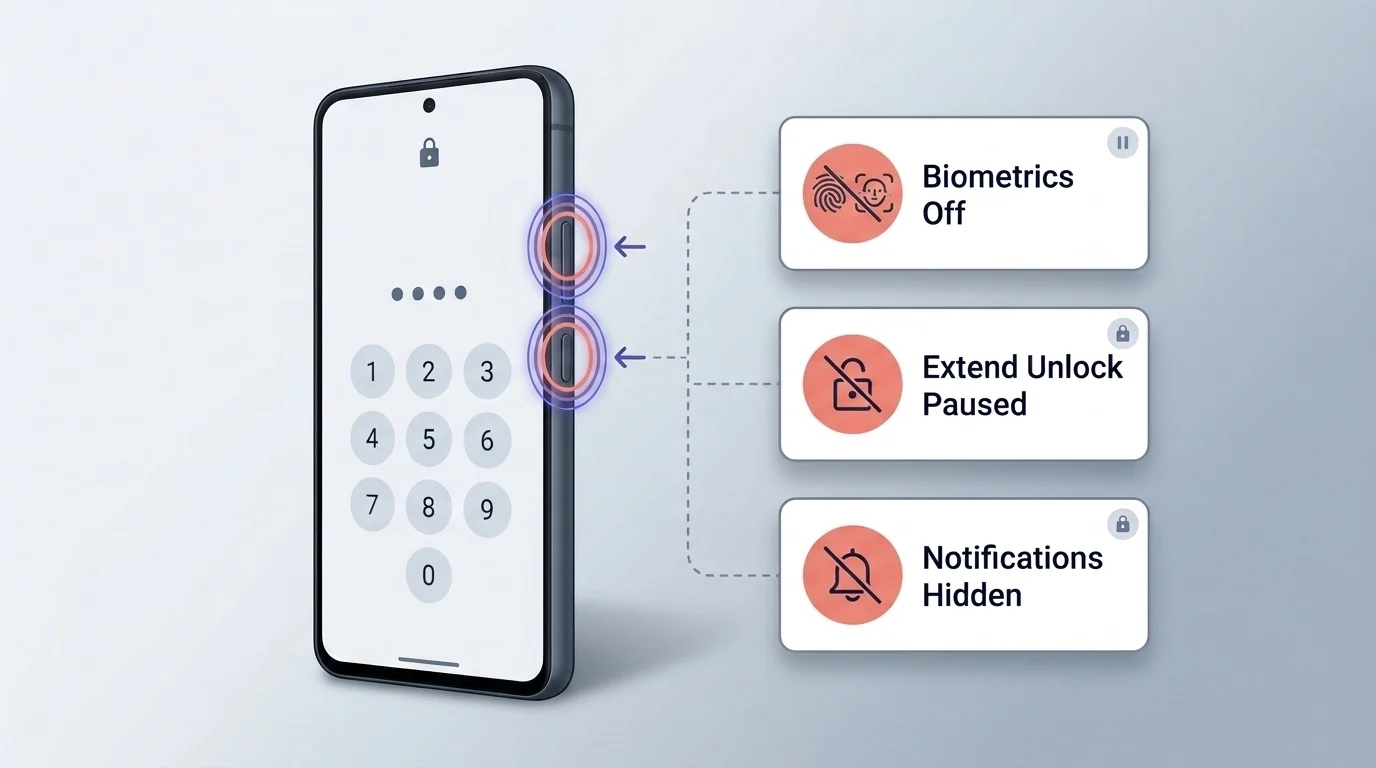
Android Lockdown Mode is a temporary lock-screen override introduced in Android 9 Pie that turns off fingerprint and face recognition unlocking, pauses Extend Unlock (formerly Smart Lock), and hides lock-screen notifications. Press Power and Volume Up together and tap Lockdown to activate it, then unlock with your PIN, pattern, or password to exit.
What Is Lockdown Mode on an Android Phone?
Lockdown Mode on an Android phone is an on-demand power-menu control added when Google released Android 9 Pie on August 6, 2018, that disables fingerprint and face unlocking, suspends Extend Unlock keep-unlocked rules, and hides lock-screen notifications until you enter your primary PIN, pattern, or password. Google added this optional lockdown control alongside Android Pie’s revamped fingerprint authentication API, which expanded biometric support to face scanning and in-screen fingerprint readers.
In everyday use, convenient unlock methods trade strict physical access control for speed. According to Google Pixel Phone Help, Face Unlock is available on Pixel 4 and Pixel 7 or later, including Pixel Fold, while Google Android Help warns that Smart Lock facial recognition is less secure than a PIN, pattern, or password because someone who looks similar to you could unlock the phone. Turning on Lockdown forces the lock screen back to your primary credential immediately.
Lockdown Mode also cancels active Extend Unlock (formerly Smart Lock) sessions without forcing you to edit your permanent security settings. After you unlock once with your PIN, pattern, or password, Extend Unlock keeps an Android phone unlocked in trusted situations and shows an Unlock icon on the lock screen for up to 4 hours at a time. Google Pixel Phone Help documents several automatic keep-unlocked windows where an unattended phone can remain open unless you lock it manually with Lockdown:
- On-body detection delays: After you set your phone down on a table, on-body detection can take up to one minute to lock automatically; after you get into a car, bus, train, or other vehicle, it can take 5-10 minutes to lock, and on an airplane or boat the phone might not lock automatically at all.
- Trusted places radius: Trusted places estimate your location and can keep the phone unlocked within a radius of up to about 100 meters beyond your home or custom place, where location signals can also be copied or manipulated.
- Trusted Bluetooth range: Bluetooth connectivity for trusted devices can reach up to 100 meters, meaning someone who takes your phone near an unlocking Bluetooth accessory or imitates the Bluetooth connection could access the device.
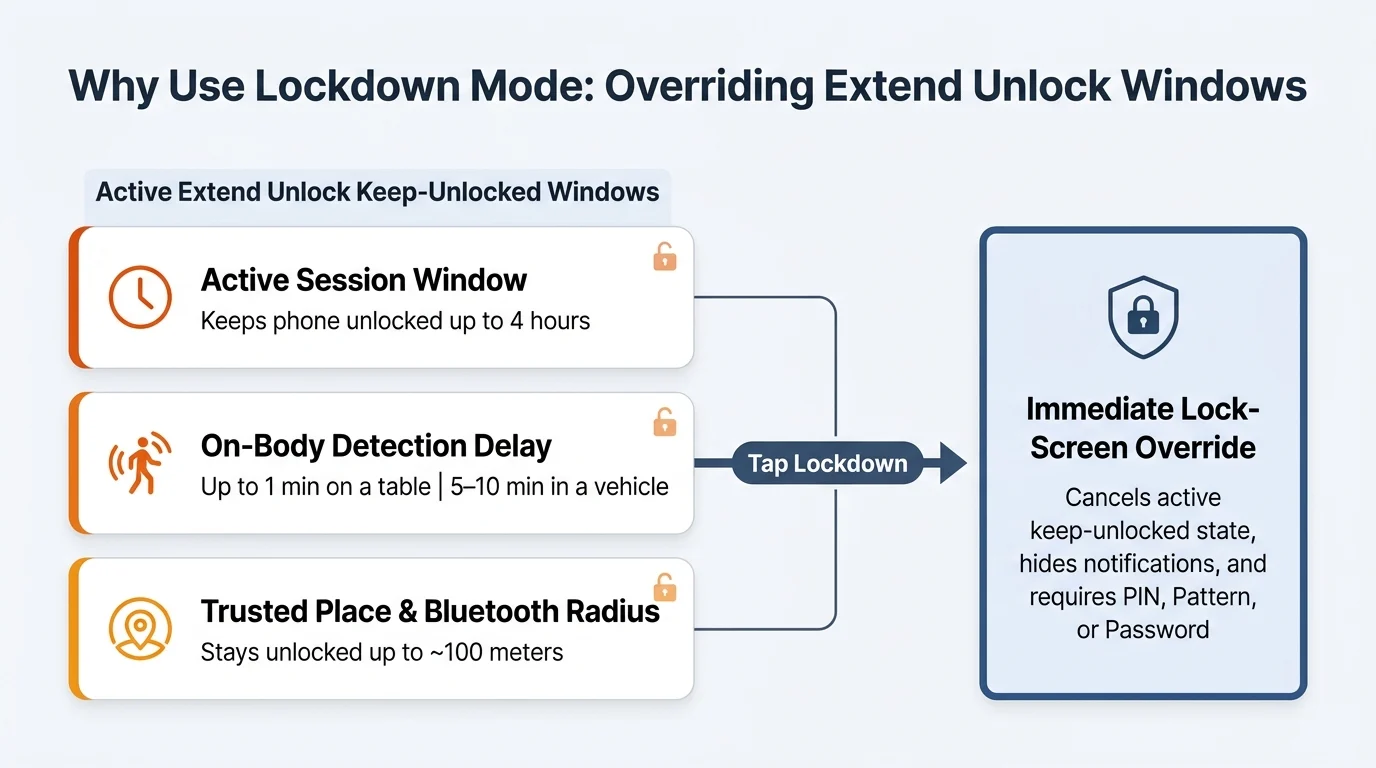
| Lock-screen layer | Normal behavior before Lockdown | Behavior while Lockdown Mode is active | Normal window or threshold |
|---|---|---|---|
| Fingerprint and Face Unlock | Unlocks supported phones from the wake screen (including Pixel 4 and Pixel 7 or later, plus Pixel Fold for Face Unlock) | Turned off until the user enters a primary PIN, pattern, or password | Restored after next primary credential unlock |
| Extend Unlock active session (formerly Smart Lock) | Displays an Unlock icon and keeps the phone unlocked after unlocking once with a PIN, pattern, or password | Immediately turned off so the phone locks on the spot | Up to 4 hours per active Extend Unlock session |
| On-body detection | Keeps the phone unlocked while carried on your body; might not auto-lock on an airplane or boat | Suspended immediately until the next primary unlock | Up to one minute on a table; 5-10 minutes in a vehicle |
| Trusted places and trusted Bluetooth | Keeps the phone unlocked near a saved place or paired Bluetooth device | Suspended immediately on the lock screen | Up to about 100 meters radius or Bluetooth range |
| Lock-screen notifications | Shows alerts and message previews according to lock-screen display settings | Turned off completely while on the lock screen | Hidden until unlocked with PIN, pattern, or password |
If you also want separate app hiding or automatic motion-based snatch locking rather than a manual power-menu button, see our Private Space and Theft Protection guide.
Where Are Lockdown Mode Settings on Android?
Android Lockdown Mode requires configuring a standard screen lock—a PIN of 4 or more numbers, a drawn pattern, or a password of 4 or more letters or numbers—under Settings > Security & privacy > Device unlock > Screen lock, then enabling Show lockdown option in lock-screen preferences if the button is hidden. Without a primary credential set, Lockdown has no fallback lock to enforce.
If the Lockdown button is missing from your power menu, check your primary screen lock setting before looking elsewhere. According to Google Pixel Phone Help, selecting None or Swipe leaves the phone with no lock protection and opens the Home screen directly. Setting a standard screen lock asks you to unlock each time the device turns on or wakes up, and changing an existing lock under Settings > Security & privacy > Device unlock > Screen lock requires entering your current PIN, pattern, or password beforehand.
Google Pixel Phone Help recommends a 6 digit PIN for added security when choosing a numeric PIN of 4 or more numbers, and notes that a strong password of 4 or more letters or numbers is the most secure screen lock option. Using a PIN, pattern, or password also ensures that automatic and manual phone backups are encrypted with your screen lock. If Auto-confirm unlock is turned on for your PIN, unlocking the phone does not require tapping the enter key.
On Android builds that hide the power-menu shortcut by default, Google Android Help provides the exact menu path to surface lockdown mode on Android in power settings: open Settings, tap Display > Advanced > Lock screen display—or tap Security & location > Lock screen preferences if Display is not listed—and turn on Show lockdown option. Once enabled, the Lockdown button appears in the power menu list when you press the power button.
How Do You Trigger Lockdown Mode on Pixel and Android Phones?
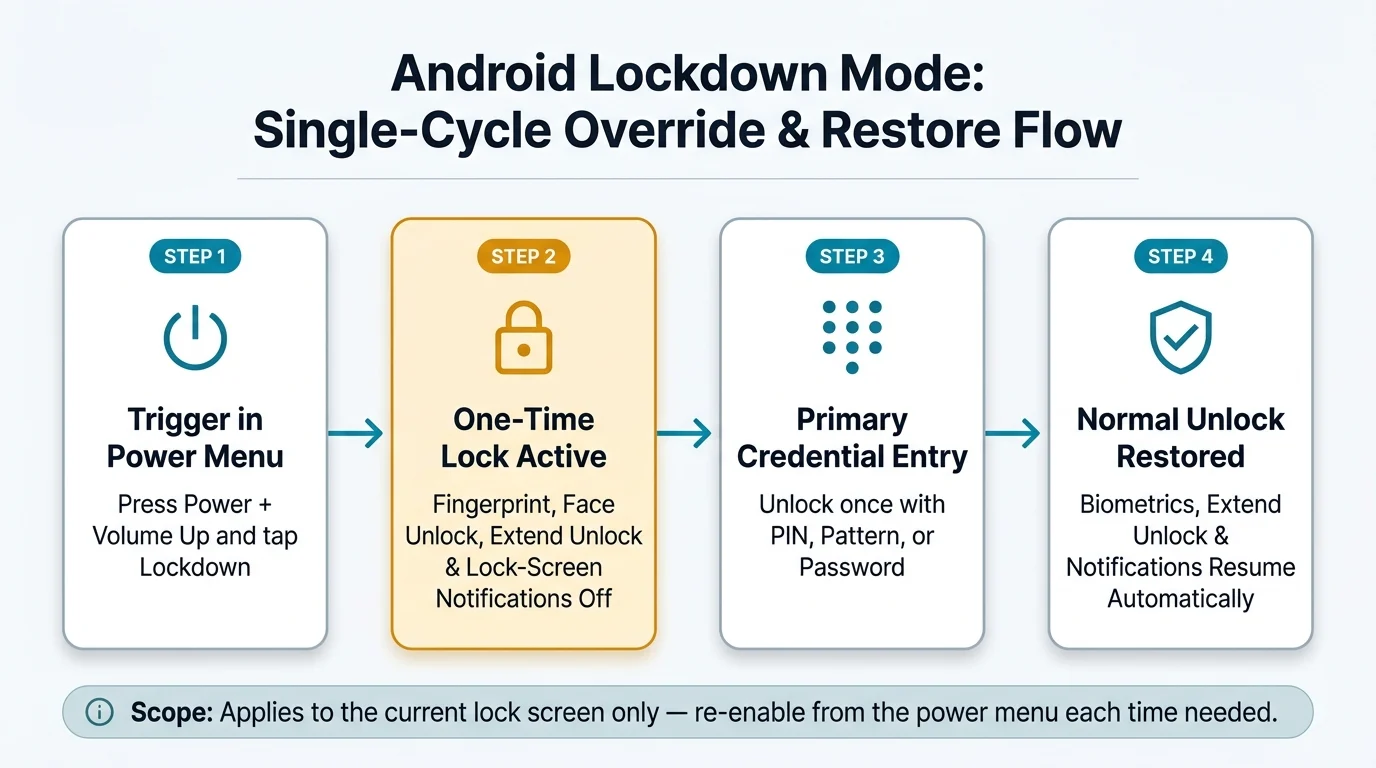
On Google Pixel phones, press the Power and Volume Up buttons at the same time and tap Lockdown on screen to lock the device immediately; on Android phones that open power settings from the Power button, press Power after turning on Show lockdown option and tap Lockdown. Regardless of which hardware shortcut opens the power menu, the Android lock-screen override behaves the same way.
Google Pixel Phone Help highlights this Power + Volume Up > Lockdown shortcut specifically for locking a Pixel phone again while Extend Unlock is keeping it unlocked in a trusted place, near a Bluetooth accessory, or during on-body detection. Tapping Lockdown immediately clears the unlocked state, hides lock-screen notifications, and blocks both fingerprint and face recognition until you enter your PIN, pattern, or password.
When using Power + Volume Up on Pixel 6 and later (including Fold), tap Lockdown cleanly rather than touching and holding Power off or Restart in that same menu. According to Google Pixel Phone Help, touching and holding Power off or Restart and tapping OK reboots the phone into diagnostic Safe Mode instead of activating a lock-screen lockdown.
How Do You Exit Lockdown Mode Without Getting Locked Out?
You exit Android Lockdown Mode by waking the screen and entering your primary PIN, pattern, or password; Android has no separate off switch for an active lockdown session because fingerprint unlocking, Face Unlock, Extend Unlock, and lock-screen notifications resume automatically once you unlock the device. Google Pixel Phone Help and Google Android Help both emphasize that Lockdown works only until you unlock your phone and must be turned on again each time you want to use it.
The main real-world failure mode happens when an owner relies exclusively on fingerprint or Face Unlock every day, forgets the underlying PIN, pattern, or password, and then taps Lockdown in the power menu. Because Lockdown turns off biometric unlocking and Smart Lock or Extend Unlock on the lock screen, fingerprint and face sensors cannot rescue a forgotten primary credential, and Settings > Security & privacy > Device unlock > Screen lock likewise requires your existing PIN, pattern, or password before letting you change locks.
Lock-Screen Override Scope and Credential Recovery Checklist
Run through this pre-use and recovery checklist so you can trigger Lockdown safely without risking self-lockout:
- Confirm a standard screen lock is active: Open Settings > Security & privacy > Device unlock > Screen lock and verify you use a PIN of 4 or more numbers (6 digit PIN recommended), pattern, or password of 4 or more letters or numbers rather than None or Swipe, which also keeps automatic and manual backups encrypted with your screen lock.
- Rehearse your primary credential before relying on biometrics: Test unlocking with your PIN, pattern, or password periodically so tapping Lockdown never traps you behind a forgotten credential with fingerprint and face unlocking disabled.
- Enable the power-menu button if hidden: On Android phones where pressing Power does not list Lockdown, enable Show lockdown option under Settings > Display > Advanced > Lock screen display or Settings > Security & location > Lock screen preferences.
- Lock manually during travel or shared settings: Press Power + Volume Up and tap Lockdown on Pixel (or open the power menu and tap Lockdown) when boarding an airplane or boat where on-body detection might not auto-lock, or when within 100 meters of a trusted place or Bluetooth device.
- Re-enable Lockdown for each separate lock cycle: Remember that unlocking once with your PIN, pattern, or password ends Lockdown automatically and restores biometrics, Extend Unlock (up to 4 hours per active session), and lock-screen notifications.
How Does Android Lockdown Mode Differ From Apple Lockdown Mode?
Android Lockdown Mode pauses biometrics, Extend Unlock, and lock-screen notifications for a single lock screen, whereas Apple Lockdown Mode—introduced with iOS 16 on September 12, 2022—requires your passcode and a device restart to enforce persistent operating-system, app, network, and accessory restrictions against mercenary spyware. Despite sharing the same name, the Android and Apple features solve completely different security problems.
Apple previewed iOS 16 in its first developer beta on June 6, 2022, before releasing it on September 12, 2022, and Apple Support documents Lockdown Mode across iOS 16 or later, iPadOS 16 or later, watchOS 10 or later, and macOS Ventura or later. Turning it on requires opening Settings > Privacy & Security > Lockdown Mode, tapping Turn On Lockdown Mode, selecting Turn On & Restart, and entering the device passcode.
Unlike Android’s momentary lock-screen button, Apple Support specifies that Apple Lockdown Mode strictly limits apps, websites, and connectivity continuously across reboots:
- Messages, web browsing, and FaceTime: Blocks most message attachment types, links, and link previews; restricts complex web technologies; and blocks incoming FaceTime calls unless you called that contact within the past 30 days.
- Wired connections, cellular, Wi-Fi, and profiles: Requires unlocking your iPhone or iPad before connecting an accessory or computer, disconnects non-secure Wi-Fi networks, turns off 2G and 3G cellular support, and blocks new configuration profiles or Mobile Device Management enrollment.
Apple designs those extreme restrictions for the rare individuals personally targeted by sophisticated digital threats—the same high-risk threat model addressed in CISA Mobile Communications Best Practice Guidance, where CISA urges highly targeted individuals in senior government, military, and political positions to apply dedicated mobile communications protections against nation-state cyber espionage actors.
How Does Lockdown Mode Differ From Advanced Protection and Safe Mode?
Android Lockdown Mode overrides biometrics, Extend Unlock, and lock-screen notifications until your next unlock, Android 16 Advanced Protection provides a persistent built-in device security mode, and Android Safe Mode is a reboot diagnostic that disables downloaded apps, removes some Home screen widgets, and turns on Airplane mode. Choosing the right mode depends on whether you need temporary lock-screen privacy, ongoing attack hardening, or app crash troubleshooting.
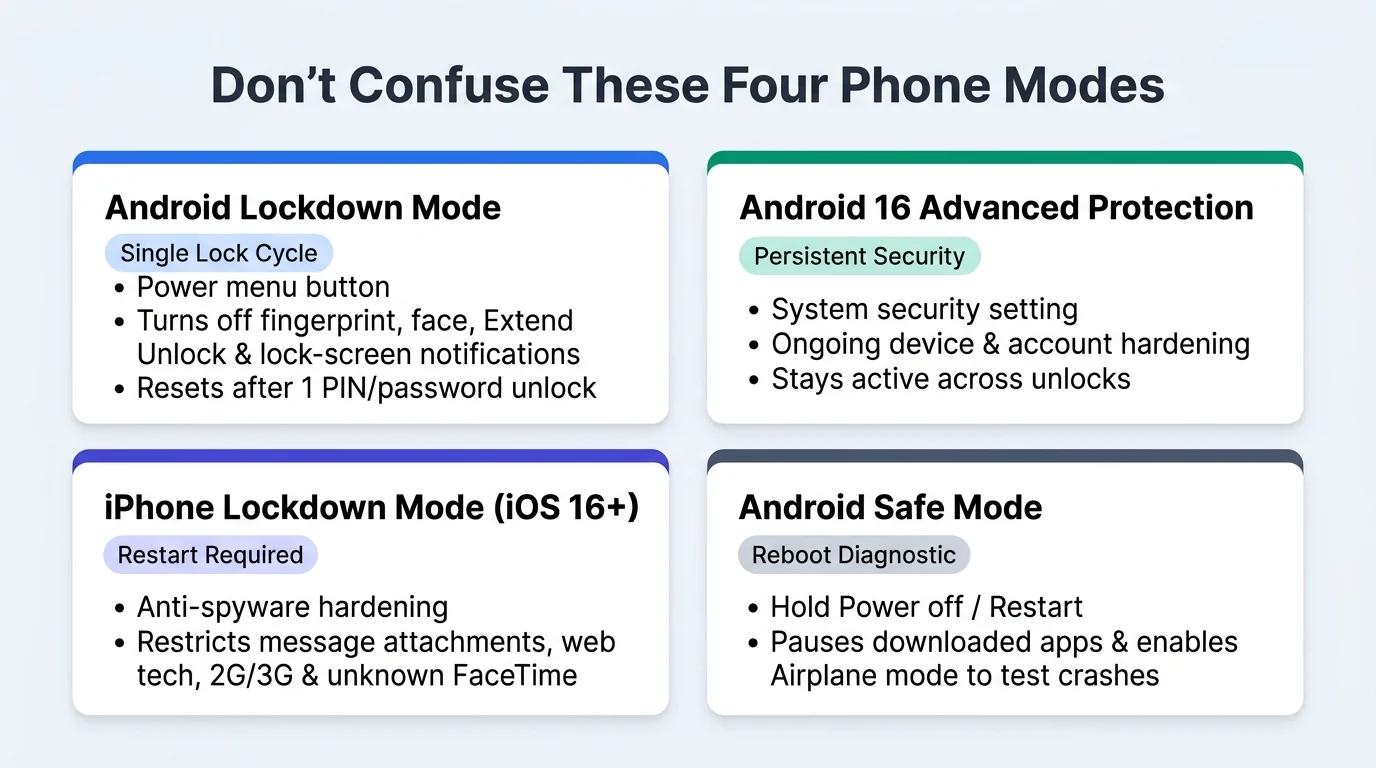
For Android owners looking for persistent security closer in spirit to continuous device hardening rather than a momentary lock-screen button, Android 16 introduced a built-in Advanced Protection security mode, covered in our Android 16 Live Updates and Advanced Protection overview. Conversely, if your phone is restarting itself, freezing, crashing, or running slow, Google Pixel Phone Help recommends rebooting into Safe Mode—detailed in our Android Safe Mode boot and exit troubleshooting guide—and turning Airplane mode back off if you need GPS, Wi-Fi, or phone calls during testing.
| Mode | How to turn it on | Active duration | What it restricts or changes | How to exit |
|---|---|---|---|---|
| Android Lockdown Mode | Press Power + Volume Up and tap Lockdown on Pixel, or press Power after enabling Show lockdown option | Until you unlock the phone once | Turns off fingerprint and face unlocking, Extend Unlock, and lock-screen notifications | Enter your primary PIN, pattern, or password on the lock screen |
| Android 16 Advanced Protection | Enable the built-in Advanced Protection security mode introduced in Android 16 | Persistent across lock and unlock cycles | Applies ongoing built-in Android 16 device security mode protections | Turn off in Android security settings |
| Apple Lockdown Mode (iOS 16 and later) | Settings > Privacy & Security > Lockdown Mode > Turn On Lockdown Mode > Turn On & Restart | Persistent across restarts until turned off | Blocks most message attachments and link previews, restricts complex web tech, blocks FaceTime callers outside 30 days, blocks locked accessories, disables 2G and 3G, disconnects non-secure Wi-Fi, and blocks configuration profiles | Turn off in Privacy & Security settings and restart with passcode |
| Android Safe Mode | On Pixel 6 and later (including Fold), hold Power + Volume Up, touch and hold Power off or Restart, and tap OK | Until the phone is restarted normally | Helps check whether downloaded apps cause restarting, freezing, crashing, or slowness; removes some Home screen widgets and turns on Airplane mode | Hold Power + Volume Up for a few seconds and tap Restart |
Explore our Android Product Guides for additional lock-screen, privacy, and troubleshooting walkthroughs.