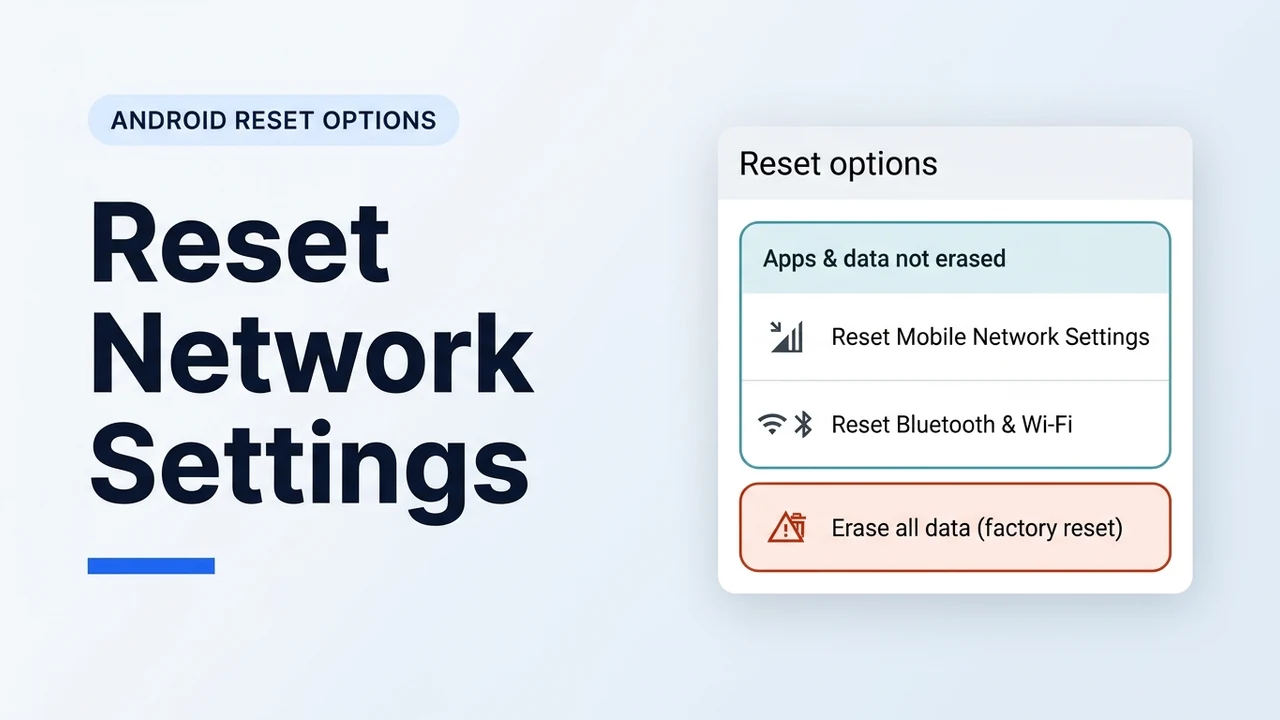
In AOSP, Reset Bluetooth & Wi-Fi resets all Wi-Fi and Bluetooth settings, and Samsung says resetting Wi-Fi, Bluetooth, and mobile network settings will not erase your apps or data. AOSP, Google Pixel, Samsung Galaxy, and Motorola on Android 14, Android 15, and Android 16 list separate controls for Reset Mobile Network Settings and Reset Bluetooth & Wi-Fi, and Samsung’s Wi-Fi and Bluetooth control is labeled Reset Wi-Fi and Bluetooth settings, after which you reconnect the Wi-Fi network and Bluetooth accessories. Across network resets, Motorola’s deleted-items list covers all saved Wi-Fi devices and passwords, cellular or mobile settings such as the preferred cellular network, paired Bluetooth devices, and VPN configurations. Erase all data (factory reset) deletes all personal information and downloaded apps, its storage list names music, photos, and other user data, and Samsung’s factory reset deletes all personal data stored on the device, including photos, videos, and documents, which our Android factory reset and backup checklist covers.
Does Resetting Network Settings Delete Anything on Android?
Yes: AOSP says you can’t undo resetting all Wi-Fi and Bluetooth settings, the confirmation without the eSIM choice asks Reset all network settings? and says you can’t undo this action, and Samsung says resetting Wi-Fi, Bluetooth, and mobile network settings will not erase your apps or data. In Android Open Source Project (AOSP) Settings, Reset Bluetooth & Wi-Fi resets all Wi-Fi and Bluetooth settings, and Google Pixel Help adds that this option deletes your saved Wi-Fi connections. Motorola specifies that a network reset removes all saved Wi-Fi devices and passwords, cellular or mobile settings such as the preferred cellular network, all paired Bluetooth devices, and all VPN configurations, and says you cannot choose individual connections to reset; they will all reset.
Although AOSP’s Settings search index attaches the search keywords reset, restore, factory to the network reset screen, that string is a keyword list, not the description of what the network reset deletes, while Erase all data (factory reset) says all personal information and downloaded apps will be deleted and names music, photos, and other user data, and Samsung’s factory reset deletes all personal data stored on the device, including photos, videos, and documents. Samsung Galaxy phones also offer a third Reset all settings control that resets the phone or tablet to its default settings without erasing apps or data, does not erase security or language settings, accounts, personal data, or settings for downloaded apps, and restarts the device. If only one app is misbehaving and you want to clear temporary files or app sign-in data rather than phone-wide wireless settings, see our clear app cache vs clear storage guide.
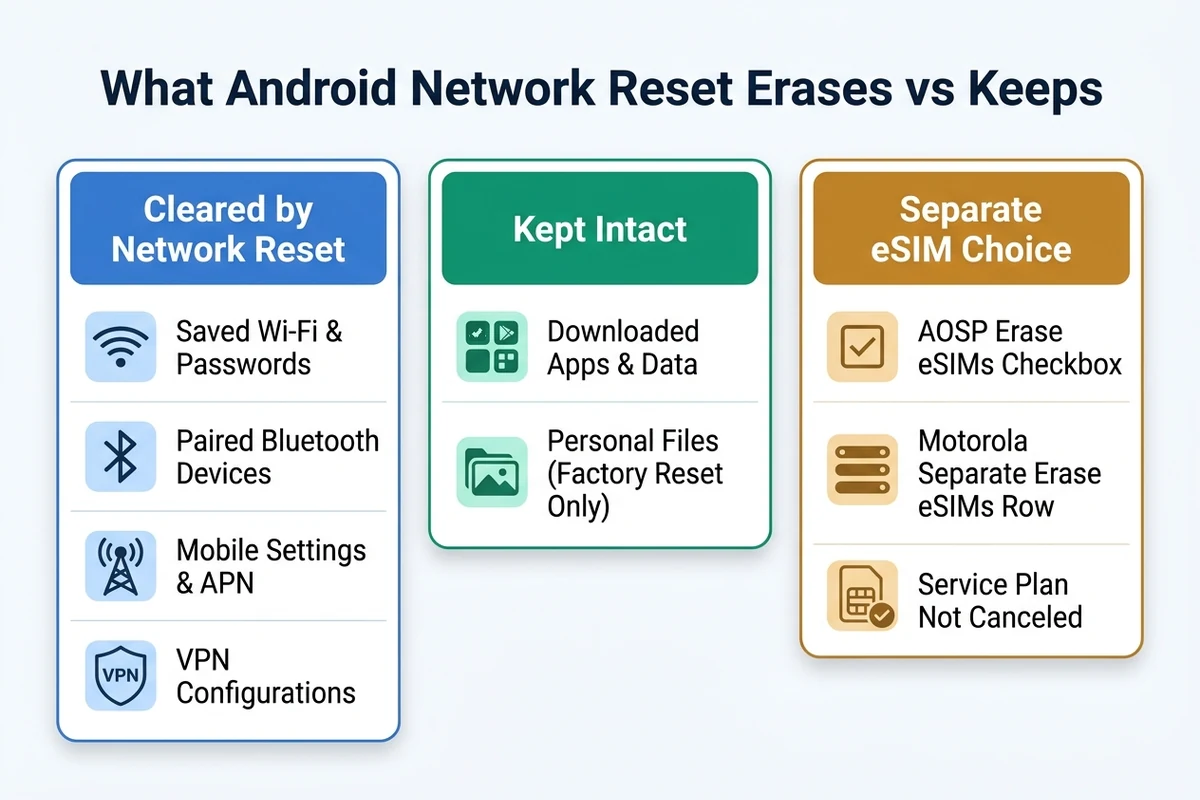
| Reset control | What it resets or deletes | What stays on the phone |
|---|---|---|
| Reset Bluetooth & Wi-Fi / Reset Wi-Fi and Bluetooth settings | AOSP resets all Wi-Fi and Bluetooth settings; Pixel deletes saved Wi-Fi connections; Samsung says to reconnect the Wi-Fi network and Bluetooth accessories | Samsung says this will not erase your apps or data |
| Reset Mobile Network Settings | AOSP resets all mobile network settings and, when a subscription is selected, resets that subscription’s APN; Samsung removes saved mobile network configuration and reconnects using default settings | Samsung says this will not erase your apps or data; AOSP’s Erase eSIMs checkbox and Motorola Android 16’s Erase eSIMs row stay separate |
| Samsung Reset all settings | Resets the phone or tablet to its default settings, then the device restarts | Does not erase apps or data, security or language settings, accounts, personal data, or settings for downloaded apps |
| Erase all data (factory reset) / Factory data reset | AOSP deletes all personal information and downloaded apps, and the storage list names music, photos, and other user data; Samsung deletes all personal data stored on the device, including photos, videos, and documents; Android Help uninstalls all apps and their data | Data stored in the Google Account can be restored, and AOSP says this will not cancel your mobile service plan |
What Does Resetting Mobile Network Settings Do?
Reset Mobile Network Settings resets all mobile network settings, and Samsung says that reset removes saved mobile network configuration information and reconnects the device to the carrier network using default settings. In AOSP’s ResetNetwork.java request builder, every mobile network reset request includes the connectivity manager, VPN manager, IMS stack, and phone process. Once SIM hardware is visible and an active subscription is selected, that AOSP request also resets telephony and the network policy manager, resets the access point name (APN), and sets the IMS subscription ID for that subscription, whereas invisible SIM hardware leaves the active subscription list empty and skips the telephony and APN calls.
Google Pixel Help (where some mobile-network settings steps require Android 11 and up) lists Preferred network type options such as 5G and LTE alongside Access point names that help your carrier find the right IP address and connect the phone securely, and Android’s APN menu also provides a standalone Reset to default action if you only want default APNs restored. On multi-SIM phones, AOSP shows a subscription picker only when more than one active subscription is listed, selecting first the default data subscription, then default voice, then default SMS, and finally the default subscription ID. Samsung says incorrect mobile network settings may prevent the SIM card from connecting properly to the carrier network, and that article then uses Reset mobile network settings; Motorola says to try resetting all network settings when cellular or mobile data shows no signal, you can’t make or receive calls, or calls frequently drop; if you are attempting to activate your phone with an eSIM during initial setup, Samsung says to contact your carrier, and an Emergency calls only message is displayed if there isn’t an active eSIM or active SIM inserted, or if the SIM card is damaged.
How Does Android Handle eSIMs During a Network Reset?
AOSP places eSIM erasure behind an Erase eSIMs checkbox on the network-reset screen, and Motorola’s Android 16 guide places Erase eSIMs on its own menu row, separate from Reset Mobile Network Settings and Reset Bluetooth & Wi-Fi. In AOSP’s ResetNetwork.java, setResetEsim runs only when the Erase eSIMs container is visible and its checkbox is checked, switching the final confirmation prompt from Reset all network settings? to Reset all network settings and erase eSIMs?. That AOSP checkbox stays hidden and forced unchecked unless SIM hardware is visible, EuiccManager is present and enabled, and either EUICC_PROVISIONED is not 0 or developer settings are enabled; if erasure fails, Android displays Can’t erase eSIMs and instructs you to restart the device and try again.
Motorola’s Android 16 support guide places Erase eSIMs on its own separate menu row under Settings > System > Reset options > Erase eSIMs. AOSP’s Erase eSIMs description says this won’t cancel your mobile service plan and that a replacement SIM means contacting your carrier, while Motorola says Erase eSIMs removes the eSIM from the phone, does not affect the mobile data account, and that closing an account means contacting the carrier. Pixel’s US-only note says a Pixel 10 or later can only have an eSIM, and AOSP’s factory-reset description lists eSIMs and says this will not cancel your mobile service plan.
How Do You Run a Network Reset on Pixel, Samsung, and Motorola?
Open Settings > System > Reset options on Google Pixel and on Motorola phones running Android 16, or Settings > General management > Reset on Samsung Galaxy devices, to reach the network reset controls. Google Pixel Help places both Reset mobile network settings and Reset Bluetooth & Wi-Fi under Settings > System > Reset options, though its Wi-Fi troubleshooting page lists Reset Bluetooth & Wi-Fi > Reset settings under the heading How to reset all network settings while a tip on its mobile-network settings page points “reset all your network settings” to Reset Mobile Network Settings. Samsung notes that menu names, settings, and screen layouts vary by model and software version, using Reset mobile network settings > Reset settings > Reset for SIM configuration and Reset Wi-Fi and Bluetooth settings > Reset settings when you are ready to reconnect Wi-Fi networks and Bluetooth accessories.
Motorola uses the two-control split on Android 14 and 15 (under Settings > System > Advanced > Reset options) and on Android 16 (under Settings > System > Reset options), where Reset Mobile Network Settings resets the network connection and Reset Bluetooth & Wi-Fi resets the other connections. Older Motorola software combines them into one button: Android 12 and 13 use Settings > System > Reset options > Reset Wi-Fi, mobile & Bluetooth > Reset settings with a SIM choice for dual-SIM mobile data, Android 9, 10, and 11 place Reset Wi-Fi, mobile & Bluetooth (Network settings reset) under Settings > System > Advanced > Reset options, and Android 7 uses Settings > More > Network settings reset > RESET SETTINGS. During confirmation, AOSP checks any configured screen lock before the final prompt, abandons the confirmation sequence if the phone locks or goes to sleep, tells a user who is not allowed to reset network settings that network reset is not available for this user, and the completion toast says network settings have been reset.
| Phone family and software | Menu path | Control label to tap |
|---|---|---|
| Google Pixel | Settings > System > Reset options |
Reset Bluetooth & Wi-Fi > Reset settings or Reset mobile network settings |
| Samsung Galaxy (One UI) | Settings > General management > Reset |
Reset Wi-Fi and Bluetooth settings > Reset settings or Reset mobile network settings > Reset settings > Reset |
| Motorola (Android 14, 15, and 16) | Settings > System > Reset options (via Advanced on Android 14 and 15) |
Reset Bluetooth & Wi-Fi or Reset Mobile Network Settings (separate Erase eSIMs row on Android 16) |
| Motorola (Android 9, 10, and 11, and Android 12 and 13) | Settings > System > Reset options (via Advanced on Android 9, 10, and 11) |
Reset Wi-Fi, mobile & Bluetooth (Network settings reset on Android 9, 10, and 11; select the SIM for mobile data settings on dual-SIM phones) |
| Motorola (Android 7) | Settings > More |
Network settings reset > RESET SETTINGS |
When Should You Reset Wi-Fi Instead of All Network Settings?
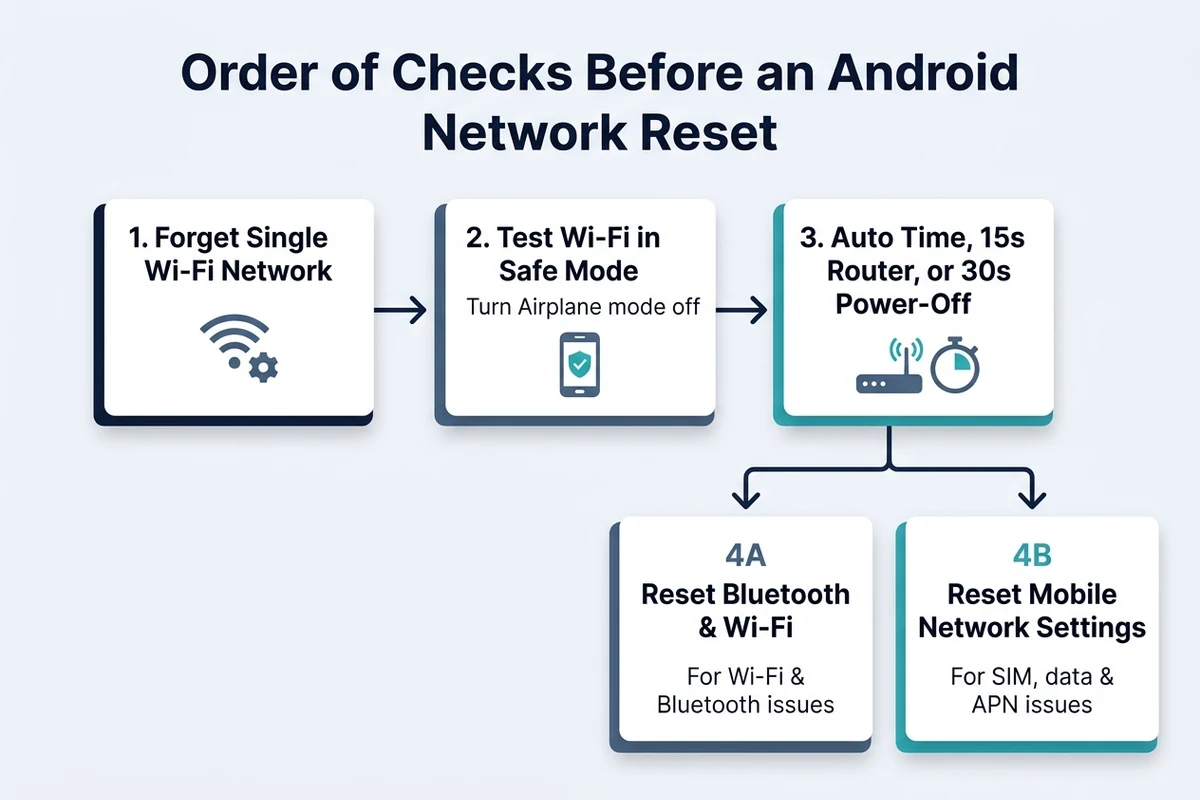
Forget a single saved Wi-Fi network first when one saved network fails to connect, use Reset Wi-Fi and Bluetooth settings when Wi-Fi still does not connect after reconnecting the network, and use Reset mobile network settings when incorrect mobile network settings may prevent the SIM card from connecting properly to the carrier network. On a Pixel phone (where some Wi-Fi troubleshooting steps work only on Android 8.1 and up, testing a webpage after each fix), open Settings > Network & internet > Internet > Saved networks, tap the problem network, and tap Forget, or tap Forget network first on a Samsung Galaxy phone.
Before clearing every saved password, restart in Safe Mode using our Android Safe Mode boot and exit guide and turn Airplane mode off on Pixel so Wi-Fi, GPS, and phone calls remain active during the test. If the Wi-Fi connection works in Safe Mode, Pixel says a downloaded app is most likely causing the issue, and if Wi-Fi works normally in Safe mode, Samsung says recently installed third-party apps may be causing the issue; if the Wi-Fi connection doesn’t work in Safe Mode, Pixel says there’s likely a problem with the Wi-Fi network or internet connection. Google’s Pixel guides also check smaller settings before a reset: enable Set time automatically under Settings > System > Date & time, unplug your own router and modem power cords for 15 seconds, or for mobile connectivity problems power the phone completely off rather than selecting restart and wait 30 seconds before turning it on. If wireless drops happen only with in-car projection over 5 GHz Wi-Fi and Bluetooth, follow our wireless Android Auto adapter disconnect checks instead of a phone-wide network reset, and Pixel says to try other solutions before a factory reset when the goal is to fix an issue.
What Should Be on Your Pre-Reset Network Checklist?
Work through this pre-reset checklist before confirming a network reset so you keep needed credentials ready, test non-destructive fixes first, and choose the matching control without touching personal files:
- Record saved Wi-Fi network passwords and VPN configurations before resetting, because Motorola says the reset removes all Wi-Fi devices and passwords and all VPN configurations, and Pixel says Reset Bluetooth & Wi-Fi deletes saved Wi-Fi connections.
- Check your list of paired Bluetooth devices before resetting so you know which Bluetooth accessories will need to be reconnected afterward.
- Tap Forget on a single failing Wi-Fi network first, then test Wi-Fi in Safe Mode with Airplane mode turned off to check whether a downloaded app is responsible.
- Verify Set time automatically on Pixel, power-cycle your own router and modem for 15 seconds for home Wi-Fi drops, or power the phone completely off for 30 seconds before a Pixel mobile reset.
- Tap Reset Bluetooth & Wi-Fi (or Reset Wi-Fi and Bluetooth settings on Galaxy) when Wi-Fi still does not connect after reconnecting, tap Reset Mobile Network Settings when incorrect mobile network settings may prevent the SIM from connecting (AOSP shows the subscription picker when more than one active subscription is listed), and on AOSP leave the Erase eSIMs checkbox unchecked unless you want to erase eSIMs, while Motorola Android 16 keeps Erase eSIMs on its own row.
- Leave Erase all data (factory reset) and Factory data reset untouched unless you intend to wipe all personal data and downloaded apps from internal storage.
Browse our Android Product Guides for more step-by-step phone settings and troubleshooting walk-throughs.