A Pixel on the June build list can still be on Android 16 for the rest of that rollout week, and the wrong install, a factory image, erases the phone.
Use Settings, then System, then Software update, and compare the installed build with the June 2026 string the Pixel Support Team printed for that model and channel.
The Android 17 stable release for Pixel is the 16 June 2026 platform post from Matthew McCullough and the June 2026 software-version list from the Google Pixel Support Team. McCullough, VP of Product Management, Android Developer, says Android 17 was released that day and made available on most supported Pixel devices, with new devices running it in the coming months. Seang Chau, VP and GM of Android Platform, says it rolled out first to Pixel that day, then to other eligible Android devices throughout 2026. The Support Team post says all supported Pixel devices running Android 16 receive the Android 17 update, starting for some users that day and continuing over the next week in phases, by carrier and device. Global builds on that post are CP2A.260605.012. The Android history timeline is the archive this release sits in.
| Input or item | Value and source | Why it matters |
|---|---|---|
| Platform post | 16 June 2026, Matthew McCullough | Release day, and “most supported Pixel devices” |
| Consumer post | 16 June 2026, Seang Chau | Pixel first, other eligible devices throughout 2026 |
| June build, global | CP2A.260605.012, Pixel Support Team | The models and the string to match |
| Rollout window in that post | Some users that day, then the next week, by carrier and device | One empty check does not rewrite the list |
| Help-center timing | A few weeks, carrier and device, page fetched 18 October 2026 | A standing sentence, separate from the June week |
| Factory image | Erases all data, page last updated 8 October 2026 UTC | A different path from Settings |
What did the 16 June 2026 posts release?
McCullough’s 16 June 2026 post says Android 17 was released that day, the source was available in the Android Open Source Project, and a Pixel that was not already on the Android beta should get Android 17 shortly. The same paragraph limits one opt-out: if the phone is on Android 17 Beta 4.1 and has not taken an Android 17 QPR1 beta, opting out of the program leads to the release version over the air. The sentence stops there. It does not describe a phone that has already taken a QPR1 beta.
He also names a partner beta, separate from the Pixel stable rollout, on Honor, iQOO, Lenovo, OnePlus, OPPO, Realme, Sharp, vivo, and Xiaomi. Chau’s same-day post is the stable consumer schedule: Pixel first, then other eligible Android devices throughout 2026.
Chau dates two later deliveries from 16 June. Select advanced devices get Gemini Intelligence later that summer. Foldable gaming mode is enabled in Android 17 and available in the coming months, with a 50/50 layout, game view on top and a gamepad below. This page keeps both sentences on 16 June. It does not add an October delivery list.
Chau’s feature set for the release itself is Bubbles (long-press any app icon; large screens dock them in a bubble bar), Screen Reactions (selfie camera and screen recording together), temporary precise location, sharing specific contacts instead of the whole address book, an enhanced Mark as lost control in Find Hub that locks the phone with biometrics, Live Threat Detection and Advanced Protection changes, fewer PIN guesses with longer waits between failures, a setting to hide app names, parental controls on all Android devices, a separate assistant volume control, more control over the expanded dark theme, and app memory limits. The PIN sentence prints no guess count and no wait length. The memory sentence prints no RAM size.
Which builds does the June support post print?
The Google Pixel Update for June 2026, signed by the Google Pixel Support Team, prints the software versions for that month’s Android 17 update. Global phones and the tablet share one build. Three carrier headings add a suffix, and only for the models listed under that heading.
| Channel | Models the post names | Build |
|---|---|---|
| Global | Pixel 6, Pixel 6 Pro, Pixel 6a, Pixel 7, Pixel 7 Pro, Pixel 7a, Pixel Tablet, Pixel Fold, Pixel 8, Pixel 8 Pro, Pixel 8a, Pixel 9, Pixel 9 Pro, Pixel 9 Pro XL, Pixel 9 Pro Fold, Pixel 9a, Pixel 10, Pixel 10 Pro, Pixel 10 Pro XL, Pixel 10 Pro Fold, Pixel 10a | CP2A.260605.012 |
| ATT | Pixel 6, Pixel 6 Pro, Pixel 6a | CP2A.260605.012.A1 |
| AU | Pixel 6, Pixel 6 Pro, Pixel 6a | CP2A.260605.012.B1 |
| Rogers | Pixel 9, Pixel 9 Pro, Pixel 9 Pro XL, Pixel 9 Pro Fold, Pixel 10, Pixel 10 Pro, Pixel 10 Pro XL, Pixel 10 Pro Fold, Pixel 10a | CP2A.260605.012.C1 |
Rule of thumb: If the model is on that table and Settings still shows Android 16, keep the June post’s window (some users on the day of the post, then the next week, by carrier and device) and match the suffix for ATT, AU, or Rogers when the model is under that heading. If the model is absent from the table, that post does not assign it CP2A.260605.012.
The global list ends at Pixel 10a. Pixel 11, Pixel 11 Pro, Pixel 11 Pro XL, and Pixel 11 Pro Fold do not appear in it. Pixel Phone Help, fetched 18 October 2026, places those four in the seven-year phone list, counted from the day the device first became available on the Google Store in the US, along with Pixel 8 and later phones through Pixel 10a. The same page gives Pixel 7a, Pixel 7, Pixel 7 Pro, Pixel 6a, Pixel 6, Pixel 6 Pro, and Pixel Fold five years on the same US Store clock, and it says Pixel 5a with 5G and earlier no longer receive Android version updates or security updates. Those sentences are support durations. They are not the June build table. Pixel 8’s seven-year update promise is the on-site page for the earlier Pixel 8 commitment.
The June post’s own line is “all supported Pixel devices running Android 16.” The operational list under that sentence is the table above. Pixel Tablet is on the global build line. The help page’s seven-year and five-year blocks are headed as phones, and the tablet is not in those phone lists.
How do you check the phone you have?
Pixel Phone Help, fetched 18 October 2026, says updates roll out gradually and depend on carrier and device, and that it may take a few weeks for the update to arrive. The check it prints is: open Settings, tap System, then Software update, and follow the steps on the screen. You get a notification when the update is ready.
That “few weeks” sentence is the help page’s standing timing. The June Support Team post is narrower: some users on the day of the post, then the next week, in phases, depending on carrier and device. Keep the two clocks separate. A check on 18 October 2026 that still shows Android 16 is outside the week the June post described, and this page has no later Pixel build list to put in its place.
McCullough’s beta sentence is the other clock. Beta 4.1 without a QPR1 beta is the case where opting out is followed by the release OTA. A phone already on a QPR1 beta is outside that sentence.
Before a factory-image install, the factory-images page says to back up data you want to keep to the Google Account, because that install erases the device and uninstalls apps and their data. That backup sentence is attached to the factory-image path. The June post does not reprint it as an OTA step. It does record a Pixel 10-family fix, mark 5, for a Backup settings entry that showed up in search and would not open.
Which install path wipes the phone?
Factory images for Nexus and Pixel devices, last updated 8 October 2026 UTC, says a factory image restores original factory firmware and erases all data from the device. Unlocking the bootloader makes the device less secure. The same page says it is typically easier and safer to sideload the full OTA image. That sideload does not require a data wipe, and it does not require the bootloader to be unlocked.
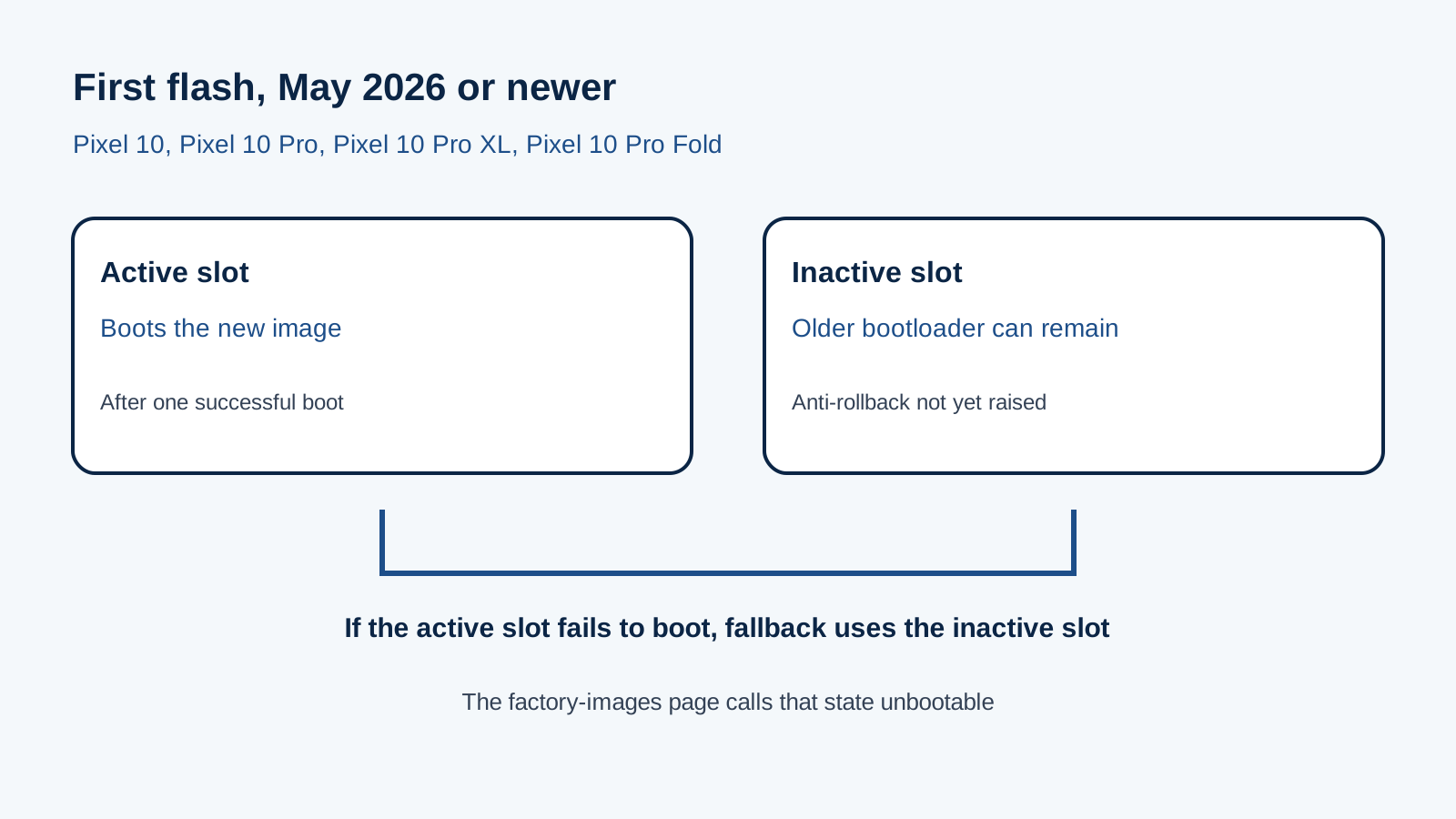
The page’s May 2026 warning covers Pixel 10, Pixel 10 Pro, Pixel 10 Pro XL, and Pixel 10 Pro Fold. The bootloader update increments the anti-rollback version. After flashing that May 2026 update, the phone cannot flash and boot older Android 16 builds. The inactive slot can still hold an older bootloader. If the active slot is then flashed with a build that fails to boot, seamless updates fall back to the inactive slot, and the phone enters an unbootable state. The page’s prevention, for a first flash of the May 2026 update or newer on those phones, is to boot successfully once and then sideload the full OTA for that build and reboot, so both slots have a bootable image. Pixel 10a is on the June build list and is not in this May 2026 warning’s device line.
A separate May 2025 warning on the same page covers Pixel 6, Pixel 6 Pro, Pixel 6a, Pixel 8, Pixel 8 Pro, and Pixel 8a, and it blocks a return to older Android 15 builds after that flash. Android 7.0 seamless updates is the on-site history of the two-slot update design this warning relies on.
| Path | What the saved page says | Dominant failure | Prevention the page gives |
|---|---|---|---|
| Settings OTA | June post: phased over the next week, by carrier and device. Help page: a few weeks | Reading one empty check as “this model is unsupported” | Match the model to the June table, then use System, then Software update |
| Beta 4.1, no QPR1 beta | McCullough: opt out, then the release OTA is offered | Staying in the program and waiting for a Settings row that the beta path is holding | The opt-out applies to Beta 4.1 without a QPR1 beta |
| Factory image | Erases all data. Bootloader unlock reduces security | A wiped phone, plus the May 2026 slot fallback on the Pixel 10 phones named above | The page prefers a full OTA sideload, which it says does not wipe data |
| First flash of May 2026 or newer | Pixel 10, 10 Pro, 10 Pro XL, 10 Pro Fold | Inactive slot keeps the older bootloader, then a bad active slot falls back and the phone will not boot | Boot once, sideload that build’s full OTA, reboot |
What should you retest after CP2A.260605.012?
The June post says fixes apply to all supported Pixel devices unless a footnote says otherwise, and that some fixes may be carrier or region specific. The footnotes worth separating before you close a pilot are these.
| Mark | Devices the post names | Examples on that mark |
|---|---|---|
| 2 | Pixel 6, Pixel 6 Pro, Pixel 6a | Vibrations stop working |
| 3 | Pixel 8, Pixel 8 Pro, Pixel 8a, Pixel Fold, Pixel Tablet | Freeze when connecting an external display |
| 5 | Pixel 10, Pixel 10 Pro, Pixel 10 Pro XL, Pixel 10 Pro Fold, Pixel 10a | Camera freeze when zoom changes during video; Backup settings search hit that will not open; GPS accuracy during voice calls |
| 6 | Pixel 10 Pro Fold | Taskbar could not be dismissed |
| 7 | Pixel 9, Pixel 9 Pro, Pixel 9 Pro XL, Pixel 9 Pro Fold, Pixel 9a, and the Pixel 10 phones in mark 5 | Charging drivers failing at startup; unexpected restart; location services crashing |
Worked example. The slow-wireless-charging fix is mark 1, for a battery level between 75% and 80%, in certain conditions. A level is inside that band when it is at least 75 and at most 80. At 77% the level is inside the band. At 74% it is below the band. At 81% it is above the band. The post prints no charging-rate number for any of those levels.
Mark 1 is the broad set: Pixel 6 through Pixel 10a, including Pixel Fold and Pixel Tablet. Mark 4, an AI-icon launcher crash, covers Pixel 8 and later devices in that span, including Pixel Fold and Pixel Tablet. Retest the mark that names your model.
Which behaviors arrive with the build, and which wait on the app?
Chau’s Bubbles, Screen Reactions, Find Hub lock, and the settings he lists are user-facing pieces of the 16 June release. McCullough’s developer post separates several behaviors that show up when an app targets API 37, which he also calls SDK 37.
Rule of thumb: If the smallest width is greater than 600 dp and the app targets API 37, McCullough says the system ignores screenOrientation, setRequestedOrientation(), resizeableActivity=false, and minimum and maximum aspect ratio, on large screens including desktop mode on a connected display. Games, by Google Play category, stay exempt. A width of 600 dp does not satisfy “greater than 600 dp.” A width of 601 dp does. He puts the installed base of large-screen devices at over 580 million.
Worked example. Standard SMS OTP access for an app targeting SDK 37 is delayed by three hours. WebOTP is delayed for every app that is not the intended recipient, which he describes as a domain mismatch. End time = send time + 3 hours. A message sent at 09:00 is available to that app at 12:00. Default SMS apps, assistant apps, and connected companion apps are exempt. The three hours are the delay he prints. They are not a measurement from a handset in this guide.
Local network access for apps targeting Android 17 needs ACCESS_LOCAL_NETWORK or a system device picker. That permission sits in the existing NEARBY_DEVICES group, so a user who already granted another permission in the group is not prompted again. Background audio restrictions cover playback, audio focus, and volume changes. Changes since beta 2 include target-SDK gating of while-in-use foreground-service enforcement, and an exemption for alarm audio. Certificate transparency is on by default. On Android 16, McCullough says, it was available and apps had to opt in. Android 16 Live Updates and Advanced Protection is the on-site page for that prior release.
If the process is killed for the new memory limit, ApplicationExitInfo.getDescription() returns MemoryLimiter:AnonSwap. The post prints that string and no RAM ceiling. CameraX needs 1.5.2 or 1.6.0 or newer to avoid a crash tied to an added dynamic range mode on Android 17 devices. Native libraries loaded with System.load must be read-only for apps targeting SDK 37, or the system throws UnsatisfiedLinkError.
The session location control in McCullough’s post is one line: a system-rendered location button embedded in the app grants precise location for the current session only. Android 17 precise location controls is the page that separates that button from the March indicator and the coarse grid. An app that has not embedded the button does not grow the button because the phone took CP2A.260605.012.
How this page was checked
McCullough’s 16 June post supplies the release line, the Beta 4.1 opt-out, the partner beta list, the API 37 behavior, the three-hour OTP delay, the 600 dp threshold, the memory-limit string, and the CameraX versions. Chau’s 16 June post supplies Bubbles, Screen Reactions, the 50/50 gaming forecast, Gemini Intelligence later that summer, Mark as lost, and the PIN sentence. The build table, the next-week phase line, and the numbered fix marks come from the Pixel Support Team’s June 2026 post. The Settings path, the few-weeks sentence, and the seven-year, five-year, and ended-support phone lists come from Pixel Phone Help fetched 18 October 2026. The wipe, the full-OTA sideload, and the May 2026 and May 2025 bootloader warnings come from the factory-images page last updated 8 October 2026 UTC.
The Get Android 17 page, the behavior-change notes, the migration guide, and the Pixel Security Bulletin URL saved only a sign-in redirect on 18 October 2026, so they are not quoted. The fix list here is the one printed in the community post. None of the quoted posts print an install percentage. “Most supported Pixel devices” stays McCullough’s phrase.